Virtualization, Cloud, Infrastructure and all that stuff in-between
My ramblings on the stuff that holds it all together
Daily Archives: January 22, 2008
Security in "Virtual Clouds"
Posted by on January 22, 2008
Interesting article here
What if you could breach the hypervisor? best practice would dictate firewalling off the management traffic to the service console to a management network but what if you could exploit the VM Tools or other enlightenments/paravirtualizations to compromise the hypervisor – if you could you own every VM it’s running.
Does this compare to VLAN jumping on a Cisco switch? As far as I understand it show me a practical exploit to do this and the mitigation steps are quite well documented.
This is (and will) always a big issue with Multi-tennant systems but it’s the same issue that we currently face in most service providers, shared SANs, LAN, WAN, even physical buildings/suites etc. – virtualization is just a marketing tag, the same principals have been applied in the physical world for ages and mitigated against – I don’t think this is any different.
A session with the US Marine Corps at VMWorld 2007 mentioned that the US DoD had audited the code of ESX for this issue and found it to be satisfactory – but I’ve not seen this documented anywhere, if it’s safe for the US .mil isn’t it safe enough for you?
Compare risk vs cost saving, patch, mitigate, move on but keep your eyes open.
Apple: Nothing to see here, move along please
Posted by on January 22, 2008
This is a bit underhanded; preventing debugging tools from tracing your applications especially when the underlying OS is derived from Open Source technology where one would expect to have such access.
Although you can obviously patch it yourself as you can have the source and recompile the associated binaries; bit of a waste of time?
Lots of Useful Scripts to Automate VMWare
Posted by on January 22, 2008
http://www.ntpro.nl/blog/categories/10-VMware-PowerShell
Like this one … must have a go at this http://www.ntpro.nl/blog/archives/316-Create-multiple-VMs-using-PowerShell.html and http://www.ntpro.nl/blog/archives/279-My-first-VMware-PowerShell-script.html
Wonder if you can also use these against the Free VMWare Server?
VMWare Stage Manager – No P2V/V2P Integration
Posted by on January 22, 2008
Ah, show-stopper for me for most of my potential customers; as far as I can tell from the demo video the product is geared more towards a VM-only environment. Maybe I misunderstood the announcements but I had thought I would be able to clone physical production servers (P2V and V2P) into stage manager for doing staging/testing “stuff” before releasing back to production.
Looks like it’s geared more towards end-end lifecycle management for VM’s where dev/test VM’s are managed through to production.
Development->Test->Stage->Production and then around the prod->Stage loop for patches, updates etc.
Obviously nothing stopping you from P2V or V2P’ing VM’s at any stage in this lifecycle using other tools (VMConvertor, Platespin) etc. but it won’t be managed as part of the lifecycle by Stage Manager.
Yeah I know “physical is dead“… but we’ve not managed to convince the whole world virtualisation will fix everything – 3rd party vendor support for important production systems is still a grey area under virtualisation; vendors seem to be coming round as it gets market traction but the instant “we don’t support that under VMWare” get out of jail free card for vendor support teams is still a problem.
Ah well, gap for a 3rd party to add value – would be nice if Platespin were able to write a plug-in as P2V and V2P seem to be where their products win, or even MS with their multi hypervisor VM Management stuff.
VMWare Stage Manager Beta is Open..
Posted by on January 22, 2008
Go and get it from here
I spent a lot of time at the start of 2007 building this type of system from scratch (see the build a better test lab posts). hopefully this will go a long way to making it easier to achieve.
Deploying a Virtual Machine from a Template with Virtual Center 2.5
Posted by on January 22, 2008
(Apologies to fellow Brits for the spelling of “center/centre”, it bugs me too! but that’s the product name, spelling and all – plus it helps our worldwide friends who are coming in via Google)
Just incase you are interested here are the steps to do so.
I have a Windows 2003 Enterprise Edition “Gold” VM image that I’ve used for years (see this page for some more good ideas on that) and I’ve ported it all the way from VM Workstation 4.x, through 5.x, VMware Server 1.x, 2.x and now ESX 3.5.
I just clone it periodically and I keep updating and sysrep’ing the master image with the latest updates (SP2, current VM Tools, iSCSI initiator, BGInfo, etc.)
I used the VMWare P2V Convertor (which yes I slated earlier.. but it works in this instance) to convert from Workstation 6.x format for my new ESX server and manage it as a template via Virtual Centre.
1st off, Right click on the template and choose to deploy (hint: if you want to make a template right click on a VM you prepared earlier and clone/convert to template.)
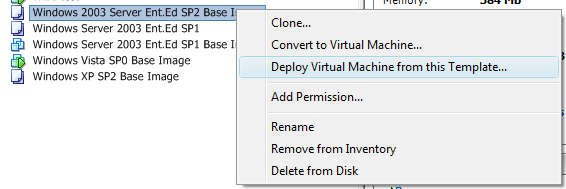
Choose where you want to run the VM – this is a list of your VC data centres

Choose the ESX host where you want to run it – I only have 1 which is my desktop ESX server (https://vinf.net/2008/01/14/vmware-esx-v35-on-cheap-pc-hardware/)

I get this warning message, but this is because I’ve ported my VM across so many different versions of VMWare, and the template VM still has a virtual USB port – must get round to removing it!

Choose the datastore – this is my 500Gb SATA drive inside the PC

and you can pick a template to customise the VM, this essentially lets you choose (or not) to automatically run a SysPrep once the VM has booted – the “customization specification” is essentially a sysprep.inf file that you pre-created using the customization specification wizard (below).
The customization wizard does seem to add some bells and whistles as you can choose the VM machine name based on what you’ve called it in Virtual Center or spawn out to an external application/script which is a nice feature that I don’t believe you can do with standard Sysprep
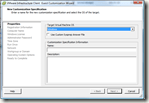


Anyway, back to the VM deployment..
Choose from your set of templates, I have just one at this stage that incudes the product key, regional settings and create the server name based on the VM name, note you can also break out to the customization wizard to make one time adjustments to the specification you’ve chosen.

You are then shown a summary of the VM you are going to create and given options to power it on once the clone is finished, or edit the virtual hardware (add more CPUs, disks, RAM, etc.) – not sure why edit hardware is (experimental) would think it would just spring up the normal UI for doing this within VC.

Interesting to note the warning  umm, this is deploying from a pre-built image – but I guess VC doesn’t know that for sure.
You’ll se a job submitted to Virtual Center’s queue

It took 9mins to deploy – and this was on my cheap ESX desktop PC so not the most high-performance disk subsystem – but more than acceptable, whenever I’ve had to do this in the past on a physical PC it usually takes at least this long to find the correct CD 🙂
Proof here 🙂 
The VM is now booting and doing it’s sysprep/minisetup wizard without any hands-on required – it’s totally automated via the customization specification/template setup.

OS Starting, installing VM Tools in the background

VM Reboots automatically.. (but I wasn’t quick enough to get a screen cap of that..)
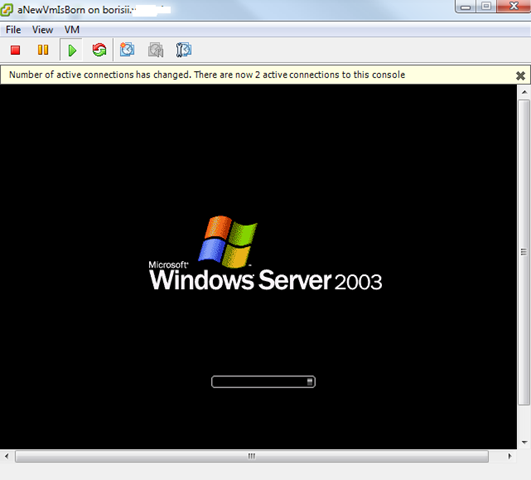
Built & Ready to go! (my customization template makes the administrator account auto logon on 1st boot)
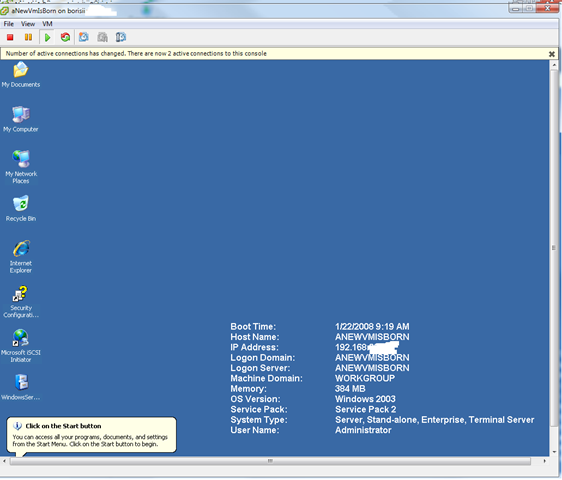
Start to finish, a ready to use OS with all it’s service packs and any software I require in 11mins, and that’s on cheap hardware.. all the timestamp’s are in the screen shots if you need proof 😉

 Virtualization, Cloud, Infrastructure and all that stuff in-between