Virtualization, Cloud, Infrastructure and all that stuff in-between
My ramblings on the stuff that holds it all together
A low-cost UniFi-to-Azure WireGuard VPN for CGNAT and dual-WAN failover
Posted by on September 11, 2026
I wanted a straightforward, low-cost VPN between my UniFi network and Azure, but my home Internet connection is behind carrier-grade NAT (CGNAT). I have published the resulting deployment scripts and configuration guide on GitHub.
Why CGNAT changes the VPN design
CGNAT means the ISP shares one public IPv4 address between multiple customers. My router receives a private address inside the ISP network, and there is another NAT boundary controlled by the ISP. I cannot forward an inbound port through that outer NAT or depend on having a public address that identifies my connection.
That rules out the conventional site-to-site IPsec design I was replacing, because it expects the home VPN endpoint to have a directly reachable and stable public IP address. Even on a connection that supplies public IPv4, an address assigned by DHCP may change and make an IP-based peer definition unreliable. Some IPsec products support NAT traversal or dynamic peers, but both ends must support the necessary design.
WireGuard avoids that dependency here because the UniFi gateway initiates the tunnel outbound to a static public endpoint in Azure. The return traffic follows the NAT state created by that outbound connection, so no inbound port forwarding or public IPv4 address is required at home.
The Azure endpoint
The project deploys a small Ubuntu VM with a static Azure public IP, installs WireGuard, configures routing, and generates a WireGuard client profile ready to import into UniFi Network. The VM provides a routed path between the home LAN and private Azure workloads. It is cheaper than an Azure VPN Gateway and offers compatibility with a home connection behind CGNAT.
The tradeoff is that you own the operating system terminating the VPN. You need to be comfortable patching, hardening, monitoring, and troubleshooting the VM throughout its lifetime. The deployment enables unattended security updates, but that does not remove the operational responsibility.
Persistent keepalive maintains the NAT mapping, while WireGuard endpoint roaming allows the Azure peer to learn the latest public source address and UDP port used by the UniFi gateway.
Restricting Internet exposure
Only the WireGuard UDP port needs to be reachable from the Internet. The deployment restricts it in the Azure Network Security Group to public source networks supplied for the relevant ISPs.
A single /32 is the best option for a static address. With DHCP or CGNAT, that address may change, so use the narrowest stable public range that the ISP confirms it may assign. This is broader than one address but substantially better than exposing the VPN port to the whole Internet.
SSH is opened to the deploying computer only during bootstrap and is removed automatically afterward. Once the tunnel is configured, SSH is available over the VPN only. The appliance is deliberately disposable: if recovery is not possible through the VPN or Azure management tools, it can be deleted and redeployed.
Configuring the UniFi side
The deployment creates a pre-generated configuration file containing the keys, tunnel addresses, Azure endpoint, and Azure routes. The repository documentation shows how to import it as a UniFi WireGuard VPN Client and create a basic policy route.
Importing the profile establishes the tunnel, but it cannot decide how every home network should use it. You still need to understand and adapt your LAN-side routing, including which clients or VLANs may reach Azure, firewall and isolation policies, return paths, and overlapping private address ranges.
Primary and secondary Internet failover
The same design works with UniFi primary and secondary WAN failover. In my case the primary service is symmetric gigabit fibre and the backup is a 200 Mbit cable broadband connection in the UK.
When UniFi detects that the primary WAN has failed, it moves outbound traffic to the backup. WireGuard sends a new handshake through that connection, and the Azure peer learns the new translated endpoint. The VPN profile does not need separate peer definitions for each WAN, but the Azure NSG must allow the possible public egress range of both ISPs.
Testing failover
I tested this by running a continuous ping from the home LAN to a private address in Azure, then disabling or physically unplugging the primary Internet connection. UniFi selected the backup connection, WireGuard re-established the tunnel, and only a few pings were lost during the transition.
The exact interruption depends on UniFi health-check timing and the two Internet services. After failover, the WireGuard handshake and transfer counters on the Azure VM provide a useful confirmation that traffic is using the new endpoint. Restoring the primary connection lets you repeat the same check in the other direction.
Scripts and full configuration
The generic deployment scripts, refreshed architecture and failover diagrams, security guidance, UniFi configuration steps, and troubleshooting notes are available in the public repository:
POSH1Liner – Count the number of resource groups in a subscription
Posted by on April 23, 2025
If you ever need a quick count of the number of resource groups in your current subscription (get-azContext) to check you can use the following command to get a quick check.
(get-AzResourceGroup).count
This is especially useful if you’re using a shared subscription that may be pushing the 980 resource group limit and you want to check before a script runs.
One Button Access to Copilot on iPhone
Posted by on April 22, 2025
So far I’ve found Apple Intelligence a bit underwhelming. Copilot however, has access to all my work context, emails, Teams messages, my calendar etc. so I’d like quick access to use it – there is no way to replace Apple Intelligence wholesale yet
Disclaimer: Yes, I am a Microsoft employee, but this is just something I find useful, other AI’s are available.
You can get quick access to Copilot by configuring the Action Button on recent iPhones to launch the M365 Copilot app. (note there is a difference between the two Copilot apps available on the iPhone.

‘Consumer’ Copilot is free other than needing a Microsoft personal account and only has access to data from the Internet (‘consumer’ may not be the correct marketing name)

M365 Copilot app requires a paid-for license but can search work content (only the content you have access to)
On the iPhone you can go to settings, type ‘Action Button’ and select it

Then swipe left/right to find the ‘Shortcut’ option and tap

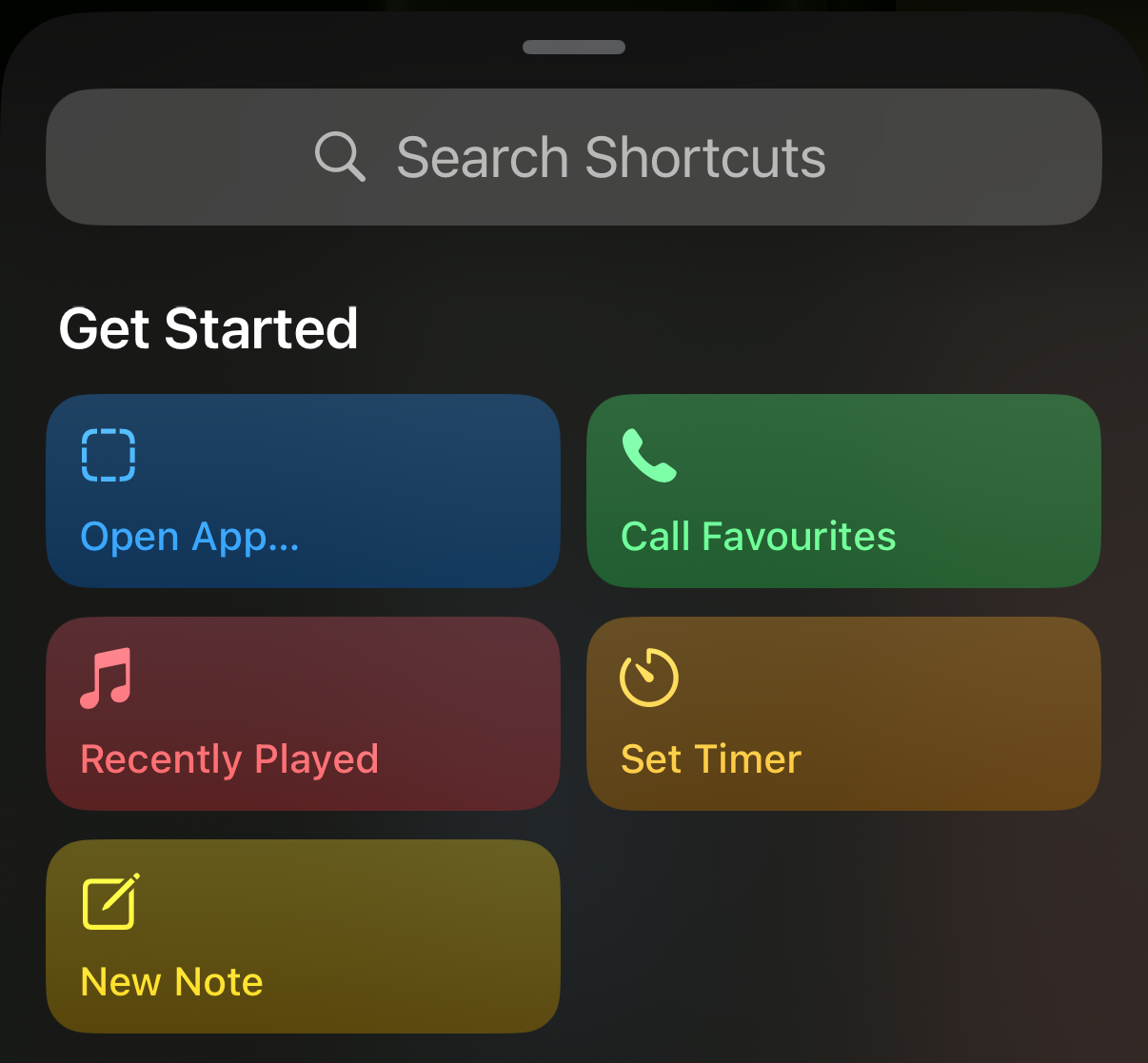
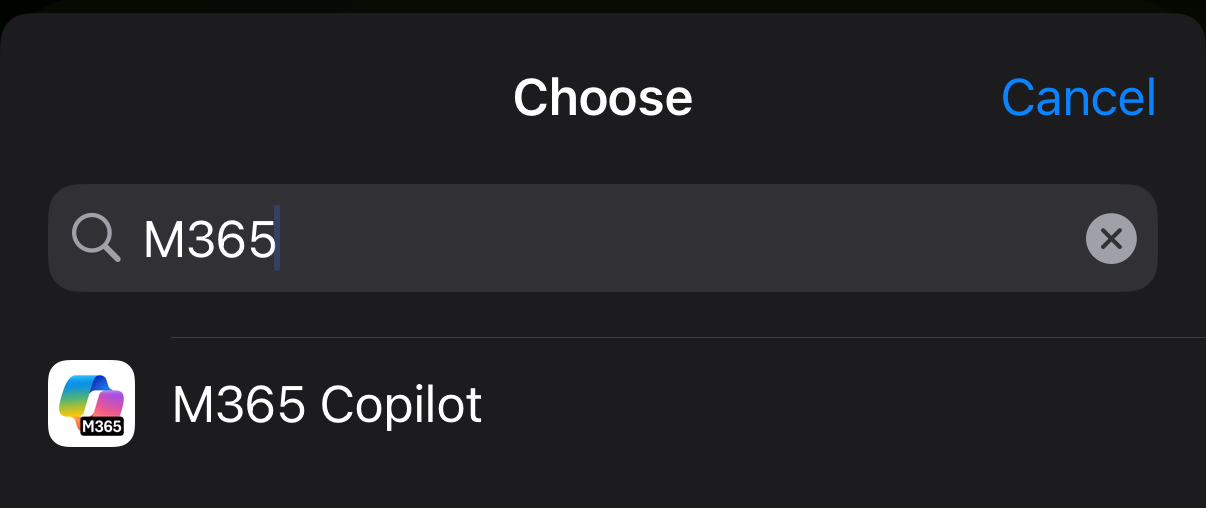
‘Open App’ from the shortcuts screen and choose the M365 Copilot app from the list (search if you have a lot of apps)
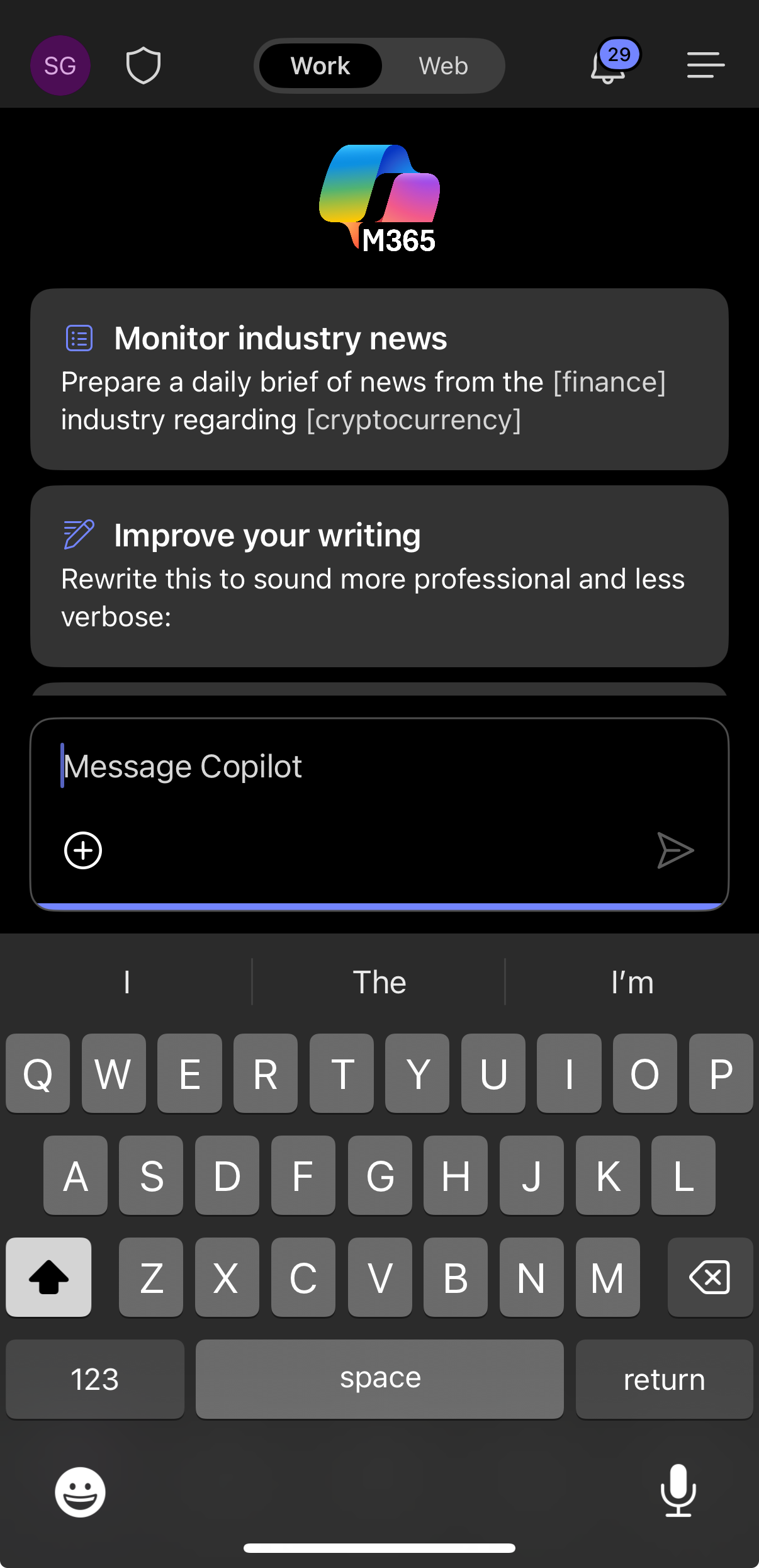
Now, when you press the Action Button you’re put directly into the M365 Copilot app, it doesn’t default to voice search so you have to type your prompt, or press the microphone button to use your voice.
Set Windows keyboard in RDP session to match UK Macbook keyboard
Posted by on April 11, 2025
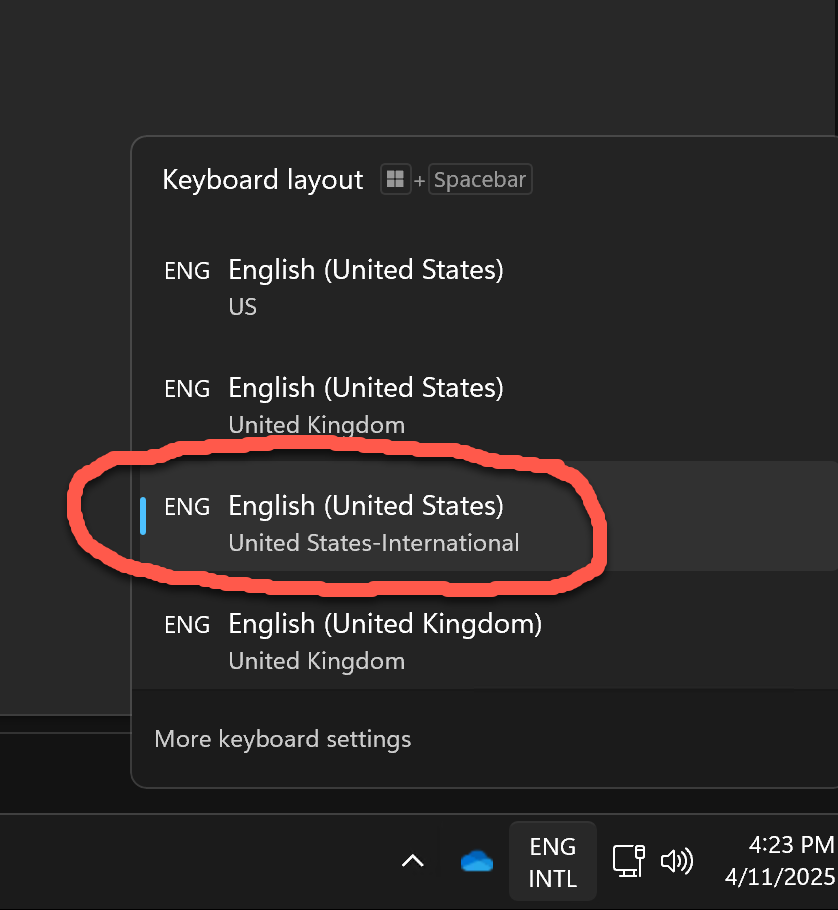
I keep forgetting how to do this, so documented here for next time I forget, add a new keyboard, English (United States-International) and switch to it using the keyboard switcher in the taskbar!
POSH1Liner – Remove all Resource Groups and contents
Posted by on December 17, 2024
Ever had a need to clean up and remove a bunch of resource groups and all the resources they contain? – often a problem after a period of frequent, err experimenting/failing.
CAUTION – use at your own risk, this could easily wipe out all your resources – even the stuff you want
1st – check you’re targeting the correct subscription – use
Set-AzContext -SubscriptionId <YOUR_SUBS_ID>Then – MAKE SURE You have the correct -Name pattern. If you omit the -Name parameter you’ll delete EVERYTHING in the target subscription (although it will prompt for a yes/no on each one to be safe (you can add the -Force parameter to not do this if you’re feeling brave)

In this example all my RGs start with myResources (myResources1, myResources2 etc.) and we use a wildcard ‘*’ to do this pattern matching.
Get-AzResourceGroup -name myResources* | Remove-AzResourceGroup
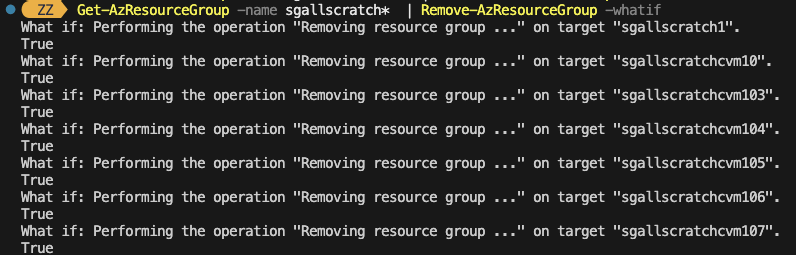
If you want to do a dry run to be absolutely sure which resource groups it will delete you can also add the -WhatIf parameter to the Remove-AzResourceGroup command
Convert Azure Key Vault from Standard to Premium
Posted by on November 30, 2023
Had to do this earlier, I’d accidentally created a standard AKV instance and I wanted to make it premium to benefit from hardware backed key storage (required for a project I’m building), the az cli command to do this is as follows:
az keyvault update –set properties.sku.name=premium –name “YourAKVName” –resource-group “YourResourceGroup”
Use gping to graph HTTP response times
Posted by on September 26, 2023
This is quite neat trick, as part of my standard home office setup I have a window on one of my screens showing a realtime gping to an Internet DNS server and my router, this allows me to quickly see if I have a burst of Internet latency, or maybe a home LAN/router problem – this is really useful when presenting something in Teams or similar as you can see real-time where you may have a problem without having to fire up a terminal and go fishing.
I discovered today that you can also use gping to graph the response time of a command, for example the docs give the example of gping –cmd ‘ls’ ‘ls /’ to show the differences between those two commands.

You can use this method to extend your simple real-time monitor beyond just ICMP (ping) by calling the command line http tool curl. this is possible because curl exits when it returns the HTTP payload from the server you point it at.
For example, using this command
gping --cmd 'curl http://www.google.co.uk' 'curl http://bing.com' 'curl www.yahoo.com' ..you can monitor response times from 3 popular Internet search engines from your PC. (yes, there are global load balancers and other infrastructure which can [re-]route the traffic transparently to you) but it’s a very simple and useful measure of your end-user experience of latency from where you are on the Internet to places you use.

Make Excel show phone numbers correctly
Posted by on September 10, 2023
Should you have a requirement to export logs from say a Teams phone system to Excel for some analysis you’ll see that by default it interprets the ‘+’ International dialling symbol and turns the number into a scientific one – which isn’t very handy.

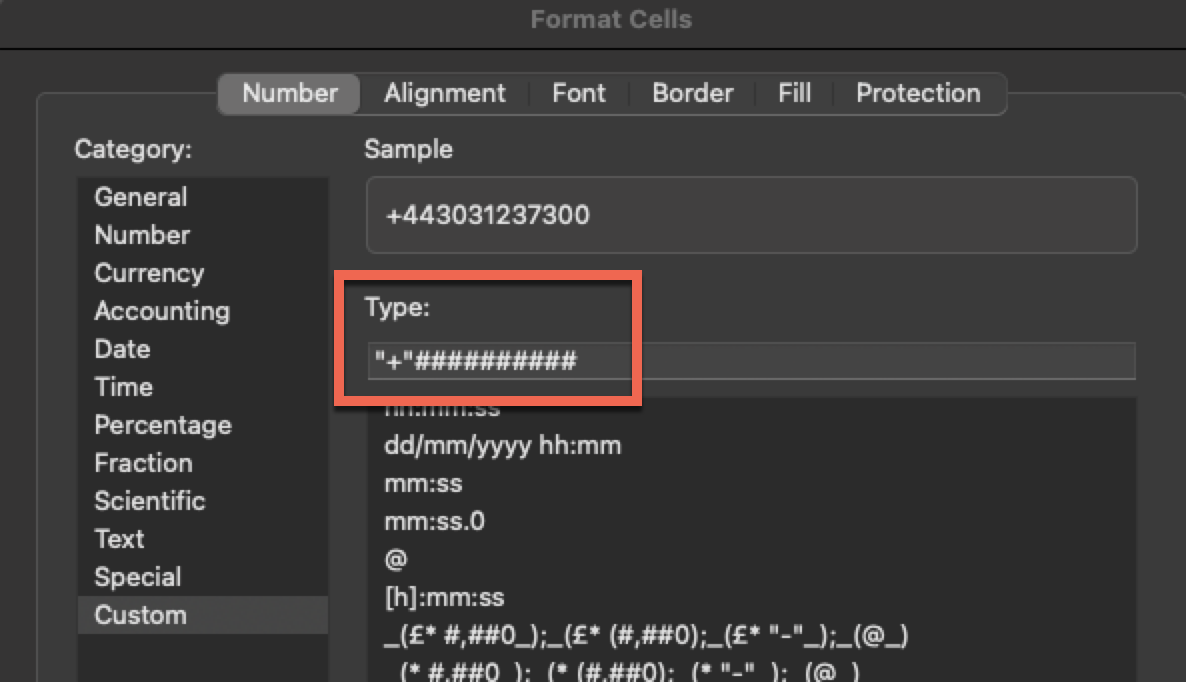
At least on my Mac none of the ‘canned’ formats Excel offers seem to be able to decode the numbers (Not checked in Windows Excel recently), to work around this I set the format to ‘custom’ with the following value to make it show correctly.
"+"##########
This results in
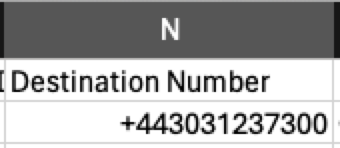
…Which, is the number for Buckingham Palace should you have any business with the king 🙂
Paste multi-line shell commands via SSH session
Posted by on February 21, 2023
On occasion I have a bunch of commands to run inside a Linux VM over an SSH session from my Mac terminal (Zsh)
It’s tricky to get a variety of commands to reliably execute sequentially – some seem to trip over each other depending on how they handle i/o and this is a problem if you have something that is dependent on the previous command being completed.
Yes, I could copy the script to the server, chmod and run as a .sh bash script, use a proper CD toolchain etc. but I’m lazy and used to doing it this way from my Cisco days plus it also avoids leaving debug scripts on servers you’re working with 🙂
I’m sure there is a better way to do this, but I find this works really well.
SSH to your chosen Linux server
When you’re ready to go type an open brace “(”
Paste your command in
then close the brace “)”
and hit Enter.. and off you go all commands are executed sequentially and one by one.

Why has my Amazon Alexa device stopped announcing when people press my Ring doorbell?
Posted by on December 8, 2022
If you have a Ring doorbell and have it ‘paired’ with Alexa so that when someone presses the doorbell it announces ‘there is someone at the front door” (or whatever) and it has stopped doing-so it may be that someone* has set your Echo device to ‘do not disturb’.
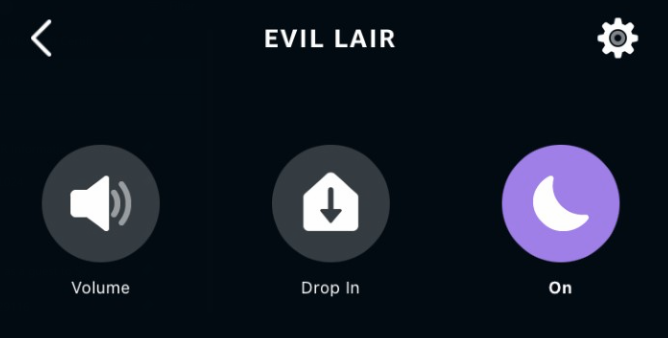
In the Alexa app you can change it by tapping the moon icon to turn it off

*in my case I did it to stop kids using ‘drop-in’ to the Echo device that runs music in my office to demand snacks or complain about the WiFi, but then forgot about it.


