Virtualization, Cloud, Infrastructure and all that stuff in-between
My ramblings on the stuff that holds it all together
Biking for Geeks
Posted by on June 29, 2009
A slight diversion from the usual topics, over the last year I have been getting back into cycling after a long break. Mainly to regain my overall fitness but also as a social thing with our daughter who loves cycling.
Whilst I enjoy cycling, like any geek I need an extra hook to keep me interested and track my progress against my goals, following some advice from colleagues who are really into running I looked into the Suunto range of products.
My list of wants for this personal training “solution” included
- Mileage & altitude logging (being as I typically cycle where there are a lot of hills)
- EPOC, energy consumption, heart rate
- Temperature
- GPS route logging so I can view routes on Google Maps etc.
I ended up at the Suunto T6C wrist top computer which comes with the heart rate belt, data cable etc.
|
ASIN: B0013LKSSO |
 Suunto T6C Heart Rate Monitor – Black: Sports & Leisure
Suunto have an active user forum with people sharing both technical and training tips, it wasn’t cheap but is widely regarded as “the business” and I increased the RoI 🙂 as I needed a normal watch – it’s not the smallest of watches, but it’s workable for me.
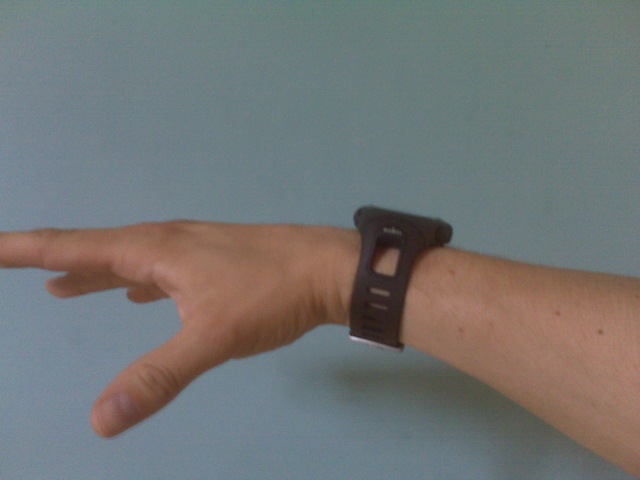
The Suunto range works using wireless “pods” which are battery operated sensors that record data including speed, heart rate, cadence etc. which are logged on the watch memory, the watch itself has built in sensors and logging for environmental items like temperature & altitude.
It doesn’t however satisfy the GPS route logging want; there is a GPS pod for the Suunto range however when paired with the T6C it just functions to monitor speed rather than allowing data logging and anyway Suunto bike pod provides a better solution for cycling.
Suunto also have the X9i
|
ASIN: B000WOZY82 |
 Suunto X9i: Sports & Leisure
and the newer X10 model
|
ASIN: B001DCEKXW |
 Suunto X10: Sports & Leisure
Both of these can do data logging but they were out of my price range at the time and didn’t get very good reviews for performance and build quality, whereas the T6C got good feedback all round.
I started with the watch itself which comes with the heart rate belt, later on I added the road bike pod (Suunto Road bike POD

I did also buy the GPS pod (Suunto GPS POD
The watch comes with a USB cable to download the logged data to a PC using the Suunto provided software (Suunto Training Manager); this is freely downloadable and allows you to analyze the data; there is also a wireless USB receiver (Suunto PC POD
The following screenshots are from the Suunto Training Manager application.
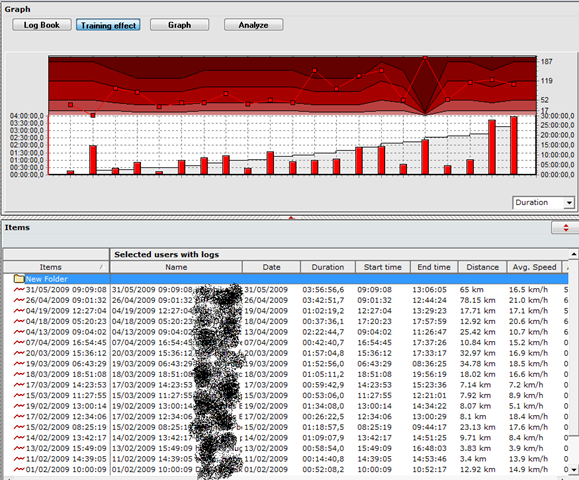
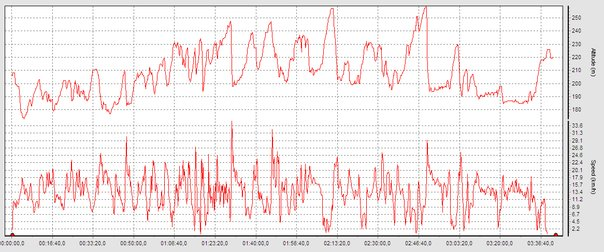
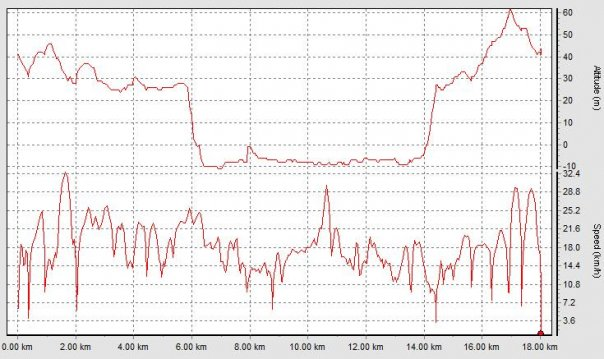
There is also some commercial software called FirstBeat Athlete which comes well recommended and takes a more active coaching approach whereas the Suunto Training Manager is more about allowing you to analyze your performance retrospectively although have not tried it yet (2-week evaluation copy here)
This is the road bike pod
|
ASIN: B000JL08NO |
 Suunto Road bike POD: Sports & Leisure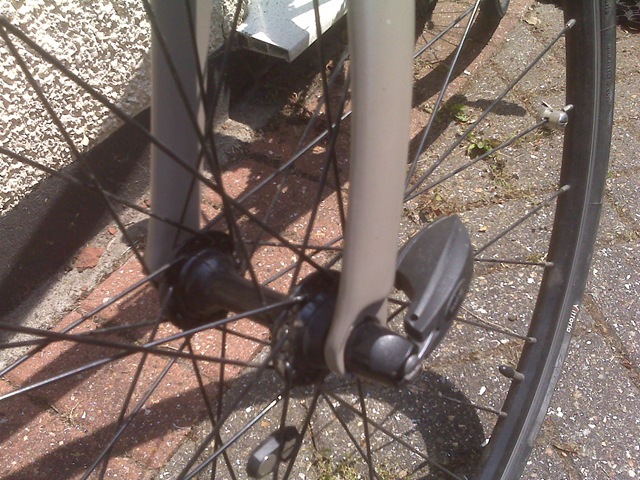
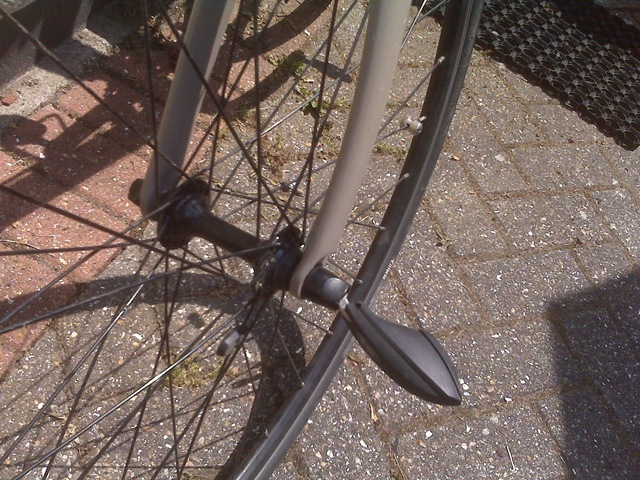
It records speed, and thus distance travelled – my hybrid bike has quick change wheels so it replaces the standard front wheel skewer and works with a magnet on the spokes; Suunto also do another version of this sensor for bikes without quick change wheels (Suunto Bike POD
I chose the road bike pod as it was a neater solution and there was less chance of the sensor being knocked off whilst the bike is being transported around.
This the the cadence sensor (don’t confuse it with the standard Suunto bike pod; both are of a similar design but do fundamentally different things)
|
ASIN: B0013LNYFS |
 Suunto Cadence Pod – For Cycling: Sports & Leisure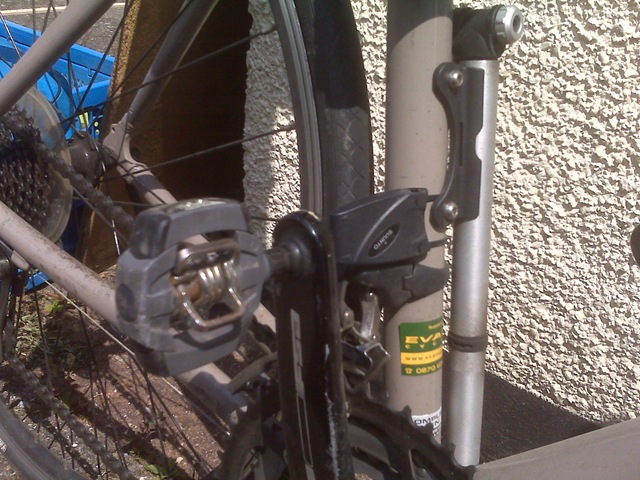
It works by attaching a small magnet to the inside of the pedal crank and a sensor mounted on the frame with supplied cable ties, cadence is an important part of monitoring your training – particularly when cycling as it’s easy to coast down hills 🙂
I have found the heart rate belt fine to use, some people have trouble with it slipping off but I’ve not had any issues, they can break/wear out but there are spares available.
All of the sensor pods have flat type batteries which are user-replaceable.
Some further resources are here
Suunto manual download page
Suunto training guides
The last part of my list of “wants” was GPS route tracking so I can record my cycle routes and store them for reference or working out where I got lost, I wasn’t bothered about actual on-bike navigation just post-ride analysis.
Being as the Suunto offerings I went with don’t have GPS route logging capabilities I looked at several standalone route logging devices like this and this, but they all require data to be downloaded and converted into a mapping programme.
Being as I always carry my mobile phone (Blackberry Pearl 8120) when I cycle I wanted an integrated solution. The version of the Blackberry Pearl that I use can run Google Maps with cell location but it lacks a built-in GPS. as a result I looked for a Bluetooth GPS receiver and some software to run on the Blackberry to log and possibly automatically upload data.
After a lot of experimentation I found Instamapper (www.instamapper.com, blog) which is an online service that integrates with Google Maps and works by receiving GPS data from client software running on a variety of handsets.
The clever part is that you never need to download/upload data to the service, the client buffers and uploads data automatically whilst the application is running, I found some problems with this initially that when the handset locked the application was terminating – this forum post fixed it for me and it has worked 100% ever since.
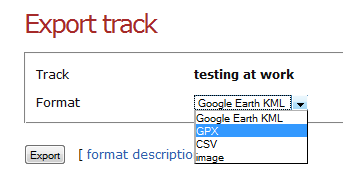
You can analyse the data online via the instamapper website, but it also gives you the option to export the data out to a variety of formats, including a .KMZ file which works with Google Maps
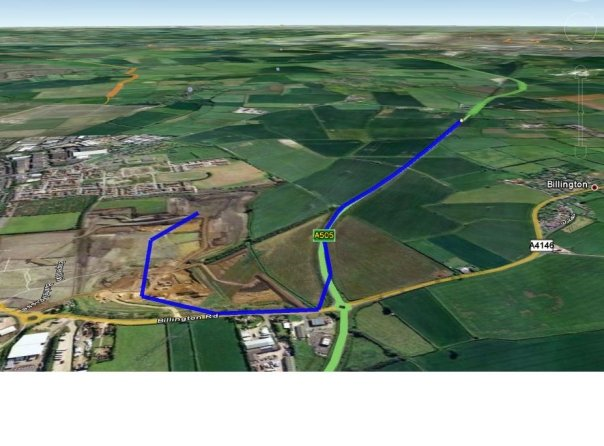
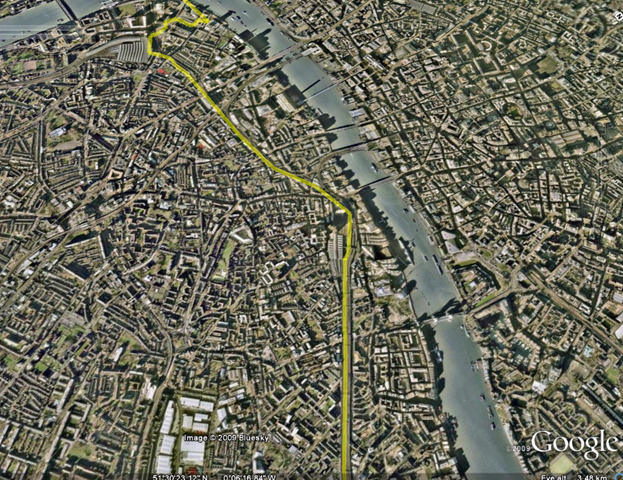
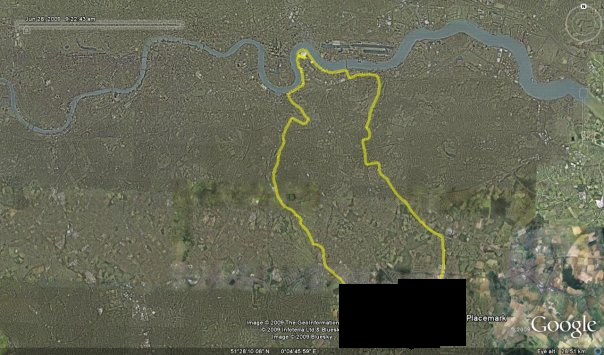
You can then view tracks like this in Google Earth
My bike is an Iron Horse Transit 3.0 which is a hybrid bike, I spent a lot of time researching which bike to buy and was looking for a Marin or Specialized bike but to be honest I was offered a good deal on this at an Evans Cycles warehouse sale last year and it was too good a deal to turn down.
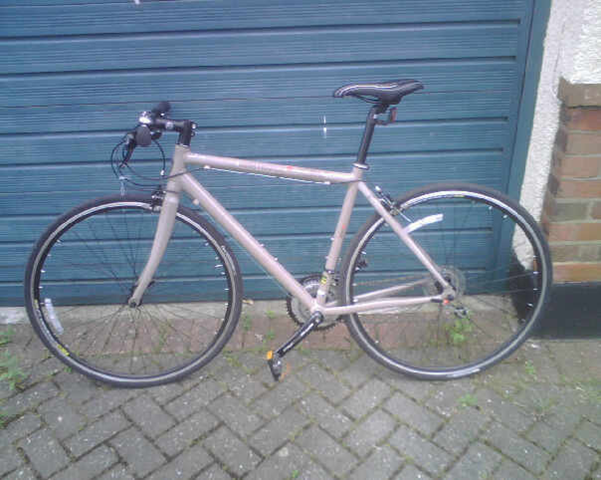
It’s a great bike and I have clocked up nearly 1,000 miles in the last year it can cope well enough with a mix of road and gravel/forest trail type conditions – it’s not an off-road bike by any means as it has pretty slim tyres but its pretty versatile and light and well suited to the type of riding I do (mainly road with occasional trail/park) the riding position is excellent for heavy traffic as it’s quite upright and the flat handlebars make manoeuvring in traffic easy.
We have a 3-year old who likes to come along on rides, for this I have one of these seats.
 Hamax Kiss One Point Fitting Rear Mounted Seat Black: Sports & Leisure
It mounts to the bracket shown below which I just leave on my bike all the time. The seat is quick and easy to get on and off the bracket and is secure when on, the metal mounts offer a reasonable level of suspension for our child when sitting in the seat and stops the worst of shocks from the road.
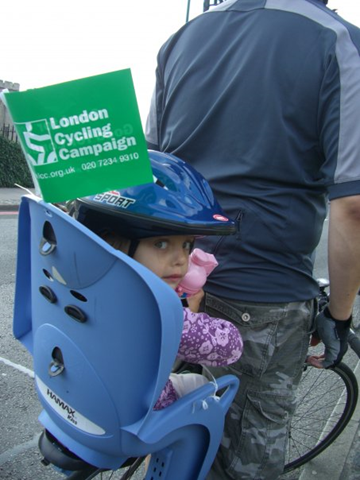
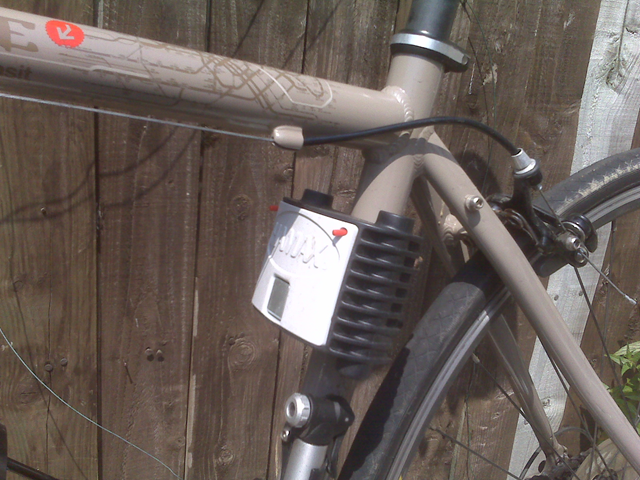
I did look at some of the Weeride type seats but didn’t like the proximity of the childs head to my chin/teeth 🙂 especially over bumps! although I can see they would be better for weight distribution and balance.
As an added bonus if you need to do any shopping the child seat can hold the shopping whilst you ride home (assuming you don’t take the child with you of course :)).
I hope that was useful to someone, my inspiration for looking into this originally came from the following links
http://www.ultrarob.com/blog/2007/11/bike-ride-mapping-with-gps.php
http://www.nickfessel.com/gmaps/burlingtonbikeRide.html
http://www.semifluid.com/?p=80
http://www.singletracks.com/blog/mtb-trails/topo-maps-in-google-earth-map-your-bike-trails/
vSphere ESXi as a VM – VMKernel Traffic Not Working
Posted by on June 12, 2009
In the lab I am currently working with I have a set of vSphere 4 ESXi installations running as a virtual machine and configured in an HA cluster – this is a great setup for testing VM patches, and general ops procedures or learning about VMware HA/DRS/FT etc. (this lab is running on a pair of ML115 g5 servers but would work equally on just one

Everything installed ok and I can ping the virtual ESX servers from the vCenter host that manages the cluster (the warning triangle is that there is no management network redundancy – I can live with that in this lab.
All ESX hosts (physical and virtual) are connected via iSCSI to a machine running OpenFiler and the storage networking works ok, however when I configure the vMotion & FT private networks between the VM ESX hosts I cannot ping the vMotion/FT IP addresses using vmkping – indicating that there were some communication problems, normally this would be a VLAN issue or some routing but in this instance all the NICs and IP addresses for my lab reside on a flat 10.0.0.0/8 network (it’s not production, just a lab).
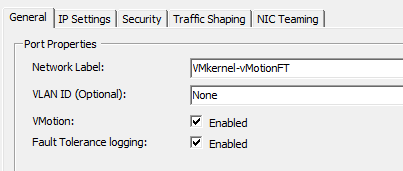
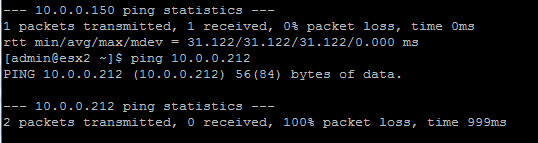
After some digging I came across this post for running ESX full as a VM, and noted the section on setting the vSwitch to promiscuous mode so I tried that with the vSwitch on the physical ESX host that the two ESXi VMs were running on;

And now the two Virtual ESXi nodes can communicate via vmkping
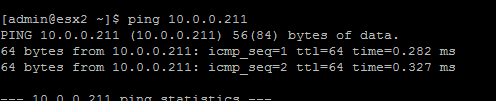
Problem solved and I can now vMotion nested VMs between each virtual ESX host – very clever!
vSphere – How to Enable FT for a Nested VM
Posted by on June 7, 2009
As in my previous post; I am working on a lab with virtual ESX4 servers in it – I can vMotion VMs from a physical vSphere cluster into the virtual vSphere cluster perfectly and performance is very good (just 1 dropped ping in my testing)
One of the physical hosts belongs to www.techhead.co.uk which he has kindly lent for this joint experiment – see his posts here, here and here on running vSphere on these HP ML115g5 servers and their FT compatibility. We have some joint postings in the pipeline on guest performance with complicated apps like SQL & Exchange when protected via FT , so keep your eyes peeled.
As the physical ESX hosts themselves are FT compatible I thought I’d see if I can enable FT for a VM running inside a virtual ESX server cluster, so a VM running inside a hypervisor, inside another hypervisor..!


Our of the box, unfortunately not; as it gives the following error message 😦
|
Power On virtual machine Record/Replay is not supported on this CPU for this guest operating system. Vou may have an incompatible CPU, you may have specified the wrong guest operating system type, or you may have conflicting options set in your config file. See the online help fot a list of supported guest operating systems, CPUs and associated config options. Unable to enter fault tolerance mode. |
To work around this you can enable the following advanced (and likely totally unsupported) settings to enable FT on the nested VM (the default is/was false) (thanks to the comment on this post for the replay.allowBTOnly = TRUE setting!)


And here it is – Nested VM running, with FT enabled

Very nice
Later on you can see some warnings about hosts getting a bit behind, also I had some initial problems getting FT to bring up the 2nd VM properly, the UI said it was restarting and it got stuck there, I dropped the virtual ESXi host down to a single vCPU rather than two and it worked ok from then on. I decided to do this as the virtual ESXi nodes were coming up reporting 2 x Quad core CPUs; whilst the physical host only has a 1 x Quad Core CPU so I guess that was causing some confusion.
At this point both of my virtual ESXi hosts were on the same physical vSphere server, and I seemed to have problems with the secondary getting behind. (vLockstep interval)
In this instance my nested VM is running an x86 Windows 2003 unattended setup.


I vMotioned one of the virtual ESXi hosts to the second physical vSphere server (very cool in itself) and it seemed to be better for a while, I assume there was some CPU contention from the nested VM.
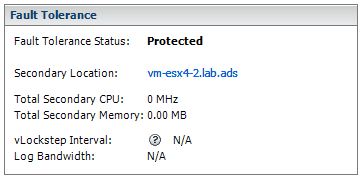
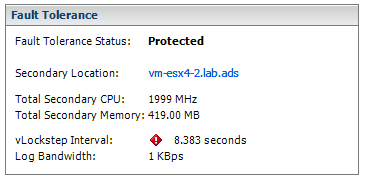
However in the end it flagged up similar errors, I assume this is due to the overhead of running a VM inside a hypervisor, inside another hypervisor 🙂 this is a lab setup but will prove very useful if you have to learn about this stuff or experiment with different configurations.
This is probably totally unsupported, use at your own risk – but it does work well enough to play about with in the lab.
Vista – clearing out some space
Posted by on May 29, 2009
I have had Vista RTM installed on my current laptop since it was released, I’m always running out of disk space – I just have an .iso and VM hording habit!
However I recently upgraded my laptop from a 100Gb disk to a 200Gb one, thinking that should be more than enough (famous last words..)
But not 3 months later I’m out of space again, but this time I’ve even purged all the VMs I no longer use and I am still looking at an OS/app footprint of tens of Gb, so I did some digging and aggressive housekeeping and turned up a lot of downloaded and old application data that has built up over the last couple of years.
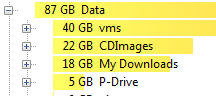
I used TreeSize Free which is great for sniffing around all those obscure and redirected Windows folders (screenshot below is after some general housekeeping, but still!)

My data not unexpected and I can live with this
with a bit of digging I found the worst culprit(s) that I didn’t know about, AppData so I did a bit of exploring…

The size of the AppData\Windows folder was a bit of a surprise, as was the size of the temp internet files folder as I exclusively use Firefox, however this is temp files where IE is embedded into MS apps like Outlook and Office and this is where it stores its temp files.

The 95Mb Explorer directory was mainly thumbnail cache databases
It seems lots of apps use this directory to store their data (as the name would suggest 🙂 but don’t clean up after you’ve uninstalled them – Xobni, I’m pointing the finger at you, Spotify and Google Earth also seem to keep data here, assume that’s a cache of downloaded content.
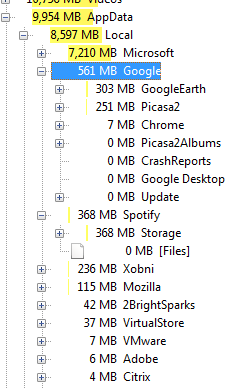
Apple seem to leave old iPod updates in here too

Next up, C:\ProgramData
Microsoft Search cache seems pretty big, but it’s useful

Apple everything… thanks for eating up all my disk space, I’m sure I need to keep iTunes 7.x ready to install!

and finally C:\Windows

700Mb of temp files! and when I looked into it there were over 12,000 files
So, in summary – TreeSize Free is an excellent tool for going exploring and visualising your actual folder by folder disk usage, you can also delete folder from within it.
by doing this I regained a serious amount of useful disk space!
Cheap vSphere Server
Posted by on May 21, 2009
If you have a home lab setup or want to get going with learning VMware’s new vSphere product you will need an x64 capable machine to run it on, although it does also run under VMware Workstation too – even supporting nested VMs and physical ESX to virtual ESX vMotion! unfortunately it won’t run on my trusty old HP D530 desktops which I’ve used to run ESX 3.5 over the last year or so.
My lab setup uses a couple of HP ML110 servers, they are low-cost and pretty capable boxes, for example they both have 8Gb of RAM and cost me less than £350 GBP each with RAM and disks (although I’ve added storage from my spares pile).
If you are in the UK Servers Plus have some great deals on HP ML series servers which are great for home lab setups – see some of Techhead’s postings on his findings with the ML1xx range here
Linkage to Servers Plus £199 +VAT servers here (www.serversplus.com) if you tell them vinf.net or techhead.co.uk sent you they may cut you a deal on delivery as they have done in the past (no promises as I’ve not had a chance to speak to them).
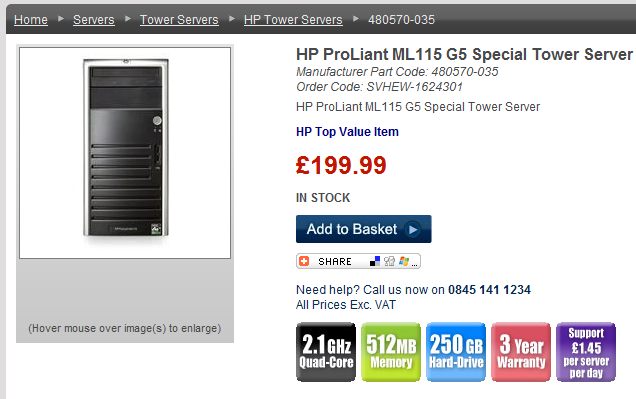
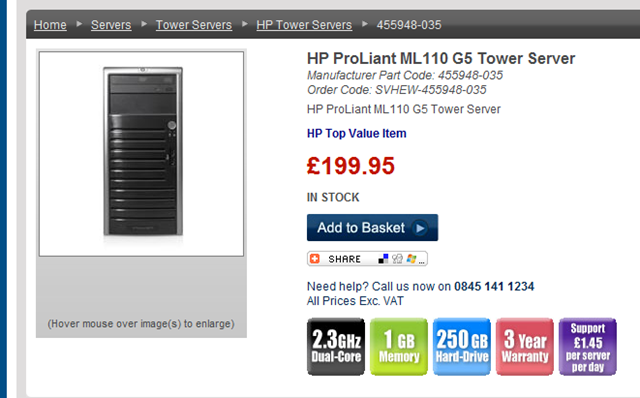
A note of caution if you are looking to try out the cool FT features of vSphere you will need to purchase specific CPUs, which may be more expensive – there is a good list of compatible CPUs on Erics blog here and some more reading here
Check before you buy you can lookup the manufacturers part code to check with CPU each model has – or check with the supplier.
The CPUs I have in my dual-core Xeon ML110G5 is not compatible with FT 😦
but it does look like the AMD quad-cores may be compatible, but check 1st – don’t take my word for it I HAVE NOT TRIED IT but I would like to if someone wants to donate one 🙂UPDATE: the ML110G5 with the AMD Quad Core CPU IS VMware FT compatible – see link here for more details; I am ordering one now!

If you are interested – here are some performance charts from my home lab running vSphere RC on an HP ML110 with 8Gb RAM and 2 x 160Gb SATA HDD’s whilst doing various load tests of Exchange 2007 and Windows 2008 with up to 500 concurrent heavy profile users (these stats are not particularly scientific but give you an idea of what these boxes can do, I’ve been more than happy with mine and I would recommend you get some for your lab)
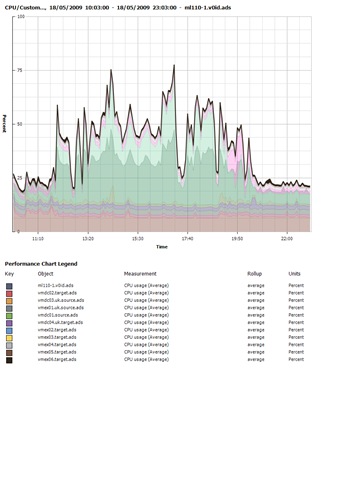
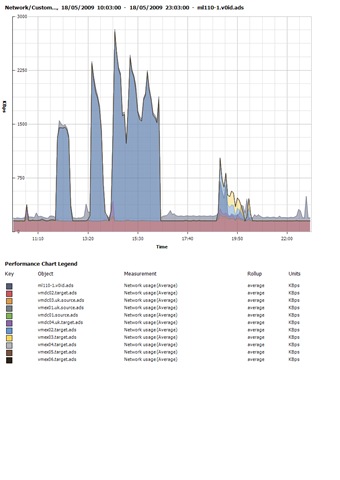

These are some general screengrabs, note there are lots of warnings showing – this is what happens when you thin-provision all your VM’s and then one fills up rapidly making the VMFS volume itself run out of space – you have been warned!


I’m running 15 VMs on one ML110, the 2nd box only has 1 VM on it as I wanted to see how far I could push one box, I’ve not found a real limit yet! it runs a mix of Windows 2003/2008 virtual machines, and it doesn’t generally break a sweat – note the provisioned vs. used space columns – Thin Provisioning 🙂 and I’m also over-subscribing the RAM significantly.

vSphere Downloads
Posted by on May 21, 2009
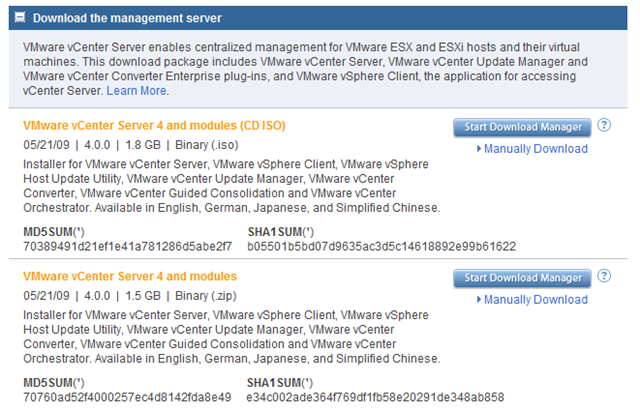
Now it’s out these screengrabs show you the downloadable binaries
Still has the classic (with service console) and ESXi versions

vCenter and all it’s utilities
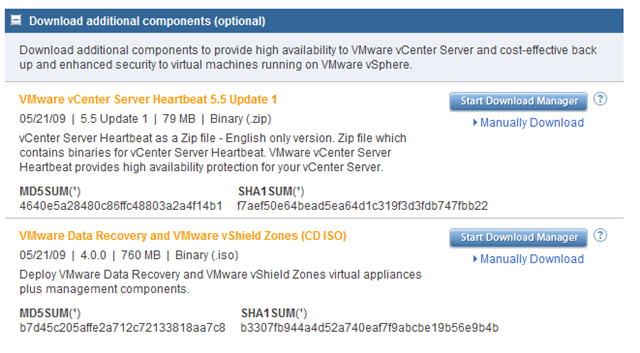
vCenter heartbeat, Data recovery and vShield zones, interesting that they have packaged data recovery manager and vShield Zones into one {large!} download.
No Cisco Nexus NX1000V on the VMware.com site, but you can register for a free 60 day eval here
vSphere, Come and Get it
Posted by on May 21, 2009
Well today is the day, GA or general availability of VMware’s new flagship product – vSphere (formerly known as Virtual Infrastructure 3).
The VMware.com homepage is showing the download link for a free 60 day trail.
download page is here

for some of my vSphere articles and many more check out these links
http://www.yellow-bricks.com/2009/04/21/vsphere-linkage/
https://vinf.net/2009/02/26/hands-on-lab-01-vsphere-features-overview/
https://vinf.net/2009/05/08/vsphere-rc-ram-under-vmware-workstation-how-low-can-you-go/
ExPrep – Script to Automate Exchange 2007 Pre-Requisite Installation
Posted by on May 13, 2009
If you have ever had to install Exchange 2007 on a Windows 2008 (and 2003) server you will know that there are a number of pre-requisites that need to be installed from the OS for each role; for example IIS web services and metabase compatibility components.
You have two choices, do this via the UI using the add/remove features and roles Wizard in Server Manager or using the ServerManagerCmd.EXE command line utility – either way it’s pretty tedious to do if you have several servers to install.
Based on this handy reference from Microsoft I have built a very basic batch file that automates the installation of the pre-req components for you.
It only works on Windows 2008 (sorry no 2003 equivalent) and you use it entirely at your own risk – there are much cleverer ways of scripting this but I’m a pretty old skool DOS person, this works for me and is easy for me to maintain – feel free to re-write in something more modern and post it back here this code is probably quite hacky.
The contents of the file are here (just cut & paste into a .bat file)
|
@echo off REM ExPrep.bat by Simon Gallagher, ioko (http://vinf.net) REM YOU USE THIS SCRIPT ENTIRELY AT YOUR OWN RISK SET %EXPREP%=999 echo Preparing for base pre-req install ServerManagerCmd -i Web-Metabase echo you chose %EXPREP% if %EXPREP%==1 goto MBX goto end :MBX goto end :MBX-CLUSTER ServerManagerCmd -i Failover-Clustering goto end :CAS ServerManagerCmd -i RPC-over-HTTP-proxy goto end :HT :END |
Instructions:
1) Copy the script (ExPrep.bat) to your would-be Exchange server (remember Windows 2008 x64 is the only supported OS for Exchange 2007).
2) Run ExPrep.bat
3) Choose the appropriate role from the menu (note: there is no clever input validation – make sure you choose the correct one, there are pause statements before it actually does anything so you can CTRL-C to break out.
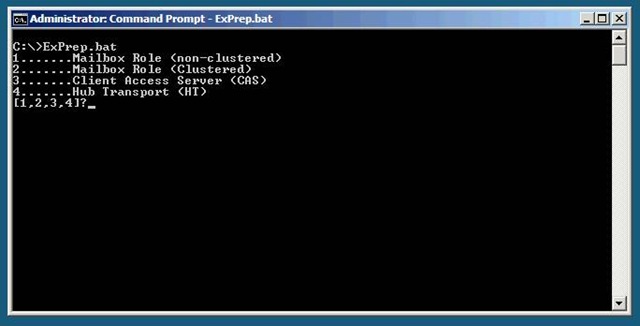
4) Sit back and wait for it to complete.
5) then run the Exchange 2007 installer from your DVD or network share as normal.
If you need to install multiple roles on a single server you can run the script multiple times, all changes are cumulative and if a component is already installed ServerManagerCmd.EXE (which the script calls) will just skip it.
If you wanted to take it further there is some excellent information about the setup process, failures and doing full unattended installations of Exchange 2007 here and here
Remember you use this entirely at your own risk, and you assume full responsibility for checking its suitability for your environment; the batch file is easy to read and customize for your own use, although I ask that if you do make changes link back here via a comment or trackback so that other people can benefit.
vSphere RC RAM Under VMware Workstation: How Low Can You Go?
Posted by on May 8, 2009
Getting ESX (in it’s various versions) to run under VMware Workstation has proven to be a very popular article on this blog, if you are a consultant who has to do product demos of VI3/vSphere or are studying for your VCP it’s a very useful thing to be able to do on your own laptop rather than rely on remote connections or lugging around demo kit.
Good news; the RC build of vSphere will boot under the latest VMware Workstation build (6.5.2) without any of the .vmx hackery you had to do in previous versions and it seems quite fast to boot.
Bad news: the RC build of vSphere needs at least 2GB of RAM to boot, this is a problem for a laptop with 4GB of RAM as it means you can only really run one at a time.
Luckily: Duncan Epping (or VCDX 007; licenced to design :)) has discovered how you can hack the startup script to allow it to run in less than 2GB of RAM – details here, this isn’t officially supported – but it does work.
In the interests of science I did some experimentation with VM’s with various amounts of decreasing RAM to see what the bare minimum RAM you can get away with for a VM’d version of vSphere RC.
The magic number seems to be 768Mb of RAM, if you allocate less than this to the VM then it results in a Purple Screen of Death (PSOD) at boot time.
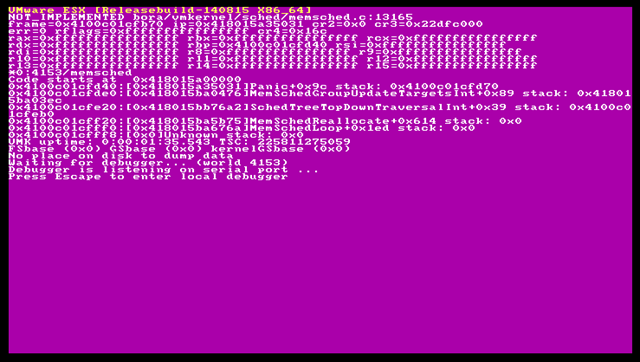
Note – this may change for the GA/RTM final version – but these are my findings for RC
The relevant section of my /etc/vmware/init/init.d/00.vmnix file looks like the following (note it won’t actually boot with 512mb assigned to the VM)

Some screen captures of the vSphere RC boot process below

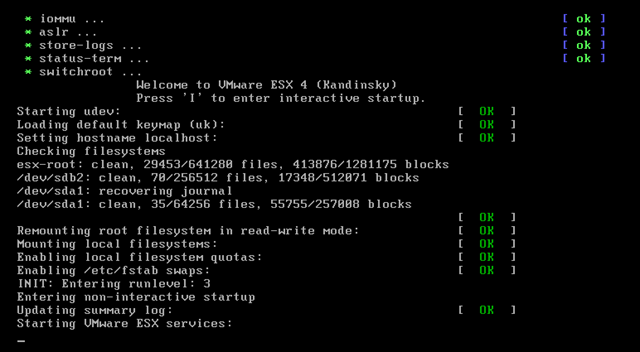
And finally the boot screen once it’s finished – it takes 2-3 mins with 768Mb of RAM on my laptop to get to this boot screen.
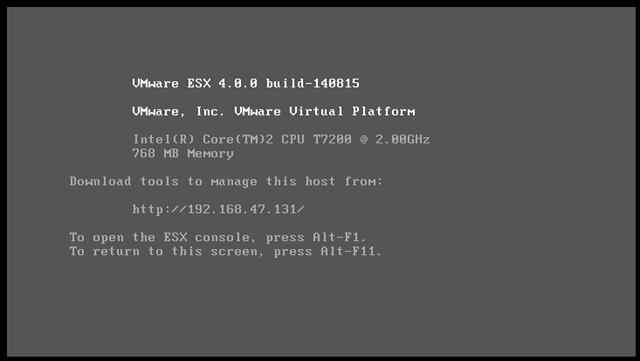
I am doing this on a Dell D620 with 4Gb RAM and Intel VT enabled in the BIOS, running Vista x86 and VMware Workstation v6.5.2 build 156735
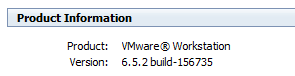
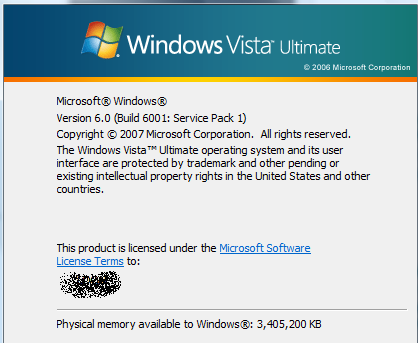
I haven’t tried, but I assume I can’t power on VM’s under this instance of vSphere but I can connect them to a vCenter 4 machine and practice with all the management and configuration tools.
Happy tweaking…
Importing vCenter 2.5 Customization Specifications into vCenter 4
Posted by on May 7, 2009
If you have a lot of customization specifications setup in your vCenter server you are likely to want to copy these to your vSphere/vCenter 4 lab or production system when it’s released, otherwise it’s a bit tedious typing it all in again 🙂
The following steps show how to export and then import your guest customization specifications into vCenter 4 you have to do them one by one as there is no multi-select available.
First, export the settings from the vCenter 2.5 server using the VI client connected to the vCenter 2.5 server (not the ESX host)

Then save each one out as an .XML file
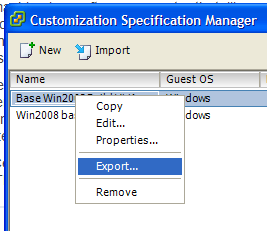
Then connect your VI client to your vCenter 4 server (not the vSphere host itself) and go to the home view and click on the Customization Specifications Manager icon
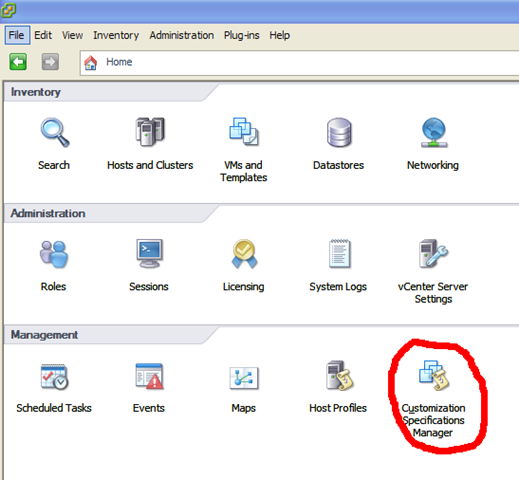
Then click import and choose the .XML file you exported previously

Click OK and it will import the template
if you have encrypted passwords stored in your customization template then you will be prompted to re-enter them (unless you used a real certificate or PKI across both hosts)

It will then run you through the guest customization wizard to re-enter the password, but don’t worry all the other settings are retained you only need to re-type the password.

Once you’ve been through this process the customization specification is now available for use when you deploy from a template within vCenter 4.
Other than that the overall template process is similar to the VI3 process that I wrote about a while ago here

 Virtualization, Cloud, Infrastructure and all that stuff in-between