Virtualization, Cloud, Infrastructure and all that stuff in-between
My ramblings on the stuff that holds it all together
VMWare Stage Manager – No P2V/V2P Integration
Posted by on January 22, 2008
Ah, show-stopper for me for most of my potential customers; as far as I can tell from the demo video the product is geared more towards a VM-only environment. Maybe I misunderstood the announcements but I had thought I would be able to clone physical production servers (P2V and V2P) into stage manager for doing staging/testing “stuff” before releasing back to production.
Looks like it’s geared more towards end-end lifecycle management for VM’s where dev/test VM’s are managed through to production.
Development->Test->Stage->Production and then around the prod->Stage loop for patches, updates etc.
Obviously nothing stopping you from P2V or V2P’ing VM’s at any stage in this lifecycle using other tools (VMConvertor, Platespin) etc. but it won’t be managed as part of the lifecycle by Stage Manager.
Yeah I know “physical is dead“… but we’ve not managed to convince the whole world virtualisation will fix everything – 3rd party vendor support for important production systems is still a grey area under virtualisation; vendors seem to be coming round as it gets market traction but the instant “we don’t support that under VMWare” get out of jail free card for vendor support teams is still a problem.
Ah well, gap for a 3rd party to add value – would be nice if Platespin were able to write a plug-in as P2V and V2P seem to be where their products win, or even MS with their multi hypervisor VM Management stuff.
VMWare Stage Manager Beta is Open..
Posted by on January 22, 2008
Go and get it from here
I spent a lot of time at the start of 2007 building this type of system from scratch (see the build a better test lab posts). hopefully this will go a long way to making it easier to achieve.
Deploying a Virtual Machine from a Template with Virtual Center 2.5
Posted by on January 22, 2008
(Apologies to fellow Brits for the spelling of “center/centre”, it bugs me too! but that’s the product name, spelling and all – plus it helps our worldwide friends who are coming in via Google)
Just incase you are interested here are the steps to do so.
I have a Windows 2003 Enterprise Edition “Gold” VM image that I’ve used for years (see this page for some more good ideas on that) and I’ve ported it all the way from VM Workstation 4.x, through 5.x, VMware Server 1.x, 2.x and now ESX 3.5.
I just clone it periodically and I keep updating and sysrep’ing the master image with the latest updates (SP2, current VM Tools, iSCSI initiator, BGInfo, etc.)
I used the VMWare P2V Convertor (which yes I slated earlier.. but it works in this instance) to convert from Workstation 6.x format for my new ESX server and manage it as a template via Virtual Centre.
1st off, Right click on the template and choose to deploy (hint: if you want to make a template right click on a VM you prepared earlier and clone/convert to template.)
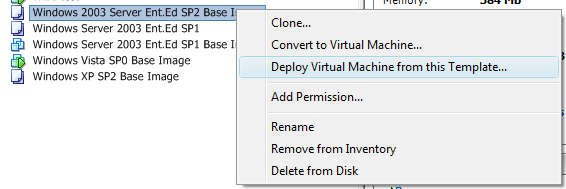
Choose where you want to run the VM – this is a list of your VC data centres

Choose the ESX host where you want to run it – I only have 1 which is my desktop ESX server (https://vinf.net/2008/01/14/vmware-esx-v35-on-cheap-pc-hardware/)

I get this warning message, but this is because I’ve ported my VM across so many different versions of VMWare, and the template VM still has a virtual USB port – must get round to removing it!

Choose the datastore – this is my 500Gb SATA drive inside the PC

and you can pick a template to customise the VM, this essentially lets you choose (or not) to automatically run a SysPrep once the VM has booted – the “customization specification” is essentially a sysprep.inf file that you pre-created using the customization specification wizard (below).
The customization wizard does seem to add some bells and whistles as you can choose the VM machine name based on what you’ve called it in Virtual Center or spawn out to an external application/script which is a nice feature that I don’t believe you can do with standard Sysprep
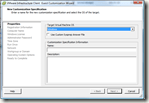


Anyway, back to the VM deployment..
Choose from your set of templates, I have just one at this stage that incudes the product key, regional settings and create the server name based on the VM name, note you can also break out to the customization wizard to make one time adjustments to the specification you’ve chosen.

You are then shown a summary of the VM you are going to create and given options to power it on once the clone is finished, or edit the virtual hardware (add more CPUs, disks, RAM, etc.) – not sure why edit hardware is (experimental) would think it would just spring up the normal UI for doing this within VC.

Interesting to note the warning  umm, this is deploying from a pre-built image – but I guess VC doesn’t know that for sure.
You’ll se a job submitted to Virtual Center’s queue

It took 9mins to deploy – and this was on my cheap ESX desktop PC so not the most high-performance disk subsystem – but more than acceptable, whenever I’ve had to do this in the past on a physical PC it usually takes at least this long to find the correct CD 🙂
Proof here 🙂 
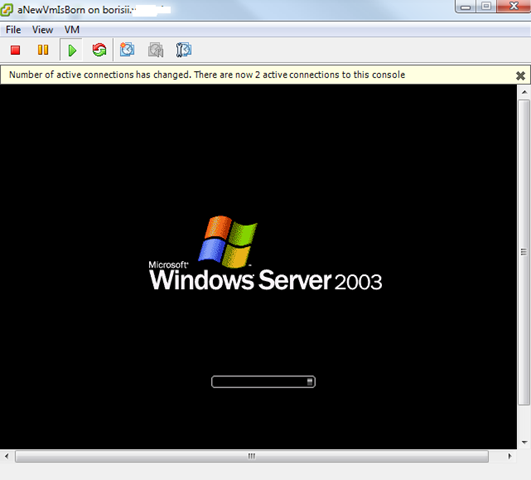
The VM is now booting and doing it’s sysprep/minisetup wizard without any hands-on required – it’s totally automated via the customization specification/template setup.

OS Starting, installing VM Tools in the background

VM Reboots automatically.. (but I wasn’t quick enough to get a screen cap of that..)
Built & Ready to go! (my customization template makes the administrator account auto logon on 1st boot)
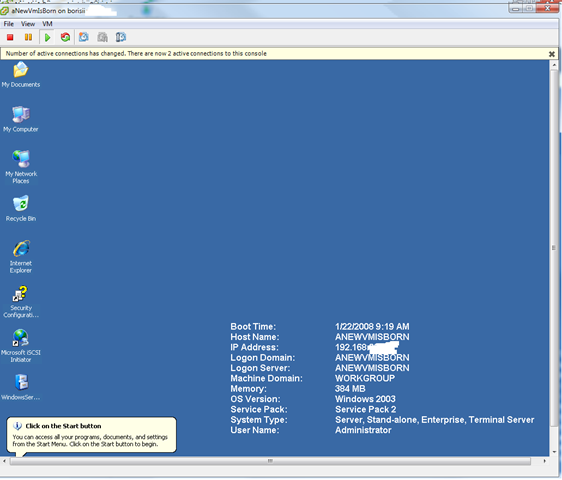
Start to finish, a ready to use OS with all it’s service packs and any software I require in 11mins, and that’s on cheap hardware.. all the timestamp’s are in the screen shots if you need proof 😉
Asus eee vs. Apple MacBook Air
Posted by on January 21, 2008
Obviously the Asus is significantly cheaper and the the screen is annoyingly small – interesting review here
First Problems Reported with the new ESX 3.5 Patches
Posted by on January 18, 2008
…I haven’t applied mine yet, but the Lone sysadmin has reported some problems with VMotion on their system since applying. details here might be co-incidence but always worth keeping this kind of thing on your radar.
Hilights the fact that automated tools do not a good patching process make.
Excellent Doc on New ESX 3.5 Features
Posted by on January 18, 2008
…and it’s free! – get it here http://www.rtfm-ed.co.uk/?p=476
Thanks to Mike Laverick – an excellent doc I like the look of the new update manager and the dynamic power saving stuff… have to wonder how well suspend/wake on LAN will really work in a switched environment.. I’ve never had much success with it in the past.
Patches, Patches, Come and get ‘yer Patches
Posted by on January 18, 2008
No, not another post about floating data centres, A whole bunch of ESX patches just released here; thanks to Yellow Bricks for pointing that out.. will give the new 3.5 update manager a whirl and report back on what happened! fingers crossed.
See – one advantage of having your own test/cheap ESX home server is you can try these things out 🙂
Everything you Ever Wanted to Know About Xen/Zen/Etc.. but were too lazy to Google it!
Posted by on January 18, 2008
OneNote Power Toys
Posted by on January 18, 2008
Microsoft OneNote is my favorite Microsoft product – I’ve used it for a couple of years now and it’s almost totally replaced my need to lug around hardback notepads.
I say almost as sometimes I still need to scribble down some diagrams, something that doesn’t work well with OneNote unless you have a Tablet PC, that said it’s easy to scan diagrams into OneNote with a scanner and keep a record and takes away all the concerns with loosing a paper notebook or not having it with you.
I work disconnected from our corporate network for most of the day but OneNote allows me to host a shared notebook on a SharePoint site which is accessible over SSL I can work on a local sync’d copy and I can make it sync with the server held copy.
It’s useful for sharing notes with my co-workers on a project – it’s essentially a Wiki like tool with good off-line capability.
I would like to see better support for drawing with a non-tablet PC and having it properly anchor scribbles over bits of text – but maybe that’s just me not working it correctly as when I move the text block my scribble over the top doesn’t move.
Anyways – the team have posted some useful Power Toys for OneNote which I will definitley be looking into..
Available from http://blogs.msdn.com/johnguin/archive/2008/01/17/a-summary-of-the-onenote-powertoys-from-the-test-team-for-2007.aspx
More OneNote goodness here http://blogs.msdn.com/chris_pratley/default.aspx
and http://blogs.msdn.com/descapa/archive/2008/01/04/blog-roundup-for-dec-2007.aspx
and http://stevepietrekweblog.wordpress.com/2008/01/17/links-1172008/
Microsoft really don’t push/promote this product enough.. it’s great, everyone I show it to ends up using it; as Chris point’s out here it spreads virally between you show it to!
You can even use it to manage cooking Christmas dinner (…maybe I’ll blog about how I did that one day…:))
Live VM Migration Without Shared Storage?
Posted by on January 18, 2008
This looks interesting, uses p2p storage syncing to allow live workloads to be moved between VM Hosts.
Would be a very interesting tech, you could build a large VM compute farm with cheap DAS storage without having to invest in “proper” shared storage such as a fibre channel SAN or iSCSI.
Considering even a DL360/380g5 can take about 800Gb of SCSI/SAS disk these days that’s a lot of storage for replicated/sync’d VMs.
Wonder if VMWare have something in the pipleline to compete, We often see the cost of the shared storage as a big blocker to building VM farms, servers can be obtained relatively cheaply and allow you to easily scale out horizontally, SAN’s not so much as you need to invest upfront in the fibre switching/shelves to allow you to scale out, it’s not so easy to do it incrementally – if you can just buy cheap incremental servers with DAS and just add them into a farm that’s quite appealing; to me anyway.

 Virtualization, Cloud, Infrastructure and all that stuff in-between