Virtualization, Cloud, Infrastructure and all that stuff in-between
My ramblings on the stuff that holds it all together
Monthly Archives: January 2011
Home Labbers beware of using Western Digital SATA HDDs with a RAID Controller
Posted by on January 31, 2011
I recently came across a post on my favourite car forum (pistonheads.com) asking about the best home NAS solution – original link here.
What I found interesting was a link to a page on the Western Digital support site stating that desktop versions of their hard drives should not be used in a RAID configuration as it could result in the drive being marked as failed.
Now, this I far from the best written or comprehensive technote I have ever read however I wasn’t aware of this limitation, it appears that desktop (read: cheap) versions of their drives have a different data recovery mechanism to enterprise (read: more expensive) drives that could result in an entire drive being marked as bad in a hardware RAID array – the technote is here and pasted below;
What is the difference between Desktop edition and RAID (Enterprise) edition hard drives?
Answer ID 1397 | Published 11/10/2005 08:03 AM | Updated 01/28/2011 10:00 AMWestern Digital manufactures desktop edition hard drives and RAID Edition hard drives. Each type of hard drive is designed to work specifically as a stand-alone drive, or in a multi-drive RAID environment.
If you install and use a desktop edition hard drive connected to a RAID controller, the drive may not work correctly. This is caused by the normal error recovery procedure that a desktop edition hard drive uses.
Note: There are a few cases where the manufacturer of the RAID controller have designed their drives to work with specific model Desktop drives. If this is the case you would need to contact the manufacturer of that controller for any support on that drive while it is used in a RAID environment.
When an error is found on a desktop edition hard drive, the drive will enter into a deep recovery cycle to attempt to repair the error, recover the data from the problematic area, and then reallocate a dedicated area to replace the problematic area. This process can take up to 2 minutes depending on the severity of the issue. Most RAID controllers allow a very short amount of time for a hard drive to recover from an error. If a hard drive takes too long to complete this process, the drive will be dropped from the RAID array. Most RAID controllers allow from 7 to 15 seconds for error recovery before dropping a hard drive from an array. Western Digital does not recommend installing desktop edition hard drives in an enterprise environment (on a RAID controller).
Western Digital RAID edition hard drives have a feature called TLER (Time Limited Error Recovery) which stops the hard drive from entering into a deep recovery cycle. The hard drive will only spend 7 seconds to attempt to recover. This means that the hard drive will not be dropped from a RAID array. While TLER is designed for RAID environments, a drive with TLER enabled will work with no performance decrease when used in non-RAID environments.
There are even reports of people saying WD had refused warranty claims because they discovered their drives had been used in such a way, which isn’t nice.
This is an important consideration if you are looking to build or are using a NAS for your home lab like a Synology or QNap with WD HDDs or maybe this even extends to a software NAS solution like freeNAS, OpenFiler or Nexentastor
It’s also unclear if this is just a Western-Digital specific issue or exists with other drive manufacturers.
Maybe someone with deeper knowledge can offer some insight in the comments, but I thought I would bring it to the attention of the community – these are the sort of issues are like the ones I was talking about in this post but, as with everything in life – you get what you pay for!
How to Configure a Port Based VLAN on an HP Procurve 1810G Switch
Posted by on January 27, 2011
I have a new switch for my home lab as I was struggling with port count and I managed to get a good deal on eBay for a 24-port version – it’s also fan-less so totally silent which is nice as it lives in my home office.
I am re-building my home lab again (I’m not sure I ever finish a build before I find something new to try, but anyway – I digress) now I have 3 NICs in my hosts I want a dedicated iSCSI network using a VLAN on my switch.
My NAS(es) are physical devices and I want to map one NIC from each ESX host into an isolated VLAN for iSCSI/NFS traffic, this means nominating a physical switch port to just be part of a single VLAN (103) and take it out of the native VLAN (1) – Cisco call this an access port and other switches call it a Port Based VLAN (PVLAN) – this is the desired configuration

The configuration steps weren’t so intuitive on this switch so I have documented it here;
- 1st create a VLAN – in my case I’m using 103 which will be for iSCSI/NFS
- You need to check the “create VLAN” box and type in the VLAN number
- press Apply
- Check the set name box next to the VLAN you created
- type in a description
- click apply

Then go to VLANs—> Participation/Tagging
- You need to clear the native VLAN (1) from the ports you will be using
- select VLAN 1 from the drop down box
- click each port (in this case 13,14,15,16,17,18 and 21) until it goes from U to E (for Exclude)
- click apply (important!)

- Note 13,15,17 are used for my vMotion VLAN – but the principal is the same)
- select your VLAN from the drop down – in this case 103
- Now allocate each port to your storage VLAN by clicking on it until it turns to U (for Untagged)
- click apply (important!)

Now you should have those ports connected directly to VLAN 103 and they will only be able to communicate with each-other – easiest way to test this is to ping between hosts connected on this VLAN.
You can manually check you have done this correctly by looking at VLANs—>VLAN Ports
- Drop down the Interface box and choose a port that you have put into the PVLAN
- The read-only PVID field should say 103 (or whatever VLAN ID you chose) if it says 1 or something else check your config as it’s in the wrong VLAN.

You won’t be able to get into this VLAN from any other VLAN or the native VLAN (because we excluded VLAN 1 from these ports) if you want to be able to get into this VLAN you’ll need to dual home one of the hosts or add a layer 3 router, I unusually use a Vyatta virtual machine – post on this coming soon.
I’ll also be adding some trunk ports to carry guest network VLANS in a future post.
Be your own Big Brother
Posted by on January 25, 2011
During my work and personal life I’ve travelled around a lot – sometimes by car sometimes flying, I’ve always held an odd fasincation in being able to visualise where I have been over time and tot up just how far I’ve travelled in a period.
When I started cycling again a couple of years ago I found a neat solution for my cycle routes – you can read a bit more about that here
I really like the Instamapper solution and the fact it has a Blackberry app (Android and iPhone too I believe) so when I recently got a new Blackberry with a built-in GPS, so I thought it would be an interesting experiment to track my movements 24/7 so I could see where I have been as I no longer had a dependency on an external bluetooth GPS.

It definitely impacts battery life, I get about 24-36hrs out of a single charge on my BB with it running compared to at least 60 without it running.
It automatically starts the GPS at boot so you won’t forget to switch it on, which is a handy feature.
The Instamapper website is great; it lets you export tracks in a format that works with Google Earth and includes timestamps so you can use the replay feature to watch a sped-up version of your trip – especially funny if you got lost somewhere in the car as you can gradually watch you circling and missing your destination 
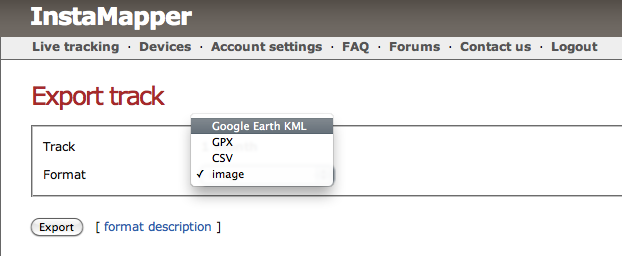
the web-service simply logs GPS co-ordinates, speed and timestamps from your device and you can split them down into individual “tracks” if you know the start/end times of your journey – I use a 5min sample frequency and the updates to the web-service are buffered if you don’t have a network connection.
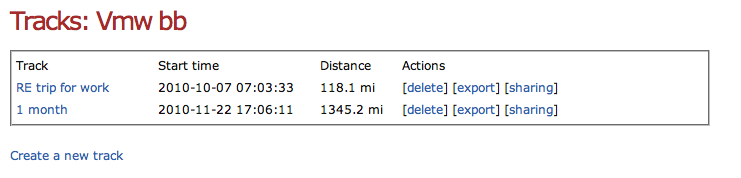
Below are some example tracks; the top one is across a month and included a family holiday to Euro Disney via Eurostar, multiple trips to and from customers and the office and a trip to Derry in Ireland.
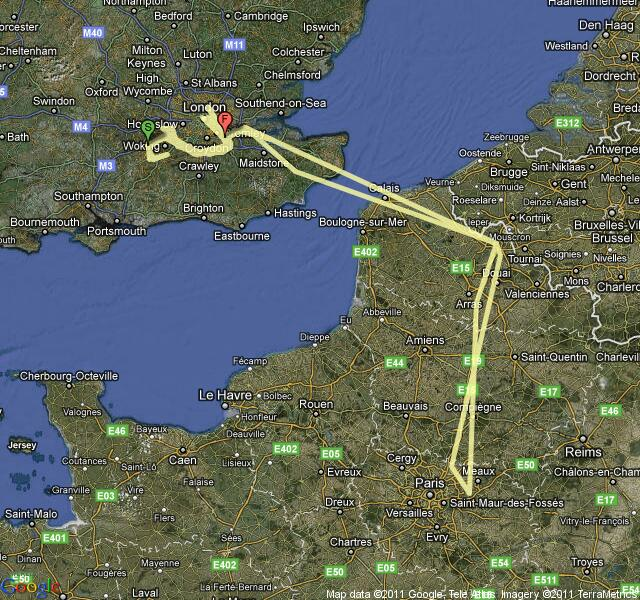
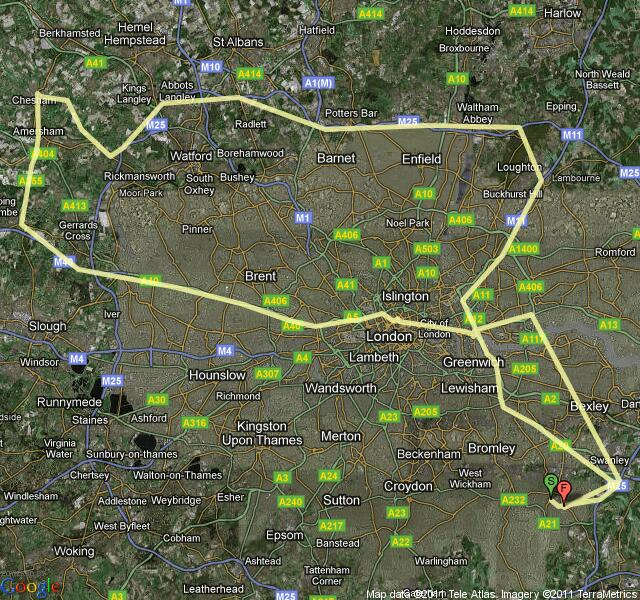
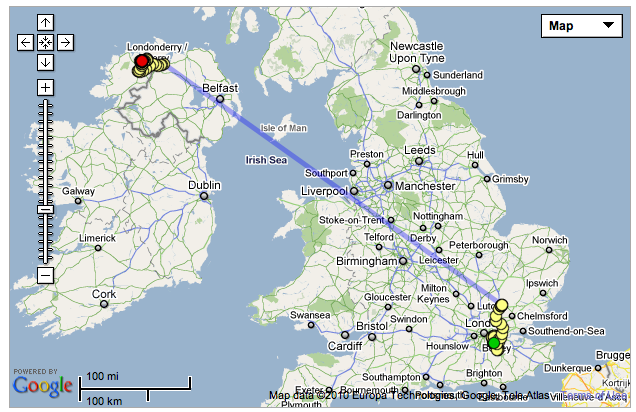
(Phone was switched off on the plane, but maybe leaving the GPS running might be an interesting, if illegal experiment )
If you are similarly minded I’d encourage you to check out Instamapper, and best of all – it’s FREE!
Presenting at Cloud Expo Europe 2011
Posted by on January 24, 2011
I will be presenting with another VMware colleague, Aidan Dalgleish at Cloud Expo Europe 2011 which is being held in London on the 2nd-3rd February.
Our session is on 2nd Feb at 11.30 – you can find the full schedule here and there is more information about the event here, it’s free if you register before 1st Feb and you can do that here.
We will be demonstrating VMware vCloud Director and talking about hybrid-cloud use-cases so if you’re interested to see it in action come along, we’ll also be hanging around to answer any cloudy questions that you may have.
Hope to see you there.
Silent Data Corruption in the Cloud and building in Data Integrity
Posted by on January 20, 2011
I was passed a link to a very interesting article on-line about silent data corruption on very large data sets, where corruption creeps undetected into the data read and written by an application over time.
Errors are common in reading from all media and this would normally be trapped by storage subsystem logic and handled lower down the stack but as these increase in complexity and the data they store vastly increases in scale this could become a serious problem as there could be bit-errors not being trapped by disk/RAID subsystems that are passed on unknown to the requesting application as a result of firmware bugs or faulty hardware – typically these bugs manifest themselves in a random manner or by edge-case users with unorthodox demands.
All hardware has a error/transaction rate – in systems up until now this hasn’t really been too much of a practical concern as you run a low chance of hitting one, but – as storage quantities increase into multiple Tb of data this chance increases dramatically. A quick scan round my home office tallys about 16Tb of on-line SATA storage, by the article’s extrapolation on numbers this could mean I have 48 corrupt files already.
This corruption is likely to be single-bit in nature and maybe it’s not important for certain file formats – but you can’t be sure, I can think of several file formats where flipping a single bit renders them unreadable in the relevant application.
Thinking slightly wider, if you are the end-user “victim” of some undetected bit-flipping what recourse do you have when that 1 flips to a 0 to say your life insurance policy doesn’t cover that illness you have just found you have – “computer says no”?
This isn’t exclusively a “cloud problem” it applies to any enterprise storing a significant amount of data without any application level logic checks, but it is compounded in the cloud world where it’s all about a centralised storage of data, applications and code, multi-tenanted and highly consolidated, possibly de-duplicated and compressed where possible.
In a market where cost/Gb is likely to be king providers will be looking to keep storage costs low, using cheap-er disk systems – but making multiple copies of data for resilience (note, resilience is different from integrity) – this could introduce further silent bit corruptions that are propagated across multiple instances as well as increasing the risk of exposure to a single-bit error due to the increased number of transactions involved.
In my view, storage hardware and software already does a good job of detecting and resolving these issues and will scale the risks/ratios with volumes stored. But, if you are building cloud applications maybe it’s time to consider a check summing method when storing/fetching data from your cloud data stores to be sure – that way you have a platform (and provider)-independent method of providing data integrity for your data.
Any such check summing will carry a performance penalty, but that’s the beauty of cloud – scale on demand, maybe PaaS providers will start to offer a web-service to offload data check summing in future?
Check summing is an approach for data reliability, rather than security but at a talk I saw at a Cloudcamp last year; a group were suggesting building DB field-level encryption into your cloud application, rather than relying on infrastructure to protect your data by physical and logical security or disk or RDBMS-level encryption (as I see several vendors are touting) build it into your application and only ever store encrypted assets there – then even if your provider is compromised all they hold (or leak) is already encrypted database contents – you as the end-user still retain full control of the keys and controls.
Combine this approach with data reliability methods and you have a good approach for data integrity in the cloud.
Nexentastor CE performance not as good as expected with SSD Cache check it is actually working
Posted by on January 19, 2011
I encountered this problem in my lab – I have the following configuration physically installed on an HP Microserver for testing (I will probably put it into a VM later on however)
1 x 8Gb USB flash drive holding the boot OS
And the following configured into a single volume, accessed over NFSv3 (see this post for how to do that)
1 x 64Gb SSD Drive as a cache
4 x 160Gb 7.2k RPM SATA disks for a raid volume in a raidz1 configuration
A quick benchmark using IOmeter showed that it was being outperformed on all I/O types by my Iomega IX4-200d, which is odd, as my Nexentastor config should be using an SSD as cache for the volume making it faster than the IX4 So I decided to investigate.
If you look in data management/Data Sets and then click on your volume you can see how much I/O is going to each individual disk in the volume.

In my case the SSD c3d1 had no I/O at all – so if you click on the name of the volume shown in green (in my case it’s called “fast”) then you are shown the status of the physical disks.
So, from looking at the following screen Houston we have a problem – my SSD is showing as faulted (but no errors are recorded either) – so I need to investigate why (and hope it’s still under warranty, if it has actually failed this will be the 2nd time this SSD has been replaced!)
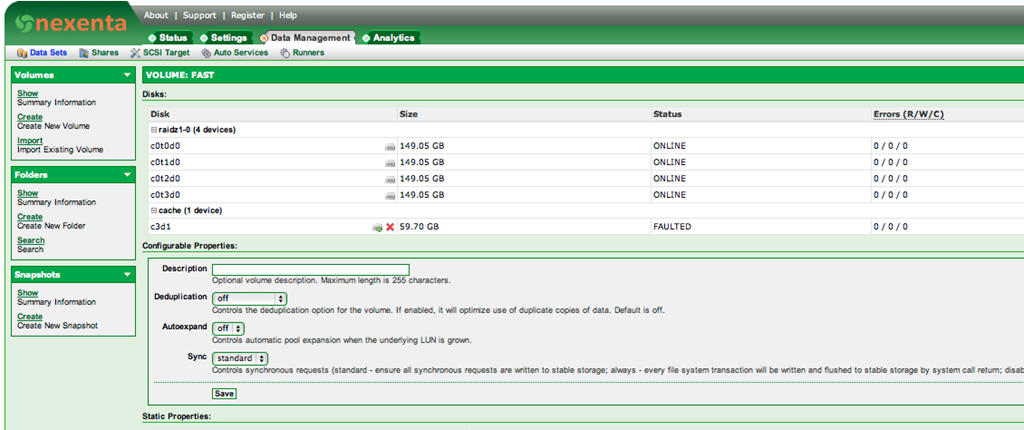
Attempts to manually online the disk return no error, but don’t work either so not entirely sure what happened there, I did have to shut down the box and move it so I re-seated all the connectors but it still wouldn’t let me re-enable the disk.
Worth noting that even with this fault the volume remained on-line; just without the cache enabled so I was able to storage vMotion off all the VMs and delete and re-create the volume (this time I re-created it without any mirroring for maximum performance.
Once I had storage vMotioned the test VM back (again, no downtime – good old ESX!) I ran some more Iometer tests and performance looked a lot better (see below)

I’ll be posting some proper benchmarks later on, but for now it was interesting to see how much better it could perform than my IX4 (although remember there is no data-protection/RAIDZ overhead so a disk fault will destroy this LUN – good enough for my home lab though, and I plan to RSYNC the contents off to the IX4 for a backup ).
Fingers crossed this isn’t a fault with my SSD… time will tell!
Nexentastor, When 1Gb just isn’t enough
Posted by on January 18, 2011
I have been trying to get my Nexentastor SSD/SATA hybrid NAS working this last week and I’ve found that the web UI grinds to a halt sometimes for me, I couldn’t find a UNIX ‘top’ equivalent quickly but the diagnostic reports that you can generate from the setup menu command line did indicate that it was short of RAM.
The HP Micro server I am using shipped with 1Gb of RAM, and normally that would be fine for a file-server/NAS but I’m thinking that Nexentastor does a fair bit more and is based on OpenSolaris rather than a stripped down Linux or BSD; the eval guide says 768Mb is enough for testing, 2Gb better 4Gb ideal so I was already pushing my luck with 1Gb for any real use.
So, I bit the bullet and ordered 8Gb of RAM for the server, which is the maximum you can install – ironically this cost the same amount as I paid for the whole Microserver in the 1st place (after the cash-back deal) but that’s reflective of the fact it only has 2 memory slots so I had to opt for the more expensive 4Gb chips.
I went for 8Gb as at some point I will probably re-run my experiments under ESXi and deploy this host as a part of my management cluster for the vTARDIS.cloud.
I am also booting the OS from a USB flash-drive – I had several 2Gb units but it wouldn’t install to them as they didn’t have quite enough space, so I’m using an 8Gb flash drive to hold the OS – this isn’t the most performant drive either so any swapping will be further impacted by the USB speed.
I’m Pleased to report that the 8Gb RAM upgrade has resolved all the problems with navigating the UI, and should also yield further I/O performance as the Nexentastor software uses the extra RAM as extra cache (ARC) as well as the SSD (L2ARC) – there is a good explanation of that on this blog post.
I’m going to post up my I/O benchmarking when I have some further wrinkles ironed out – in the meantime there is an excellent post here with some example benchmarks running Nexentastor in a VM on a slightly more powerful HP ML110 server.
London VMware User Group VMUG Feb 10th 2011
Posted by on January 17, 2011
It’s that time again, if you are in the UK – or anywhere nearby then register and get yourself over to the London VMUG.
I’m not sure if I can make this one, due to work commitments and this will be the 1st VMUG for about a year and a half where I won’t be presenting anything – so it’s safe to come out from behind the sofa! 
The Steering Committee are pleased to announce the next UK London VMware User Group meeting, kindly sponsored by Veeam is to be held on Thursday 10th February 2011. We hope to see you at the meeting, and afterwards for a drink or two, courtesy of VMware.
Our meeting will be held at the Thames Suite, London Chamber of Commerce and Industry, 33 Queen Street, London EC4R 1AP, +44 (0)20 7248 4444. The nearest tube station is Mansion House, location information is available here. Reception is from 12.30 for a prompt 1pm start, to finish around 5pm. Our agenda is below and is subject to change (but hopefully not too much!)
10.00 – 12.00 Roundtable Strategy Session with Martyn Storey and Mark Stockham; Enterprise Management – optional (spaces limited)
11:00 – 12:00 PowerCLI session with Alan Renouf – optional
12:30 – 13:00 Arrive & Refreshments
13:00 – 13:20 Welcome & News (Alaric)
13:20 – 14:00 Sponsor presentation (Veeam Systems)
14:00 – 14:30 VMware Certification – Preparing for Success (Scott Vessey)
14:30 – 15:00 Cheap Disaster Recovery using PowerShell scripts (Gabrie van Zanten http://www.gabesvirtualworld.com/)
15:00 – 15:20 Refreshment break
15:30 – 16:00 Advanced vCenter Alarming and Automation (Simon Long, VMware)
16:00 – 16:30 Transatlantic Datacentre migration (Chris Dearden, JFVI)
16:30 – 16:45 Close
17:00 Pub
Notes:
If you would like to participate in Alan’s workshop, please bring a laptop, preferably with the most current PowerCLI and PowerShell binaries installed.
To register your interest in attending, please email londonvmug@yahoo.com with up to two named attendees from your organisation. If you do not receive a confirmation mail, please don’t just turn up since we will not be able to admit you to the meeting. Please separately mention if you intend attending Alan’s PowerCLI workshop at 11.00 or would like to be considered to attend the Enterprise Management roundtable strategy session at 10.00. Content from the meeting will be uploaded to http://www.box.net/londonug, NDA permitting.Sincerely, and with regards,
The London VMUG Steering Committee
Finding Nexentastor CE IP address from the Command Line
Posted by on January 13, 2011
I found that I had a problem with my Nexentastor CE appliance build and needed to do some configuration by the command line – the quickest way to do this is to logon as root (using the password you specified during the installer)
Then type setup, that gives you a quick access way to move through the various configuration options and look at parameters.
You can also reboot/shutdown from here.

Note if you are trying a DHCP configuration it doesn’t seem to allow ifconfig commands even if you specify the bge0 interface, but you can view the properties from the setup utility, or as a quick short-cut type
setup network interface show
nmc@v0idsan2:/$ setup
Option ? network
Option ? interface
Option ? show
==== Interfaces ====
lo0: flags=2001000849<UP,LOOPBACK,RUNNING,MULTICAST,IPv4,VIRTUAL> mtu 8232 index 1
inet 127.0.0.1 netmask ff000000
bge0: flags=1004843<UP,BROADCAST,RUNNING,MULTICAST,DHCP,IPv4> mtu 1500 index 2
inet 192.168.2.4 netmask ffffff00 broadcast 192.168.2.255
ether 78:e7:d1:b1:44:1f
lo0: flags=2002000849<UP,LOOPBACK,RUNNING,MULTICAST,IPv6,VIRTUAL> mtu 8252 index 1
inet6 ::1/128nmc@v0idsan2:/$ setup network interface show
==== Interfaces ====
lo0: flags=2001000849<UP,LOOPBACK,RUNNING,MULTICAST,IPv4,VIRTUAL> mtu 8232 index 1
inet 127.0.0.1 netmask ff000000
bge0: flags=1004843<UP,BROADCAST,RUNNING,MULTICAST,DHCP,IPv4> mtu 1500 index 2
inet 192.168.2.4 netmask ffffff00 broadcast 192.168.2.255
ether 78:e7:d1:b1:44:1f
lo0: flags=2002000849<UP,LOOPBACK,RUNNING,MULTICAST,IPv6,VIRTUAL> mtu 8252 index 1
inet6 ::1/128nmc@v0idsan2:/$
Passed VCAP-DCD Exam
Posted by on January 12, 2011
After a bit of confusion and receiving the wrong exam results via email I got a nice email with a PDF copy of my scope report this morning, so I have now passed my VCAP-DCD 411 exam, with a mid-300’s score.
I did the beta exam (and because of availability and my schedule I had to go to Berlin to do it) it was about 4 hours long and off of the questions I had to rush a bit, which I would like to think which probably accounts for my score.
I did the version 3 design exam last year and I think the scenarios were better laid out in the v4 exam and weren’t as long which made them much more achievable in the allotted time.
They fixed the diagramming tool – there is a Visio-like diagramming tool which you can use to sketch out designs based on a given scenario by dragging & dropping servers, storage and links.
The exam I did was a good mix of scenarios/multiple-choice type questions and drag and drop process questions, all of which I guess will make it into the final version of the exam.
The final exam is now available for scheduling – you can find details here.
I did the vSphere 4 Design course the week before, although it was useful for the my VCDX prep in terms of helping to understand the blessed VMware design process but I don’t think it’s that helpful for the exam as the exam has a more technical focus so as long as you understand cluster design you should be in good stead.
I will also do the VCAP-DCA in a couple of months so will report back on my experience, in the meantime – Gregg has a great set of links and information on his blog here

 Virtualization, Cloud, Infrastructure and all that stuff in-between