Virtualization, Cloud, Infrastructure and all that stuff in-between
My ramblings on the stuff that holds it all together
Unable to launch the application when trying to connect to vCO client
Posted by on March 21, 2014
if you’re using the vCAC vCenter Orchestrator (vCO) client to customise a workflow it uses a Java client.
If you recently updated or downloaded Java to your machine then you’ll see the following error message..
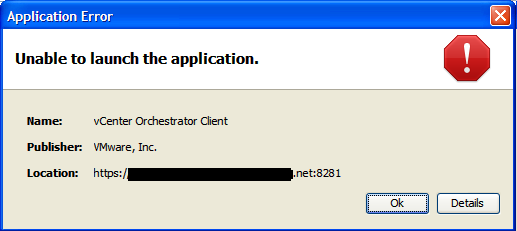

This is because it is using a self-signed certificate, and the latest Java builds prevent this as a security measure, reasonable I guess.
You’ll need to add your vCAC appliance URL to the exception list, note you need to specify the port number, or it won’t work. you can set this ON YOUR CLIENT WORKSTATION via Control Panel –> Java / Security on a Windows machine.

And you will now be able to connect, albeit with some warnings from the Java client.. (as shown below)

The moral of the story is, Java may run on 3 billion devices, but all of them break in subtle ways, each & every time when you update something 🙂
Why can’t I add a new VM to my vCAC blueprint
Posted by on March 7, 2014
If you are trying to add a blueprint using the clone or linked clone methods in vCloud Automation Center 6.x (vCAC) using a recently created VM or template from vCenter you won’t be able to find it in the search box no matter how hard you try or esoteric your search strings.
This is because by default the vCAC server only inventories the VMs on your vCenter every 24hrs, you can either manually perform an inventory update or increase the frequency.
It was confusing (to me) as the agent logs showed by vSphere IaaS server polling the vCenter service sucessfully, frequently so I assumed it would be looking for new VMs etc, alas no.
You can see the polling & inventory activities in the agent’s log file at the following location
c:\program files (x86)\VMware\vCAC\Agents\\Logs\vSphereAgent.log
To resolve this you can either A) wait 24hrs (hmm) or B) go to Home/Infrastructure/Compute Resources
Right click on your compute resource (e.g vCenter)
And click Data Collection
Under the inventory section you can update the frequency, or click request now to force an immediate update
This took 5-10mins to complete on my fairly large test cluster.
Microsoft Retiring TechNet Subscriptions
Posted by on July 2, 2013
Microsoft yesterday made the announcement that they are going to retire TechNet subscriptions as of the end of August 2013.
If you’re an IT pro home-labber, this is likely to be a big problem for you. I’ve long taken advantage of the subscriptions to keep my Microsoft skills up to date (I run SQL, AD, Exchange, IIS etc. at home) and it supports my vSphere lab and other learning activities.
Just as VMware are looking to re-instate their VMTN subscription (hopefully) this is a bit of a blow for those wanting to get hands on and dirty with Microsoft tech.
the equivalents they suggest, whilst perfectly good are not the same as “dog-fooding” Microsoft products day to day at home or in your work lab – 30 day evals, pre-built labs and VMs just aren’t as good for learning as they are a very artificial environment.
Bad move Microsoft, I hope VMware manage to remove their Windows dependencies in the next 12 months.
Using Magic Whiteboard paper to document your home lab
Posted by on February 28, 2013
yes, I have a rack in my home lab… they are usually free and easy to come-by if you have the means to transport them and I’ve had this one for a number of years – it has basic shelves inside and all my kit sits inside it reasonably tidily.
Here is a quick tip, get some magic whiteboard paper – like this – this stuff is great and it sticks to pretty much everything using static, no messy adhesive etc.
If you have a spare wall, or in my case a spare side of a rack – it works very well if you stick it to the side of the rack as shown below (the magnets shown in the pic aren’t actually required – it stays on all by itself).
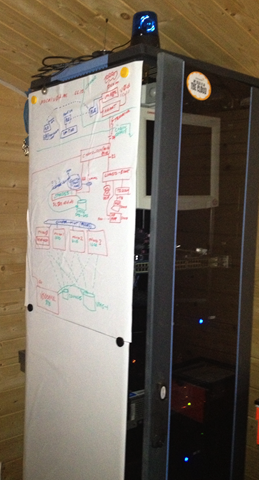 Leave some whiteboard pens nearby and you’ll find yourself actually updating even a basic form of documentation for your home lab regularly.
Even More Community Content at UKVMUG!!
Posted by on November 13, 2012
For the 2nd annual UK VMware User Group Conference this Thursday not only have we secured the cream of the crop of VMware, sponsor and community speakers (main agenda here) but we’re also running what I like to call (for lack of a better name) The Community Mezzanine
These sessions will be held on the Mezzanine level at the back of the sponsor solutions exchange area, we have very limited availability and access will be on a first-come-first-served basis. The current topics and sessions are as follows;
| Type | Run by.. | Topic |
| BoF Discussion Group (8-10 people) | Scott Lowe | “How do i build a stretched cluster, and do I need one?” |
| BoF Discussion Group (8-10 people) |
Simon Long | “VDI – Real world experiences” |
| BoF Discussion Group (8-10 people) |
Scott Lowe/Mike Laverick | “How do you do disaster recovery, and what would you like to do?” |
| Design Whiteboard (8-10 people) |
Darren Woollard | Come and join an interactive design white-boarding session, bring your ideas, questions and requirements. |
| Mock VCDX Panel (8-10 people) |
Simon Gallagher | A chance to participate in a friendly format and dry-run your VCDX defence presentation in front of your peers, offer to defend for a chance to sit on the panel and become an unofficial mock VCDX panelist. |
| Automation Station (Drop-in hands-on format) |
Jon Medd, Alan Renouf, William Lam | Ever wondered how to automate something? PowerCLI and all things PowerShell, come and try and hands-on, informal drop-in where you can get some help, ask questions and try it out for yourself. Staffed by the cream of the crop of automation specialists and authors (Lam, Renouf, Medd) |
The timings for these sessions are currently as follows (we may need to make some adjustments on the day so check the board by the mezzanine area).
| 10:00 – 10:45 am |
vSphere Design Whiteboard Session |
BoF |
Automation Station |
| 10:45 – 11:15 am | Break | ||
|
11:15 – 12:00 pm |
SPARE |
BoF |
Automation Station |
| 12:00 – 1:00 pm | Lunch | ||
| 1:00pm – 1:45 pm |
vSphere Design Whiteboard session |
Mock VCDX Defence Panel |
Automation Station |
| 1:45 – 2:15 pm | Break | ||
|
2:15 – 3:00 pm |
BoF |
Mock VCDX Defence Panel (Cont.) |
Automation Station |
| 3:00 – 3:15 pm | Break | ||
| 3:15 – 4:00 pm |
Repeat of popular session |
Repeat of popular session |
Automation Station |
| 4:00 – 4:15 pm | Break | ||
Official registration is now closed for the event but we will be able to accommodate walk-in registrations if you are able to make it, hope to see you there, it’s going to be Epic!
13 Inch 2011 MacBook Pro vs 2012 13 Inch MacBook Pro Retina
Posted by on November 6, 2012
After some “fun” with UPS missed deliveries I have my 13” MacBook Pro with a Retina screen in my hands, this is a quick hands-on set of photos for anyone considering an upgrade.
My reasons for the upgrade were as follows;
- I replace my Mac’s annually – and they hold their 2nd hand value so well it’s cost-effective to do so (compared to HP, Dell etc.)
- I wanted the higher resolution screen, that is the only thing I didn’t like about my 2011 13” model
The only down-side is that I upgraded my 2011 model to 16Gb RAM (see this link) and the maximum in the 2012 model is 8Gb, upon reflection most of the lab VMs I now run live on my vTARDIS lab so I am less dependent on running large sets of VMs on my laptop, a MacBook Air doesn’t quite cut it for me in the amount of available storage and CPU but the 13” MBP is perfect.
Here are some side-by-side photos incase you were wondering what the difference is..
The 2012 model is slightly smaller in all dimensions..



Lower-profile case..


Hope that is useful.
VMware Training for Contractors
Posted by on September 28, 2012
As a freelance contractor you need to strike a careful balance between managing your own professional development, earning a living and delivering for your customers.
You don’t benefit from paid holidays or paid-for training courses during work hours from your employer and I also find it hard to schedule courses into downtime between engagements or slotting in a training course around customer demands for your 9-5 availability.
So, I was particularly interested to see today the mention of vFLEX-ILT Flexible instructor-led training from VMware and a partner. You can see a video at the following link, but the basic concept is that you “virtually” attend a real-life training class with what look to be excellent remote access tools and HD video conferencing, the modern world has come to training 
You can see details of the courses and a demo video here:
http://mylearn.vmware.com/mgrReg/plan.cfm?plan=32083&ui=www_edu
This isn’t that new, some companies have been offering WebEx based training for a while but the inclusion of 2-way HD video is good and brings in some of the interactivity you would normally lose with remote access.
But, what particularly caught my eye is that the courses are delivered out of the US, opening the possibility that (with a bit of sacrifice of personal time and some double-shifting) you could feasibly do you your UK contract day-job but then virtually attend one of these classes in the evenings.
Courses that start at 9am Arizona time are towards the end of the UK day.

Cost-wise it isn’t too bad either – if you take the example of the View 5.1 install, configure, manage course (and assume that NC sales tax is similar to UK VAT – these prices are excluding tax)
Cost to attend virtually is currently £1,475 GBP + VAT @20% (note the cost to attend in-person in the US is the same as the virtual option, which I guess is understandable, they’re not buying you lunch – but they still need to pay for the trainer and your remote facilities).
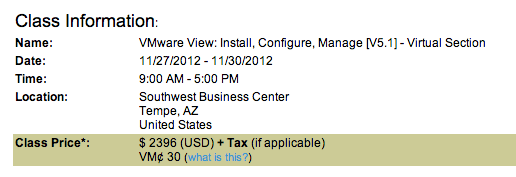
The same in-person course delivered in the UK is between
£1, 950 +VAT http://www.magirus.com/uk/training/vmware/view-5-install-configure-manage
£2,076 + VAT http://www.globalknowledge.co.uk/courses/vmware/virtualisation/vmview.html
So, if you are a contractor or paid by the hour/day outside of the US (and have good English skills) you could potentially use this technology and some of your personal time to save £500 over an in-person course and still be able to meet your day job commitments.
(Assuming you can keep up the pace of some short-term double-shifting, e.g doing a day-job then an evening course for 4 days) and still meet your customer’s requirements. Not a problem for many IT people in my experience.
iTARDIS vSphere on a Mac Mini
Posted by on September 21, 2012
You may be familiar with my vTARDIS project; I’ve been trying for a long time to make this work on a Mac Mini that I have as that would be the most awesome home lab possible – it’s almost silent and is small enough to fit underneath your monitor (however large your monitor is  )
)

I alluded to this in this previous post, but due to a bug the Mac Mini locked up on boot with ESX5 and there were no network drivers, with vSphere 5.1 and a little bit of frigging it finally works – it lives!

The network drivers don’t ship out of the box with ESX 5.1 but it no longer locks up on boot so you can get in and configure the IP address, kudos to this post on the VMware communities for finding the steps, which are summarized as;
- Download the NIC driver VIB for the Mac Mini (mine reports as MacMini4,1) is the server version with 8Gb and 2 x 500GB SATA drives.
- Customize your installation ISO with the driver VIB using this simple tool
- Install ESXi to a bootable USB drive (I used a 2GB Kingston flash drive) using Fusion
- create ESX5 VM in Fusion (or Workstation, principal is the same)
- attach customized ESX ISO to VM
- insert USB disk into laptop
- map USB drive to ESX VM
- boot VM from ISO file and install to USB stick when prompted
- Insert USB stick into Mac Mini
- Boot Mac Mini holding down alt key

- Select EFI boot when prompted
- ESX will boot
- set the management NIC and it’s IP address (or wait for it to get a DHCP address)
- You can now even install some nested ESX VMs on to it – see Williams post here which is more up to date than my vTARDIS pages for the required steps.
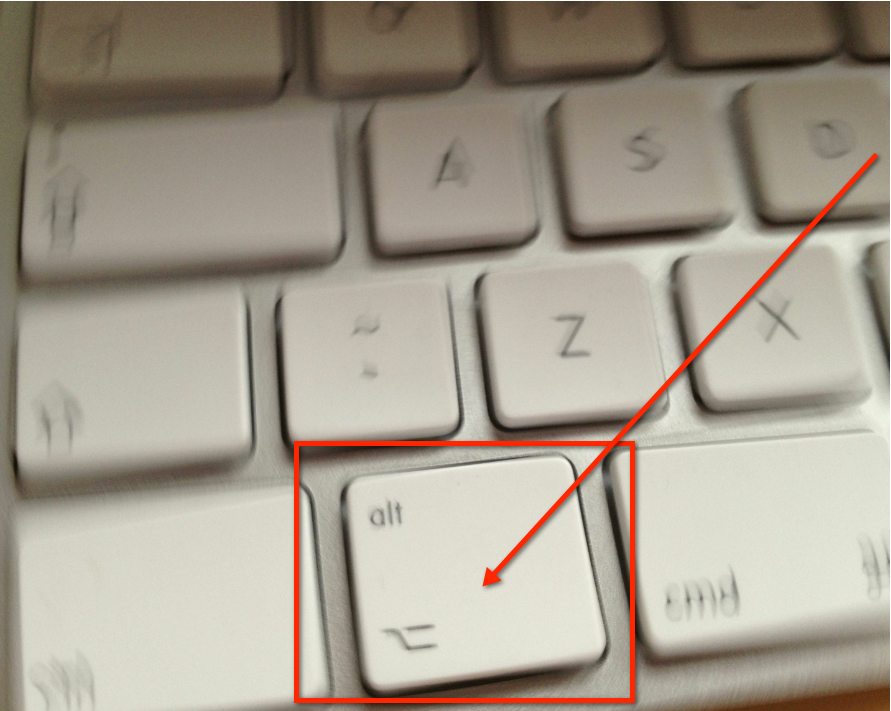
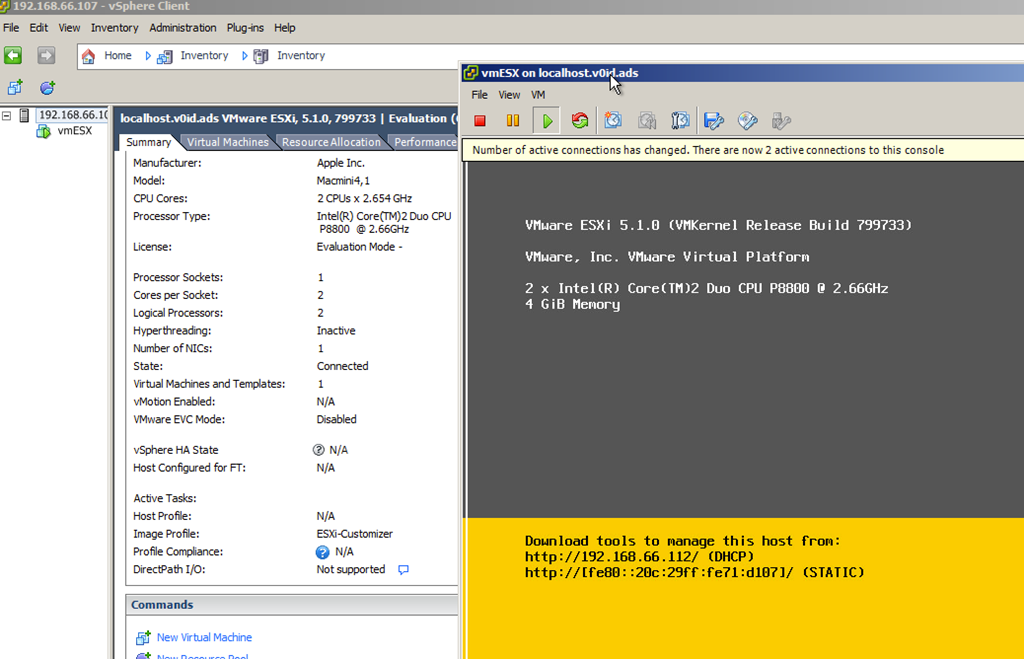
Ok, so it’s only got 8Gb of RAM, but this opens up all sorts of possibilities outside of nested ESX, because it’s Apple hardware you can install OS X as a VM (this is prevented on non-Apple hardware in ESX to comply with Apple’s licensing conditions).

Much more experimenting to come!
Call for Papers for UKVMUG is Open
Posted by on September 5, 2012
The steering committee would like to invite proposals for community sessions at UK VMUG in November.
Due to the limited number of available community sessions we will need to short-list proposed sessions and we will notify you by the end of September if you have been short-listed, you’ll also be asked if you would like to have your session submitted for a future London VMUG event.
VMUG is a voluntary organisation for VMware users, vendor sponsorship covers the actual cost of the event, as such we’re not usually able to cover travel costs for speakers, but we can offer endless gratitude and recognition for your efforts and if accepted you’ll be automatically entered for our annual best community presentation awards (see https://vinf.net/2012/01/30/lonvmug-best-community-presentation-of-2011-awards/ for last year’s winners).
VMware employees, sponsors and vendors are not eligible to submit community sessions unless you can clearly demonstrate that your content is independent of your company affiliation, potential sponsors should contact VMUG HQ for details (http://www.vmug.com/p/cm/ld/fid=52).
For more information on the event, location and logistics etc. click this link for more information http://www.vmug.com/p/cm/ld/fid=212
You can submit your proposal by clicking HERE

Well deserved award for LonVMUG Chair Alaric Davies
Posted by on August 28, 2012
Anyone who attends the London VMUG will have been impressed by our very own chairman Alaric, who has been running the event for over 5 years – in his own typically humble words he’s “the tall bloke who bumbles around waving his hands at the start and end of the day” but without Alaric we wouldn’t have the VMUG we have today.
As an attendee you don’t always appreciate the hard work that goes into planning and arranging our quarterly meetings and especially the UK national event, it takes a lot of personal time and dedication, something Alaric has given freely over the years, and he has been appropriately awarded by the VMUG board of directors for his service to the VMUG.
Please join me in congratulating Alaric (and all the other VMUG leader award winners).