Virtualization, Cloud, Infrastructure and all that stuff in-between
My ramblings on the stuff that holds it all together
Using Magic Whiteboard paper to document your home lab
Posted by on February 28, 2013
yes, I have a rack in my home lab… they are usually free and easy to come-by if you have the means to transport them and I’ve had this one for a number of years – it has basic shelves inside and all my kit sits inside it reasonably tidily.
Here is a quick tip, get some magic whiteboard paper – like this – this stuff is great and it sticks to pretty much everything using static, no messy adhesive etc.
If you have a spare wall, or in my case a spare side of a rack – it works very well if you stick it to the side of the rack as shown below (the magnets shown in the pic aren’t actually required – it stays on all by itself).
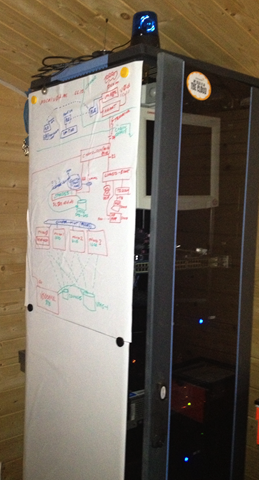 Leave some whiteboard pens nearby and you’ll find yourself actually updating even a basic form of documentation for your home lab regularly.
Even More Community Content at UKVMUG!!
Posted by on November 13, 2012
For the 2nd annual UK VMware User Group Conference this Thursday not only have we secured the cream of the crop of VMware, sponsor and community speakers (main agenda here) but we’re also running what I like to call (for lack of a better name) The Community Mezzanine
These sessions will be held on the Mezzanine level at the back of the sponsor solutions exchange area, we have very limited availability and access will be on a first-come-first-served basis. The current topics and sessions are as follows;
| Type | Run by.. | Topic |
| BoF Discussion Group (8-10 people) | Scott Lowe | “How do i build a stretched cluster, and do I need one?” |
| BoF Discussion Group (8-10 people) |
Simon Long | “VDI – Real world experiences” |
| BoF Discussion Group (8-10 people) |
Scott Lowe/Mike Laverick | “How do you do disaster recovery, and what would you like to do?” |
| Design Whiteboard (8-10 people) |
Darren Woollard | Come and join an interactive design white-boarding session, bring your ideas, questions and requirements. |
| Mock VCDX Panel (8-10 people) |
Simon Gallagher | A chance to participate in a friendly format and dry-run your VCDX defence presentation in front of your peers, offer to defend for a chance to sit on the panel and become an unofficial mock VCDX panelist. |
| Automation Station (Drop-in hands-on format) |
Jon Medd, Alan Renouf, William Lam | Ever wondered how to automate something? PowerCLI and all things PowerShell, come and try and hands-on, informal drop-in where you can get some help, ask questions and try it out for yourself. Staffed by the cream of the crop of automation specialists and authors (Lam, Renouf, Medd) |
The timings for these sessions are currently as follows (we may need to make some adjustments on the day so check the board by the mezzanine area).
| 10:00 – 10:45 am |
vSphere Design Whiteboard Session |
BoF |
Automation Station |
| 10:45 – 11:15 am | Break | ||
|
11:15 – 12:00 pm |
SPARE |
BoF |
Automation Station |
| 12:00 – 1:00 pm | Lunch | ||
| 1:00pm – 1:45 pm |
vSphere Design Whiteboard session |
Mock VCDX Defence Panel |
Automation Station |
| 1:45 – 2:15 pm | Break | ||
|
2:15 – 3:00 pm |
BoF |
Mock VCDX Defence Panel (Cont.) |
Automation Station |
| 3:00 – 3:15 pm | Break | ||
| 3:15 – 4:00 pm |
Repeat of popular session |
Repeat of popular session |
Automation Station |
| 4:00 – 4:15 pm | Break | ||
Official registration is now closed for the event but we will be able to accommodate walk-in registrations if you are able to make it, hope to see you there, it’s going to be Epic!
13 Inch 2011 MacBook Pro vs 2012 13 Inch MacBook Pro Retina
Posted by on November 6, 2012
After some “fun” with UPS missed deliveries I have my 13” MacBook Pro with a Retina screen in my hands, this is a quick hands-on set of photos for anyone considering an upgrade.
My reasons for the upgrade were as follows;
- I replace my Mac’s annually – and they hold their 2nd hand value so well it’s cost-effective to do so (compared to HP, Dell etc.)
- I wanted the higher resolution screen, that is the only thing I didn’t like about my 2011 13” model
The only down-side is that I upgraded my 2011 model to 16Gb RAM (see this link) and the maximum in the 2012 model is 8Gb, upon reflection most of the lab VMs I now run live on my vTARDIS lab so I am less dependent on running large sets of VMs on my laptop, a MacBook Air doesn’t quite cut it for me in the amount of available storage and CPU but the 13” MBP is perfect.
Here are some side-by-side photos incase you were wondering what the difference is..
The 2012 model is slightly smaller in all dimensions..

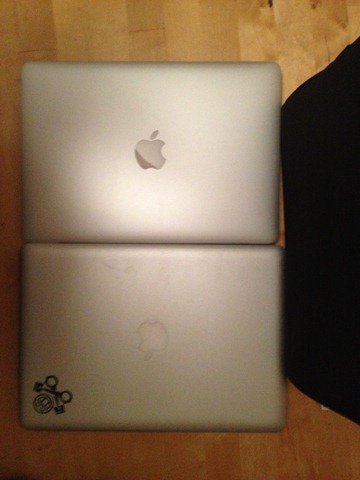

Lower-profile case..


Hope that is useful.
Well deserved award for LonVMUG Chair Alaric Davies
Posted by on August 28, 2012
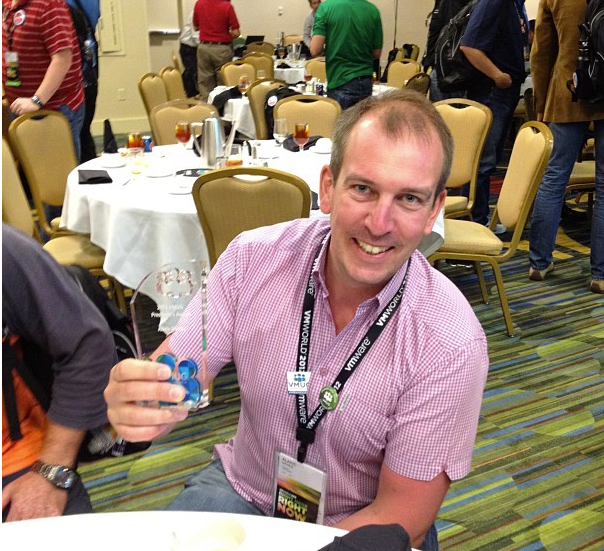
Anyone who attends the London VMUG will have been impressed by our very own chairman Alaric, who has been running the event for over 5 years – in his own typically humble words he’s “the tall bloke who bumbles around waving his hands at the start and end of the day” but without Alaric we wouldn’t have the VMUG we have today.
As an attendee you don’t always appreciate the hard work that goes into planning and arranging our quarterly meetings and especially the UK national event, it takes a lot of personal time and dedication, something Alaric has given freely over the years, and he has been appropriately awarded by the VMUG board of directors for his service to the VMUG.
Please join me in congratulating Alaric (and all the other VMUG leader award winners).
Killing vRAM is a backward step
Posted by on August 27, 2012
VMware announced today that it was undoing the vRAM based licensing it announced to much boo’ing last year and will revert to the original per-CPU model (without the core limitations), I had hoped that vRAM was an intermediary step to pure per-VM licensing to help people (and the industry/channel) over the hump to move from legacy to something more radical – it would seem this will not be the case for the forseeable future.
Whilst I admire VMware for listening to customers that complained about vRAM changes and judging by the applause in the room when incoming CEO Gelsinger made the announcement you’ll probably not agree with me but I think this is a backward step given the stated vision for building cloud infrastructure. In my humble opinion they should have dispensed entirely with per-host, per-socket or even standard/enterprise/enterprise plus editions and bundles and focused purely on a per-VM (or vApp/Group of VMs) feature license. crazy? moi? maybe – but let me state my case…
Cloud is all about dynamic workloads, rapid provisioning and self-service, not being tied into X capacity or capability which has to be paid for up-front, in advance just incase you might need to use it one day – it’s about pay as you go – pay for what you use; it means you can’t take too many risks, or be too innovative because you need to sink significant cost upfront to make things happen or go to established clouds like Amazon, Azure, google etc. where someone has already taken that risk.
I’ve previously written about the need for the software industry to move away from legacy perpetual licensing models and move to a rental/subscription based model with lower cost of entry – allowing real flexibility to scale up and down, and allow businesses to attribute true cost to service lines or business units before the fact, rather than after.
Why not set a lower unit cost for vSphere per-VM but let consumers buy premium vSphere features and add-on products (like SRM, vCenter Ops, etc.) a la carte? on a PER VM basis then people can buy commodity hardware as and when they need it – without having to absorb large chunks of software license costs per physical asset, this is a good way of removing the cost barrier for small organizations (that may have them looking at Microsoft or other solutions and reduces the risk/uncertainty in planning implementation – pay for what you use (or license what you think you’ll need).
By way of a very simplistic example – with some dummy costs to illustrate the point is below
There is a base license to use (LTU) cost – which is per VM, regardless of how many ESX hosts, clusters, sites, datacenters it runs on, so you merely specify on a monthly/quarterly/annual basis how many VMs you are running – or have vSphere report the number (this is how it works for VMware’s service provider licensing – VSPP).

So the per-VM cost is built up in layers – base and premium functionality, pay for what you need, pay for what you use – don’t be tied into bundles, editions and planning for changes that may never come – easy to step up and down in levels of functionality for individual vApps (or even individual VMs).
Depending on how it’s implemented this may need some changes to the product to facilitate – maybe it’s not a hard block that you cannot enable a feature, but vCenter will report that vApp 1,3 and Test 1 are out of compliance with your licensing (think host-profiles) and give you a click-through option to uplift your VMware licensing rental agreement, or even disable the functionality for offending vApps.
Hardware is cheap and commodity but slow to procure and has a traditional manufacturing/distribution chain behind it, you can’t generally sell it back or scale it down.
Software is relatively expensive but quick to procure and implement (automatable, even in terms of the software defined datacenter)
Neither are particularly flexible today with legacy sales, channel and distribution infrastructures that underpin a massive workforce in VARs, SI companies etc.
It’s hard for hardware vendors to price and sell their products on a flexible basis (they have to cover cost of design/manufacturing for a physical asset (although I’ve previously written that I think this is where VCE should have focused here instead of becoming just a reseller/SI)
Software vendors can do much better to clean up here today as they are less-burdened with a traditional manufacturing and distribution chain – whilst they obviously have shareholders to satisfy and costs to cover they can be much more innovative with how they sell and distribute their products – taking a longer vision and more incremental revenue (maybe less satisfying to shareholders and analysts, but..)
In the cloud (especially so in the private cloud) Workload is important, not infrastructure; and cost should be attributed accordingly.
None of this will change overnight – but I do believe this is a better model for the future – feel free to disagree (constructively) in the comments!
Installing a PowerShell IDE on Windows Server 2008 R2
Posted by on April 21, 2012
I’m sitting Thomas Lee’s PowerCamp espresso-powered PowerShell course this weekend – highly recommended, see my previous post.
I didn’t know this, being a POSH newbue, but there is a free, built-in PowerShell IDE, editor that ships with Windows Server 2008 R2, so for my labs I tend to install PowerGUI to bodge together some scripts.
Two lines of POSH and you can install the editor from PowerShell  rather than struggling with notepad.
import-module servermanager
Add-WindowsFeature PowerShell-ISE
It’s quite functional, and does the job and it’s free/built-in.

There are other commercial editors if you need to do this on a more regular basis from your own workstation.
iTunes Match and the 380GBP data bill
Posted by on February 24, 2012
Be careful out there, I have an iPhone 4s with a UK carrier (Tesco Mobile) and a 1GB data bundle on a pay-monthly contract.
I recently upgraded to iOS5 and iTunes Match – which is actually great and makes my music collection much more accessible from my devices, I found this setting the other day to see if it would let me stream iTunes content over 3G – which is did However, there is a risk to enabling this.

Whilst I fully understand how data works and roaming on/off WiFi onto 3G – read this post for more info (see picture above– settings->store, don’t set it to YES unless you are careful or have an unlimited plan)
Whilst on a WiFi connection I queued up a whole bunch of albums (probably 15-20) to download to my iPhone (Over WiFi/broadband) and left it overnight, as it no longer seems to sync with iTunes directly when you enable match on a new phone.
There would seem to have been some issue with my broadband overnight and those downloads stuttered to be fair there may have been an error message when I got to it in the morning, but certainly nothing that said – I’ll keep trying to download these, is that ok?
The next morning when I left the house (and thus my WiFi/broadband connection) it picked up a 3G signal and I can only think that it proceeded to download the rest of the stuff in the queue in the background, and ate up all my data allowance (and then some!)
Now, normally this wouldn’t be too much of an issue – later that day I got a text message from the carrier telling me I was within 100MB of my allowance – this was odd – but I reasoned maybe the streaming had used more than I thought so I decided not to do that any more. I left my phone on charge that night but didn’t use any further serious data – only to receive another message the following morning telling me that I was over my allowance and my service had been disabled.
I called the carrier – not only was my phone disabled but I had eaten through 1.6GB of mobile data, resulting in a charge of £0.60/MB for everything over 1GB – or, roughly £380, on top of my monthly £45 unlimited call/text + 1GB data bundle)!
Not happy about that really – so be careful out there, whilst enabling this setting was my choice/fault – iOS didn’t really explain what it would do in terms of queuing up the music to download when it saw the Internet again, so I was unaware of the consequences – I had assumed (logically) that it would be just for streaming music and downloading apps (within the 20MB max file size limit), which wouldn’t be a huge amount of data, but most individual album tracks from iTunes are < 20MB – and if you want to download lots of them (say 20 x (12 tracks to an album).
As a side-note for Tesco Mobile customers, they sort of suck…
- They don’t have a higher/unlimited data bundle that you can choose over 1GB
- They cannot/won’t set a lower credit-limit on your account (i.e say £100, rather than £400) to prevent the bill getting astonomical before you know about it – they can only “Network cap” your service, which essentially turns it into PAYG for anything that isn’t included in your bundle – i.e calling non-geographical numbers like 0845
- Their over-usage notification text message notification system (by their admission) is 6 hours behind their billing system – by which time on a 3G connection you’re probably way over the 100MB and into expensive £0.60/MB territory.
- If you run into this situation, the only way you can unblock your service is by physically going to an ATM or Tesco store and buying a top-up – they can only do a maximum of £30 over the phone! and apparently I need a minimum “top-up” credit of £90 for them to re-enable my service (which, to be fair will be deducted from the total bill at month-end)
- Tesco carrier-block the iOS personal hot-spot functionality of the iPhone and don’t even have a service to re-enable it.
Whilst iOS keeps tally of cellular usage in the settings, a REALLY useful feature would be a user-customizable warning in the native OS for data usage over a period – however, I suspect there is likely to be an app for that!

So, lesson learnt – I’ll be leaving that setting off – but I am seriously considering leaving Tesco Mobile and going to GiffGaff – who also use the o2 network under the covers and offer a much cheaper unlimited data tariff – I am going to see if Tesco will be lenient with their charging, it’s not really their fault but their systems don’t make it easy to avoid this situation in future without essentially making my voice plan equivalent to PAYG, by my calculations I can sell my (network unlocked) iPhone, pay off the remaining 14 month contract term and break-mostly-even – so guess it depends if they want to lose a customer over it or not.
How to set a Virtual Machine to a date in the past and make it stay there
Posted by on February 23, 2012
From time to time you may have a requirement to set the time and date of a virtual machine to a date in the past, to replicate a time-sensitive production issue or to work around expiry of a temporary license key.
WARNING: DO NOT DO THIS WITH A MACHINE WITH ANY SORT OF CONNECTIVITY TO THE OUTSIDE NETWORK – you could get into a world of pain, and some applications don’t work well if you move the time around if they do some sort of internal comparison – so use at your own risk!!
In my case – I had some configuration information stored in an eval build of a product that had since expired installed inside a VM and I wanted to be able to extract it, I was unable to do this without running the application as it was in a proprietary format so I needed temporary access to that application.
The steps that worked for me are:
- Disconnect the VM network from the outside world – in my case I was using Fusion and put it on a host-only network.
- Disable any application services (SQL, etc.) to avoid confusing them too much
- Disable the Windows time service (start/run/services.msc and disable the “Windows Time Service”)
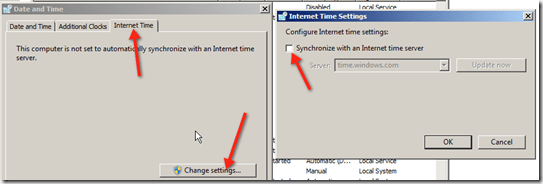
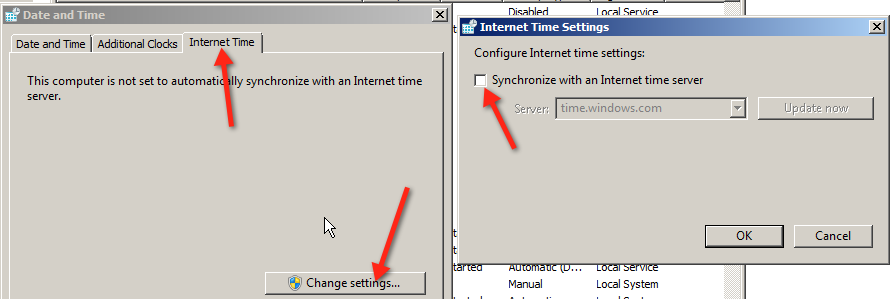
- Disable Windows updating its time over the Internet (otherwise it uses NTP to update itself periodically)
- Disable VMtool time sync

- Disable the VMtools Service – I found if you don’t do this it still updates the time, even with all the other settings in this post!

- Shutdown the virtual machine
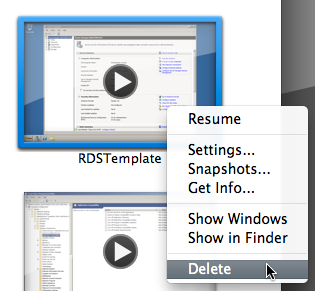
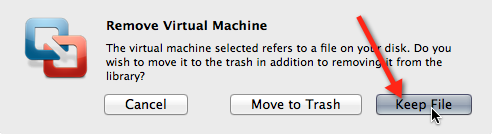
- Remove the virtual machine from the Fusion inventory
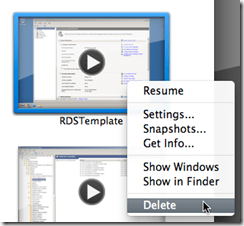
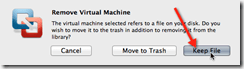
- Choose to keep the file
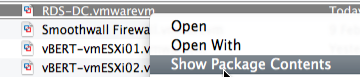
- Open the .VMX file (On Fusion you’ll need to show package for the .vmwarevm file)
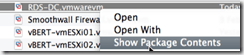
- Locate the .vmx file and open it in a text editor
- Add the following .VMX entries (calculate YourValue using this calculator this will set the VM BIOS to start at this date when you reboot the VM)
- Save the .vmx file and re-open it with Fusion (if you don’t remove it from the inventory 1st it doesn’t seem to work correctly)
- Start-up the VM and the system time should be set to a date in the past (that you specified in epoch seconds in YourValue above)
- If the time does not stick, set the Windows time to a point shortly after your intended time and power off he VM, it should then stick.
- Re-enable the application services (SQL etc.) that you require.
- Use with caution to extract files/data.


rtc.startTime = "YourValue"
tools.syncTime = "FALSE"
time.synchronize.continue ="FALSE"
time.synchronize.restore = "FALSE"
time.synchronize.resume.disk = "FALSE"
time.synchronize.resume.memory = "FALSE"
time.synchronize.shrink = "FALSE"
(note: if you have more than one tools.syncTime=”FALSE” entry in your .VMX file remove one of them)
Credit to this post for the original .vmx entries
Install Telnet client on Windows 2008 R2
Posted by on February 22, 2012
Windows 2008 R2 doesn’t ship with Telnet installed by default, so if you want to check connectivity on a specific port to rule out a firewall issue you’ll need to install it manually.
You can quickly do this from the command line with the command (you don’t need access to media etc. as it’s all slipstreamed into the default install.
pkgmgr /iu:”TelnetClient”

And, once finished you can remove it with the following command – it’s advisable to do this once you’ve finished with it for security.
pkgmgr /uu:”TelnetClient”

Microsoft UK TechDays
Posted by on February 2, 2012
Microsoft are once again running their TechDays series in the UK, a series of full-day FREE hands-on sessions on training around the UK.
I’ve attended these in the past and can highly recommend them.
There look to be some excellent sessions, you can sign up here I am attending the private cloud session and look forward to getting some hands-on time with System Center 2012.


 Virtualization, Cloud, Infrastructure and all that stuff in-between