Virtualization, Cloud, Infrastructure and all that stuff in-between
My ramblings on the stuff that holds it all together
With the move to ESXi is NFS becoming more useful than VMFS?
Posted by on March 2, 2010
Now that VMware are moving away from ESX classic (with service console) to the ESXi model I have experienced a couple of issues recently that got me wondering if NFS will be a more appropriate model for VM storage going forward. in recent versions of ESX (3.5 and 4) NFS has moved away from just being recommended for .ISO/template storage and has some big names behind it for production VM storage.
I’m far from a storage expert, but I know enough to be dangerous… feel free to comment if you see it differently.
“out of band” Access speed
Because VMFS is a proprietary block-storage file system you are only able to access it via an ESX host you can’t easily go direct (VCB…maybe, but it’s not easy), in the past this hasn’t been too much of an issue; however whilst building a new ESXi lab environment on standard hardware I found excessive transfer times using the Datastore browser in the VI Client, 45mins+ to copy a 1.8GB .ISO file to a VMFS datastore, or import virtual machines and appliances; even using Veeam FastSCP didn’t make a significant difference.
I spent ages checking out network/duplex issues but in desperation I tried it against ESX classic (based on this blog post I found) installed on the same host and that transfer time was less than 1/2 (22mins) – which still wasn’t brilliant – but I cranked out Veeam FastSCP and did it in 6mins!
So, lesson learnt? relying on the VI client/native interfaces to transfer large .ISO files or VMs into datastores slow and you have to go via the Hypervisor layer, which oddly doesn’t seem optimized for this sort of access. Veeam FastSCP fixes most of this – but only on ESX classic as it has some service-console cleverness that just isn’t possible on ESXi.
With ESX classic going away in favour of ESXi, there will need to be an alternative for out of band access to datastores – either direct access or an improved network stack for datastore browsing
This is important where you manage standalone ESX hosts (SME), or want to perform a lot of P2V operations as all of those transfers use this method.
In the case of using NFS, given appropriate permissions you can go direct to the volume holding the VMs using a standard network protocol which is entirely outside of the ESX/vCenter. upload/download transfers thus are at at the speed of the data mover or server hosting the NFS mount point so are not constrained by ESX.
To me, Fibre Channel was always more desirable for VM storage as it offered lossless bandwidth up to 4Gb/s (now 8Gb/s) but Ethernet (which is obviously required to serve NFS) now has 10Gb/s bandwidth and loss-less technology like FCoE, some materials put NFS about 10% slower than VMFS – considering the vast cost difference between dedicated FC hardware and commodity Ethernet/NAS storage I think that’s a pretty marginal difference when you factor in the simplicity of managing NFS vs. FC (VLANs, IPs vs. Zoning, Masking etc.).
FCoE maybe addresses the balance and provides the best solution to performance and complexity but doesn’t really address the out of band access issue I’ve mentioned here as it’s a block-storage protocol.
Emergency Access
If you have a problem with your vCenter/ESX installation you are essentially locked out of access to the virtual machines, it’s not easy to just mount up the VMFS volume on a host with a different operating system and pull out/recover the raw virtual machines.
With NFS you have more options in this situation, particularly in small environments.
Storage Host Based Replication
For smaller environments SAN-SAN replication is expensive, and using NFS presents some interesting options for data replication across multiple storage hosts using software solutions.
I’d love to hear your thoughts..
Find all the Good v12n Posts every Week
Posted by on February 26, 2010
If cast my mind back 2 or 3 years, finding good VMware related information on the web was hard, there were 2 or 3 good technical blogs (RTFM, Scott Lowe, Eric Sloof) and there was 1 book by Ron Oglesby/Mike Laverick but that was pretty much it.
Since then things have come along leaps and bounds, the Planet v12n list that VMware maintains aggregates all the good virtualization blogs into one place for easy digestion (RSS feed here) but this now tracks a large number of bloggers (myself included).
It’s almost like you need someone to cherry-pick the vast number of weekly posts, on ooh. say a weekly basis?
Well, have no fear – for some time VCDX007 (Duncan Epping) has been doing the hard work for you and picking the top 5 v12n posts on a weekly basis, usually published on a Sunday you can find the list here on the VMTN blog, I’m pleased to say I’ve made this list a few times now for various blog posts.
I’ve deliberately left twitter out of this (follow me here if you wish), as long-form blog posts are more my kind of thing; Twitter is ok for general chit-chat and quick Q&A but it’s a lot to keep on top of, and do a day job! – But if Twitter is your thing – Maish has a twitter list of the top-25 v12n Bloggers (based on Eric’s list – I’m at number 53, thanks to everyone that voted for me :))
And, just in case you were wondering; v12n is a numeronym for virtualization (yes, I had to look that one up :))
8 Node ESXi Cluster running 60 Virtual Machines – all Running from a Single 500GBP Physical Server
Posted by on February 25, 2010
I am currently presenting a follow-up to my previous vTARDIS session for the London VMware Users Group where I demonstrated a 2-node ESX cluster on cheap PC-grade hardware (ML-115g5).
The goal of this build is to create a system you can use for VCP and VCDX type study without spending thousands on normal production type hardware (see the slides at the end of this page for more info on why this is useful..) – Techhead and I have a series of joint postings in the pipeline about how to configure the environment and the best hardware to use.
As a bit of a tangent I have been seeing how complex an environment I can get out of a single server (which I have dubbed v.T.A.R.D.I.S: Nano Edition) using virtualized ESXi hosts, the goals were;
- Distributed vSwitch and/or Cisco NX100V
- Cluster with HA/DRS enabled
- Large number of virtual machines
- Single cheap server solution
- No External hardware networking (all internal v/dvSwitch traffic)
The main stumbling block I ran into with the previous build was the performance of the SATA hard disks I was using, SCSI was out of my budget and SATA soon gets bogged down with concurrent requests which makes it slow; so I started to investigate solid state storage (previous posts here).
By keeping the virtual machine configurations light and using thin-provisioning I hoped to squeeze a lot of virtual machines into a single disk, previous findings seem to prove that cheap-er consumer grade SSD’s can support massive amount of IOps when compared to SATA (Eric Sloof has a similar post on this here)
So, I voted with my credit card and purchased one of these from Amazon – it wasn’t “cheap” at c.£200 but it will let me scale my environment bigger than I could previously manage which means less power, cost, CO2 and all the other usual arguments you try to convince yourself that a gadget is REQUIRED.
So the configuration I ended up with is as follows;
| 1 x HP ML115G5, 8Gb RAM, 144Gb SATA HDD | c.£300 (see here) but with more RAM |
| 1 x 128Gb Kingston 2.5” SSDNow V-Series SSD | c£205 |
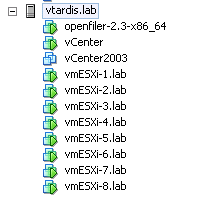
I installed ESX4U1 classic on the physical hardware then installed 8 x ESXi 4U1 instances as virtual machines inside that ESX installation
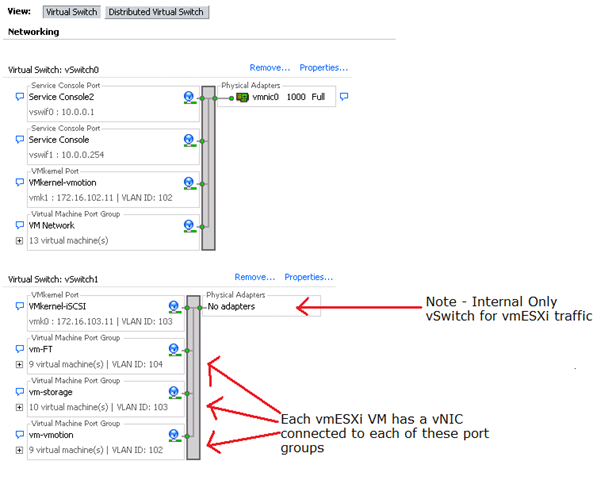
This diagram shows the physical server’s network configuration
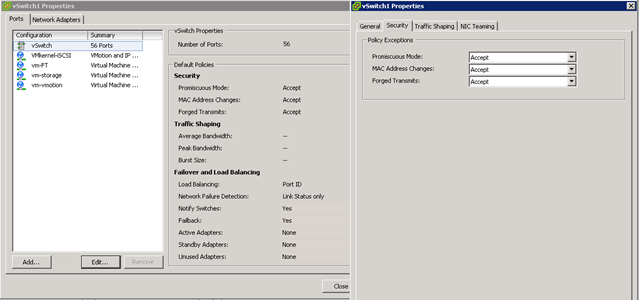
In order for virtualized ESXi instances to talk to each other you need to update the security setting on the physical host’s vSwitch only as shown below;
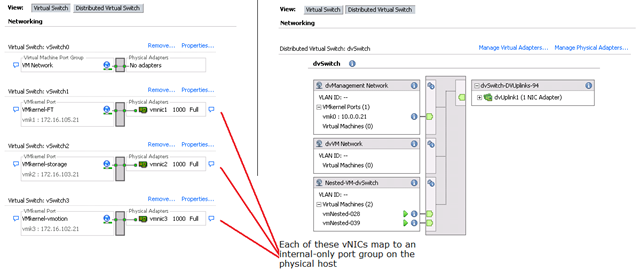
This diagram shows the virtual network configuration within each virtualized ESXi VM with vSwitch and dvSwitch config side-side.
I then built a Windows 2008R2 Virtual Machine with vCenter 4 Update 1 as a virtual machine and added all the hosts to it to manage
I clustered all the virtual ESXi instances into a single DRS/HA cluster (turning off admission control as we will be heavily oversubscribing the resources of the cluster and this is just a lab/PoC setup
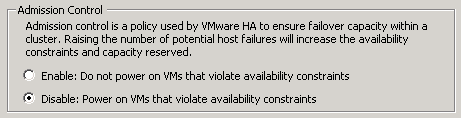
Cluster Summary – 8 x virtualized ESXi instances – note the heavy RAM oversubscription, this server only has 8Gb of physical RAM – the cluster thinks it has nearly 64Gb


I then built an OpenFiler Virtual Machine and hooked it up to the internal vSwitch so that the virtualized ESXi VMs can access it via iSCSI, it has a virtual disk installed on the SSD presenting a 30Gb VMFS volume over iSCSI to the virtual cluster nodes (and all the iSCSI traffic is essentially in-memory as there is no physical networking for it to traverse.
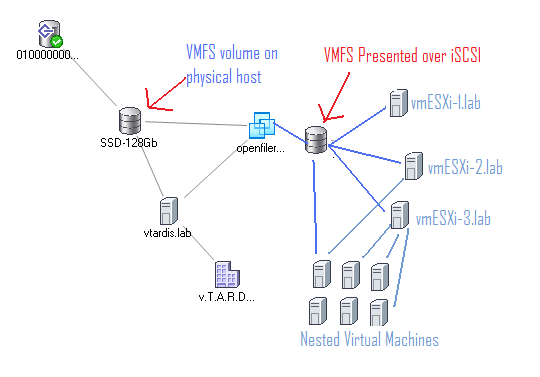
Each virtualized ESXi node then runs a number of nested virtual machines (VM’s running inside VMs)
In order to get Nested virtual machines to work; you need to enable this setting on each virtualized ESXi host (the nested VM’s themselves don’t need any special configuration)
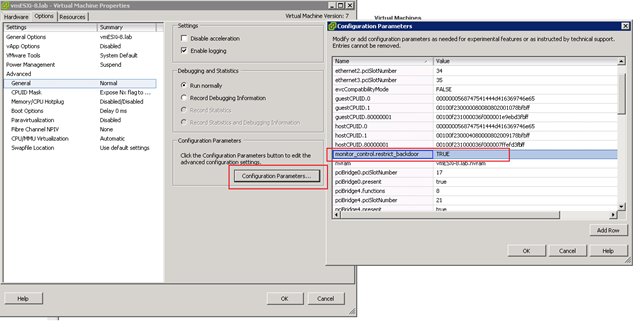
Once this was done and all my ESXi nodes were running and settled down, I have a script to build out a whole bunch of nested virtual machines to execute on my 8-node cluster. the VM’s aren’t anything special – each has 512Mb allocated to it and won’t actually boot past the BIOS because my goal here is just to simulate a large number of virtual machines and their configuration within vCenter, rather than meet an actual workload – remember this is a single server configuration and you can’t override the laws of physics, there is only really 8Gb or RAM and 4 CPU cores available.
Each of the virtual machines was connected to a dvSwitch for VM traffic – which you can see here in action (the dvUplink is actually a virtual NIC on the ESXi host).
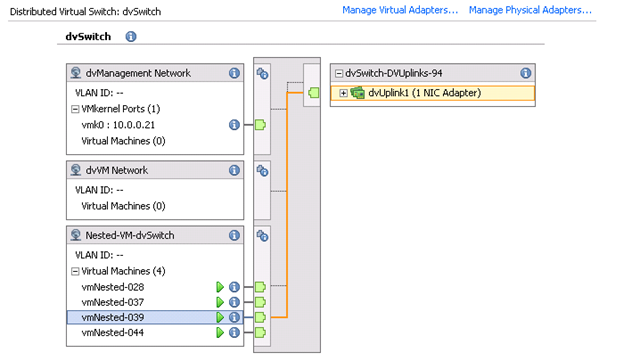
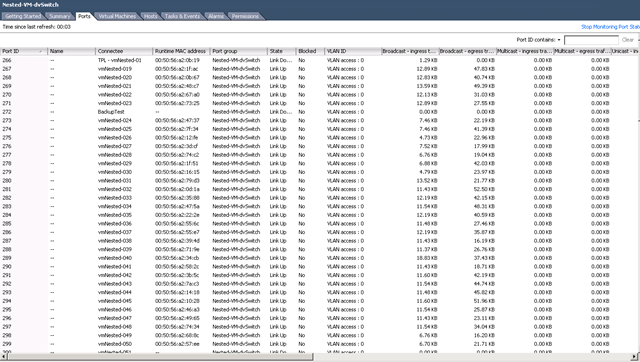
I power up the virtual machines in batches of 10 to avoid swamping the host, but the SSD is holding up very well against the I/O
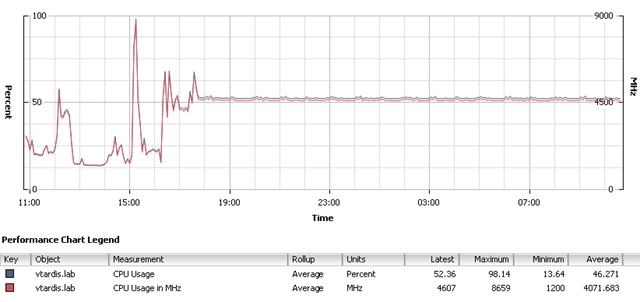
With all 60 of the nested VMs and virtualized ESXi instances loaded these are the load stats

I left it to idle overnight and these are the performance charts for the physical host; the big spike @15:00 was the scripts running to deploy the 60 virtual machines
Disk Latency

Physical memory consumption – still a way to go to get it to 8Gb – who says oversubscription has no use? 🙂
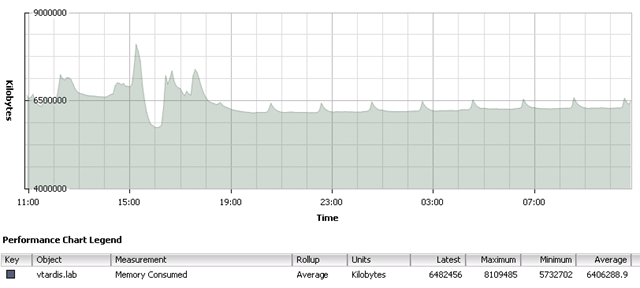

So, in conclusion – this shows that you can host a large number of virtual machines for a lab setup, this obviously isn’t of much use in a production environment because as soon as those 60VM’s actually start doing something they will consume real memory and CPU and you will run out of raw resources.
The key to making this usable is the solid state disk – in my previous experiments I found SATA disks just got soaked under load and caused things like access to the VMFS to fail (see this post for more details)
Whilst not a production solution, this sort of setup is ideal for VCP/VCDX study as it allows you to play with all the enterprise level features like dvSwitch and DRS/HA that really need more than just a couple of hosts and VMs to understand how they really work. for example; you can power-off one of the virtual ESXi nodes to simulate a host failure and invoke the HA response, similarly you can disconnect the virtual NIC from the ESXi VM to simulate the host isolation response.
Whilst this post has focused on non-production/lab scenarios it could be used to test VMware patch releases for production services if you are short on hardware and you can quite happily run Update manager in this solution.
If you run this lab at home it’s also very power-efficient and quiet, there are no external cables or switches other than a cross-over cable to a laptop to run the VI Client and administer it; you could comfortably have it in your house without it bothering anyone – and with an SSD there is no hard disk noise under load either 🙂
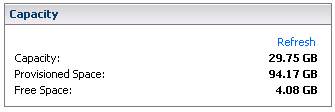
Thin-provisioning also makes good use of an SSD in this situation as this screenshot from a 30Gb virtual VMFS volume shows.
The only thing you won’t be able to play around with seriously in this environment is the new VMware FT feature – it is possible to enable it using the information in this post and learn how to enable/disable but it won’t remain stable and the secondary VM will loose sync with the primary after a while as it doesn’t seem to work very well as a nested VM. If you need to use FT for now you’ll need at least 2 physical FT servers (as shown in the original vTARDIS demo)
If you are wondering how noisy it it at power-up/down TechHead has this video on YouTube showing the scary sounding start-up noise but how quiet it gets once the fan control kicks-in.
ML115 G5 Start-up Noise
Having completed my VCP4 and 3 I’m on the path to my VCDX and next up is the enterprise exam so this lab is going to be key to my study when the vSphere exams are released.
Quick and Dirty PowerShell to create a large number of test VMs with sequential names
Posted by on February 25, 2010
Be gentle, I’m new to this PowerShell stuff – I have a requirement to create a large number of VMs from a template, this is the PowerShell Code I hacked together from a VMTN communities blog post – it’s not pretty but it works for me – you can play with the variables to adjust to your own environment and desired number of VMs.
In my case my template is a Linux VM setup ready to boot from a LiveCD – just so it generates some basic load when it starts up.
There is a bit of clever number formatting which I lifted from this blog post to pad the VM numbers out to 3 digits and make it tidy looking, not entirely sure I understand what it does – but it works!
I am using PowerGUI based on the info at Al’s blog here
|
Connect-VIServer -Server localhost >$null #Variables $Date=get-date -uformat "%Y%m%d" $NumArray = (1..$HOW_MANY_TO_CREATE) foreach ($number in $numArray ) |
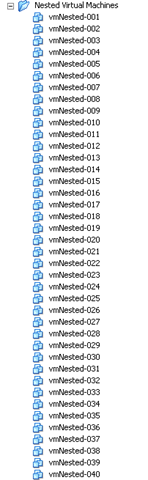
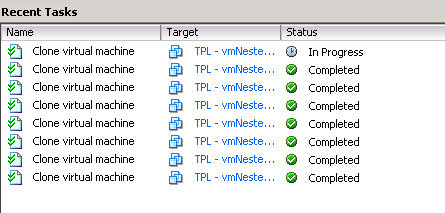
The Results (40 VM’s from template – completed in about 5mins);
Installing ESXi on a Laptop
Posted by on February 24, 2010
Following on from my recent blog posts about the various ways to configure ML115 G5 servers to run ESX, I thought I would do some further experimenting on some older hardware that I have.
I have a Dell D620 laptop with dual-core CPU and 4Gb of RAM which is now no longer my day-day machine, because of the success I had with SSD drives I installed a 64Gb SSD in this machine
I followed these instructions to install ESXi 4 Update 1 to a USB Lego brick flash drive (freebie from EMC a while ago and plays nicely to my Legogeekdom). I can then boot my laptop from this USB flash drive to run ESXi.

I am surprised to say it worked 1st time, booted fully and even supports the on-board NIC!


So, there you go – another low-cost ESXi server for your home lab that even comes with its own hot-swappable built-in battery UPS 🙂
The on-board SATA disk controller was also detected out of the box

A quick look on eBay and D620’s are going for about £250, handy!
Here is a screenshot of the laptop running a nested copy of ESXi, interestingly I also told the VM it had 8Gb of RAM, when it only has 4Gb of physical RAM.

The Big Cloud Debate @CloudCamp London
Posted by on February 24, 2010
I noted with interest that the next CloudCamp London has been announced for Thursday 11th March, the last couple that I attended were pretty similar and other than some useful networking there was nothing really new/different that jumped out at me; so I wasn’t sure I would go to the next one as it seemed to have run out of steam a little until I noticed this on the agenda for March;
"The Big Cloud Debate " : A presidential style 4 way debate pitching 4 divergent views and approaches to cloud computing against each other. The speakers are:
- Matt Deacon – Microsoft
- Simon Wardley – Canonical
- Rod Johnston – VMware
- Chris Richardson Thoughtworks
The reason this is of interest to me? Rod Johnston came to VMware via the Springsource acquisition, I assume Matt Deacon will be discussing Microsoft’s Azure platform. plus CloudCamp London mainstay Simon Wardley from Cannonical I assume taking the EC2/Ubuntu angle and Chris Richardson (who I think has this blog; ex-springsource?
Should be an interesting debate, I think it would also be good to have a similar format debate with this panel (or the companies they represent) around the Infrastructure as a Service (IaaS) / private vs. public cloud angle – CloudCamp always has a software focus, but I think the cloud infrastructure debate has a lot of scope and a good potential audience
Registration doesn’t seem to be open to the general public yet, but I’m sure it will soon – maybe see you there.
Lost access to VM Network and Service Console when Playing with dvSwitch?
Posted by on February 23, 2010
I have been doing some tweaking in my vTARDIS demo lab for the next London VMUG to make it work with the dvSwitch – this all works fine inside the virtualized ESXi hosts however, I tried adding the physical host to the dvSwitch and it blew up and I lost access to my vCenter VM (VM being the key issue here) because the box only has a single NIC (I also probably ignored a couple of warning dialog boxes as I was distracted doing something else (! pay attention to these things !)
The vCenter node was communicating over the VM Network to my client. which now couldn’t connect into the dvSwitch as I had moved the uplink to the dvSwitch there were no physical NICs to connect with so I was kind of stuck. Connecting directly to the physical ESX host using the VI client worked so I had service console access but it wouldn’t let me remove the pNIC from the dvSwitch and add it back to the traditional vSwitch as I only had a single pNIC. So in the end I had to break out the command line to get access back.
Unlink the pNIC from the dvSwitch: (your vmnic/PortID and dvSwitch names may be different)
esxcfg-vswitch –Q vmnic0 –V 265 dvSwitch
(note there is no -Q=vmnic as the help file would suggest on 1st glance, use a space and not an ‘=’ my esxcfg-* command line-fu was a bit rusty so that caught me out for a while :))
Re-link it to a normal vSwitch
esxcfg-vswitch –L vmnic0 vSwitch0
within about 30 seconda all the VM networking came back so I could connect to the vCenter box again.
I then removed the dvSwitch entirely from the host; to do this I had to connect directly to the ESX host using the VI client as there are no options to do it via the UI when connected to vCenter.
Looks like Joep Piscaer had the same problem here and has a more detailed post on his blog
Double-Take puts DR into the Cloud
Posted by on February 22, 2010
A colleague passed me this link today, Double-take have a new product offering allowing copies of app-servers to be replicated to and run on Amazon’s EC2 cloud service (register article here) – syncing disk writes in a delta fashion to an EC2 hosted AMI.

I suggested a similar architecture last year using Platespin, recent changes to EC2 to allow boot from elastic block storage (i.e persistent storage and private networking) make this a feasible solution, and as it’s pay per use you only pay for the EC2 instance(s) when they are running (i.e during a recovery situation).
You can read more about it here on the Double-Take site unfortunately their marketing department have coined another ‘aaS-ism’ in Recovery as a Service (RaaS) but we’ll forgive them as it’s a cool concept :).
There is a getting started guide here and it looks to operate on a many to one basis with one EC2 hosted instance of their software receiving delta changes from protected hosts over a VPN and writing them out to EBS volumes; if you need to recover a server an new EC2 instance is invoked and boots from the EBS volume containing replicas of your data, presumably inserting appropriate EC2 virtual h/w driver into the image at boot time (essentially P2V or V2V conversion).
My quick calculations; for a Windows 2008 server with a moderate amount of data (not factoring any client-side de-dupe) initial sync would transfer approx 15Gb into EC2 charges here – they vary by region so you can do your own figures EBS storage charges, and, of course; the initial sync might take a while depending on your internet connection.
If you are a *NIX admin you are probably thinking, huh, so what? copy data to S3 and just start-up a new AMI with the software and config you need and off you go; this solution seems targeted to Windows servers, where this sort of P2V, V2V recovery is very. very complicated due to the proprietary (i.e non-text file based) way Windows stores its application and system configurations in the registry.
In conclusion they would seem to have pipped Platespin:Protect to the post on this one – I had some good conversations with Platespin’s CTO about this solution last year but I have to say I’ve not seen significant new functionality out of the Platespin product range since Novell acquired it which is a shame, Double-Take Cloud looks like an interesting solution – check it out, and being “cloud” it’s easy to take it for a test drive – you would do well to consider whatever data protection laws your business is bound by, however (the curse of the cloud).
Location of Sysprep Files When you Install vCenter on a Windows 2008 Server
Posted by on February 22, 2010
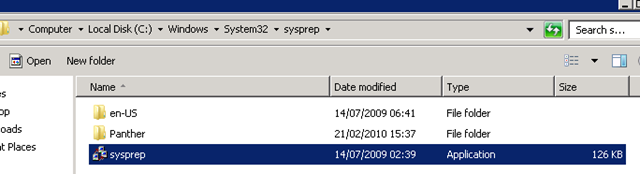
If you need to install vCenter 4 on Windows Server 2008 and want to be able to customize non Windows 2008/Vista and later VMs (i.e Windows XP, 2003, 2000) you need to place the extracted deploy.cab files in a different location than you used with Windows 2003 (C:\documents and settings\all users … etc.) so that vCenter has access to the sysprep.exe files.
On Windows 2008 this location is now in C:\ProgramData\VMware\VMware VirtualCenter\sysprep

You can then extract the deploy.cab file to the appropriate folder and use the customization specification functionality (like this ESX 3.5 example)
There is a handy reference with download links for all versions here.
Note – as I posted previously you don’t need to worry about this if you are solely deploying Windows 2008/Vista and later VMs, as they have sysprep.exe built into the default OS build.
Top Marks for Amazon Customer Services
Posted by on February 21, 2010
I have been doing some experimenting with a cheap-ish SSH drive that I purchased last year; over the last week it has become unreliable and got to the stage where I could no longer remove any partitions, even using DBAN and clean OS installs reported a disk error.
It was past the 30 day normal returns window but had a 2-year warranty – quick email to Amazon customer services and they replied within 30mins that they had shipped out a replacement drive and I just need to return the faulty one within 30 days.
True to their word it arrived before 10am the following day (a Saturday, no less) – 18hrs from 1st reporting the fault, brilliant!
I’ve also been an Amazon prime subscriber for about a year now and it’s been well worth the cost (c.£50/year) as I get almost everything delivered next day included in that flat annual subscription (marketplace stuff isn’t included). if you are lucky enough to live in a covered area it also has special (extra cost) options for getting certain items delivered at specific evening/weekend times – which is very handy if you are having things delivered to home rather than work
It’s got to the stage now that I find Amazon so convenient that I use it for a lot of stuff now, even if I could get it slightly cheaper elsewhere – the quick delivery and general no-hassle returns/order management make it worthwhile for me, plus they are usually very competitively priced.
Easy to see why they are so successful!

 Virtualization, Cloud, Infrastructure and all that stuff in-between