Virtualization, Cloud, Infrastructure and all that stuff in-between
My ramblings on the stuff that holds it all together
Deleting a Virtual Machine from Virtual Center and Disk
Posted by on May 14, 2008
If you deploy your VM’s from a master image using Virtual Center’s Deploy from template functionality (below).

When you try and delete a virtual machine you’ve created from disk
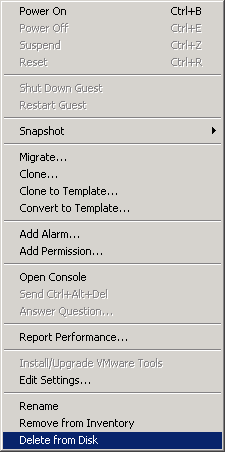
You get the following prompt
Are you sure you want to delete this VM and it’s associated base disk?
Please note if other VMs are sharing this base disk, they will no longer have access to this disk.

This does not refer to the master VM image you deployed from; in other words if you delete the VM it does not break all other VMs deployed from the initial template.
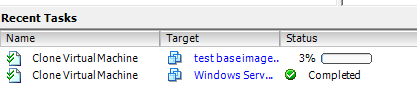
One other point to note, when you perform “Deploy virtual machine from template” operation, the target field (below) is actually the name of the base image you are cloning, rather than the name of the eventual VM you are creating from it – odd, but that’s how it is (below)
Solid Sate SAN, Storage vMotion and VMWare – HSM for your VMs
Posted by on May 13, 2008
You’ve been able to buy solid state SAN technology like the Tera-RAMSAN from TMS which gives you up to 1Tb of storage, presented over 4Gb/s fibre channel or Infiniband @10Gb/s… with the cost of flash storage dropping its going to soon fall in to the realms of affordability (from memory a year ago 1Tb SSD SAN was about £250k, so would assume that’s maybe £150k now – would be happy to see current pricing if anyone has it though).
If you were able to combine this with a set of ESX hosts dual-connected to the RAMSAN and traditional equipment (like an HP EVA or EMC Clariion) over a FC or iSCSI fabric then you could possibly leverage the new Storage vMotion features that are included in ESX 3.5 to achieve a 2nd level of performance and load levelling for a VM farm.
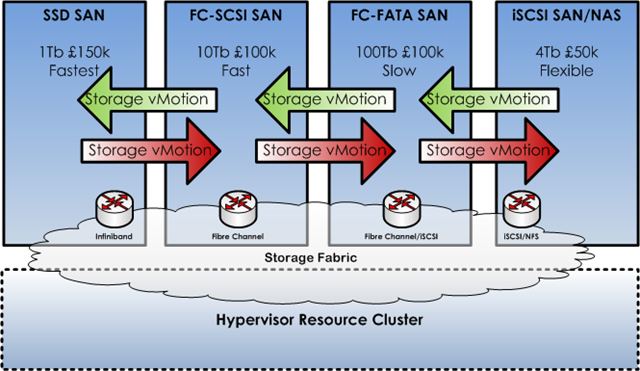
It’s pretty common knowledge that you can use vMotion and the DRS features to effectively load level or average VM CPU and memory load across a number of VMWare nodes within a cluster.
Using the infrastructure discussed above could add a second tier of load balancing without downtime to a DRS cluster. If a VM needs more disk throughput or is suffering from latency then you could move them to/from the more expensive solid-state storage tiers to FC-SCSI or even FATA disks, this ensures you are making the best use of fast, expensive storage vs. cheap, slow commodity storage.
Even if Virtual Center doesn’t have a native API for exposing this type of functionality or criteria for the DRS configuration you could leverage the plug-in or scripting architecture to use a manager of managers (or here) to map this across an enterprise and across multiple hypervisors (Sun, Xen, Hyper V)
I also see EMC integrating flash storage into the array itself, would be even better if you could transparently migrate LUNS to/from different arrays and disk storage without having to touch ESX at all.
Note: This is just a theory I’ve not actually tried this – but am hoping to get some eval kit and do a proof on concept…
Misc bits of Useful, Recent VMWare News
Posted by on May 12, 2008
I’ve been really busy the last couple of weeks and I’ve had to trim down my incoming RSS feeds, as there was too much noise and I was missing important things like the following;
- Scott Lowe’s summary of sessions from VMWare’s partner Exchange, some useful information on Site Recovery Manger
- The new VMWare Certified Design Expert (VCDX) certification – next step up from VCP, will have to have a look into it now I’ve finally managed to re-schedule my cancelled QA course – official VM announcement here.
- Official Microsoft Clustering Support with ESX 3.5 Update 1 here
- Some workarounds for deploying Windows Server 2008 with virtual center here – would have been nice if support was in an official update from VMWare soon; it’s not like it’s been beta’ing for a while is it (errr!)
Lifecycle Manager, Site Recovery Manager and Stage Manager Released
Posted by on May 12, 2008
Linkage here.
VMWare are shaping up to have a really good set of management tools – lab and site recovery manager are of particular interest to me for several projects I’m working on.
Universal Power Supply for all your Electronics
Posted by on May 12, 2008
Engadget has a write up of a great new idea here, a universal and intelligent power brick from Green Plug that is capable of charging devices and shutting down when complete to save the planet, as well as display how much power is/has been consumed.
it’s an excellent and long overdue idea; unfortunately it requires the devices themselves to be aware and compatible – this area of technology cries out for an open standard to aid adoption in the same way that interfaces like USB and Ethernet have become ubiquitous.
I wonder if the “green” lobby and consumer awareness of efficient power usage will help to encourage this and push it on the market place, although it does look like the Green Plug technology is a single vendor owned and licenced solution, rather than an open standard – which would make buy-in from manufacturers difficult.
Getting buy-in from the major, competing manufacturers to adhere to a public standard must be an easier approach than a single partner – who could thus obtain a monopoly.
Although, as Engadget point out all the device manufacturers currently make a fortune from selling replacement power supplies so will they really be that bothered?
I for one would be happy to pay £50-75 UK pounds for a smart, universal power supply and for my various electronic devices to come without one in the box – I would simply buy one or two chargers as I need (maybe one for home one for the bag).
Even better if the charger is like a USB hub and can connect/charge several devices at once (ideal for a travel scenario), adopt the interchangeable plug method that Apple and Blackberry use for their chargers to support different countries/outlet types.
Reduces waste, power consumption and the big box of random and unidentifiable power supplies I have in my study!
Sadly this much collaboration between competing electronics companies for a “standard” doesn’t always have a good history (Betamax/VHS HD-DVD/Blu-Ray) ah well, I live in hope….
VMWare Workstation 6.5 Beta – Run Multiple Copies of Outlook/Exchange via Unity
Posted by on April 30, 2008
I use a single laptop for my day-day use, it has all the stuff i need, I run Vista and Office 2007, for our corporate mail we use Exchange like everyone else and I use Outlook Cached Mode to work online/offline..
My own personal email is also an Exchange mailbox – provided by fasthosts (why – well, because..ok?) the problem with this is that I can’t have a single copy of Outlook connected to more than one Exchange server at the same time or run multiple instances of Outlook (I’ve tried all the hacks and Thinstall etc.), and to be honest even if I could it would probably violate the security policies of all the involved organisations as it would be quite simple for an Outlook-aware worm to try to propagate itself across multiple organisations or harvest confidential details.
The problem is further compounded by the fact that I often work on long-term customer projects and have to have a mailbox on their Exchange system as well… which leads to multiple diary sync nightmare, maybe I’ll blog about that some other time).
So at present I have 4 Exchange mailboxes that I need to keep track of, auto-forwarding mail between them is a no-no, I used to be an Exchange admin and I’ve lost many bank holidays due to corporate->Hotmail NDR mail loops!
So, up until now I’ve had to run one full Outlook client and multiple OWA clients in a browser, which is ok as long as I’m connected to the Internet, but no good if I’m on a train unless I want to close and restart Outlook with multiple profiles, which is a pain especially when you are collaborating on a project between multiple organisations. To be honest as good as OWA 2003 is it’s no substitute for a full outlook client. (still waiting for Fasthosts to go to Exchange 2007, oh and enable EAS!).
So, anyway a solution – VMWare Unity, this is a feature like Parallels for the Mac which lets you “float” an application window out of a guest VM to the host desktop meaning you can use the applications without working within a single VM’d desktop window.
VMWare Fusion also has the same feature, but Workstation 6.5 is the 1st time its been available on the PC platform.
To use Unity you need to have upgraded the virtual machine to 6.5 “hardware” by right clicking on the VM in the sidebar pane (below) and install the latest VM Tools – it also only seems to support XP at present, or at least it didn’t work on the Server 2003 VM I had.


Boot the VM… and install the latest VM tools.

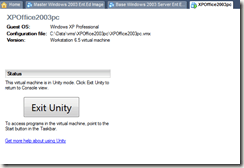
VM Workstation Screen – note VM is set to “Unity mode”

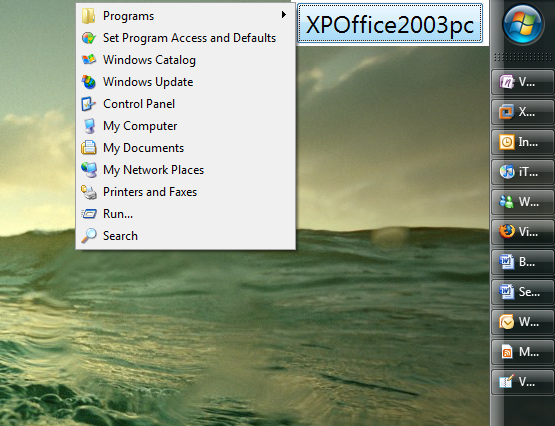
My Vista desktop (yes, I have the start bar at the right hand side – widescreen laptop!) with the popup menu for the VM, showing all the start menu for applications installed within in it.
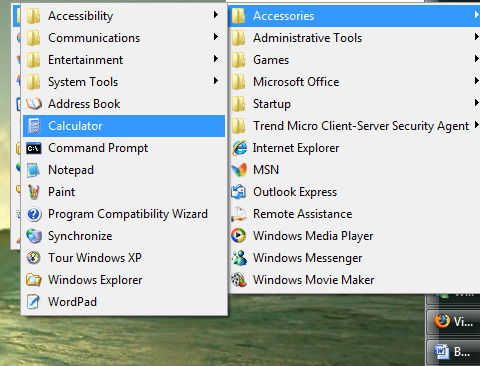
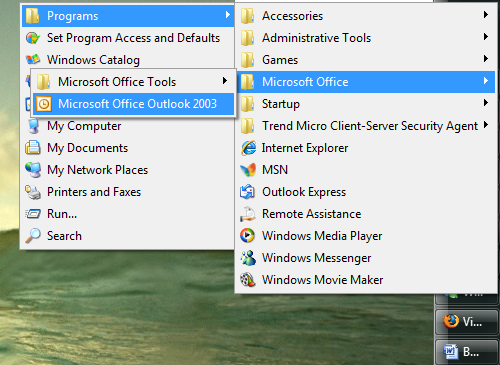
the following screen shot is Calculator running from inside the XP VM but in a single window on the Vista desktop – note the red border and the  icon, denoting that its presented via Unity.

It even shows up on the start bar with the correct icon; although this doesn’t seem to work until its been run a couple of times; I assume it needs to cache an icon or something.

it also seems to respect the window snapshots you get whilst Win-Tab between applications, even for pop-up windows
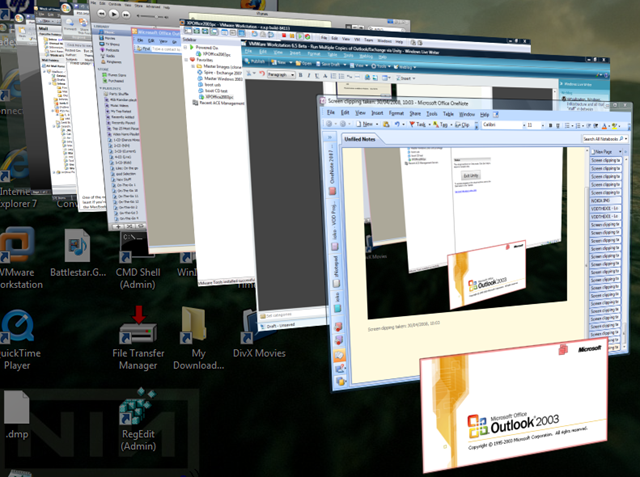
Technically I can use this to run n x Windows XP/Outlook 2003 VM’s presenting Outlook through to my Vista desktop and comply with all organisations security policies, as each VM and its respective copy of Outlook runs in isolation from each other with the relevant company-specific AV client (or at worst, the same level as if I were using a machine connected to a public network in that they all share a vm network) – I don’t enable shared folders between the VMs.
It’s still a beta feature at the moment, and there seem to be a few bugs particularly when resizing windows sometimes it doesn’t work properly and double clicking to expand to full screen overlays the start-bar on my vista machine.
And it does seem to get confused sometimes and not allow keyboard input, so you have to flick back to non-unity mode and then back to continue, and sometimes a reboot of the guest VM but it is an early build so I would guess this will be resolved.
As an added bonus VM Workstation seems to allow the Vista host OS to go into sleep mode even whilst VMs are running, this is something I’ve not had much luck with in the past – it would generally refuse to sleep when I closed the lid (but thats not a scientific comparison… it may have just been bad luck!)
So, the pay-off – 2 copies of Outlook (2003 and 2007) seemingly running on the same desktop, alt-tab works ok and you have access to all the functionality of both without having to switch between or run multiple OWA sessions and from a security perspective it’s not really any different from having 2 physical PCs in front of you (slight memory overhead, but my laptop has 4Gb RAM, so not a huge issue).
Opening attachments is obviously going to be a bit of an issue, as you’ll technically need an individually licenced instance of Office 2003 in each VM as they can’t (yet) exchange data between them… and that would compromise the security principal.

VMWare Server Performance – A Practical Example
Posted by on April 19, 2008
The following screen dump is from an HP DL380G5 server that runs all the core infrastructure under VMWare Server (the free one) for a friend’s company which I admin sometimes.
It is housed in some co-lo space and runs the average range of Windows servers used by a small but global business, Exchange SQL, Windows 2003 Terminal Services.
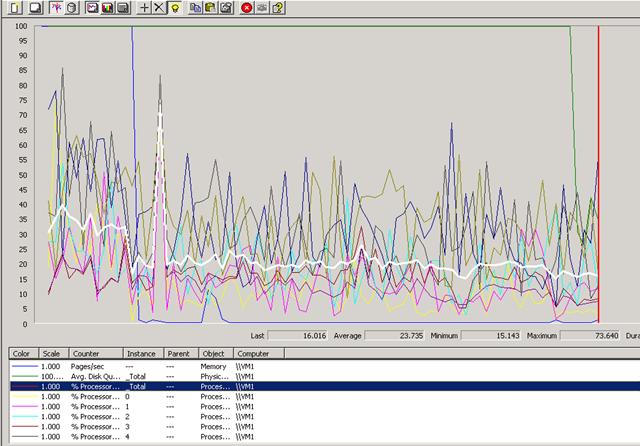
As a result of some planned (but not very well communicated!) power maintenance the whole building lost power earlier today, when it was restored I grabbed the following screenshot as the 15 or so Virtual Machines automatically booted.
interesting to note that all the VM’s had been configured to auto-start with the guest OS, meaning there wasn’t any manual intervention required, even though it was a totally dirty shutdown for both the host and guest OS’es (No UPS, as the building and suite is supposed to have redundant power feeds to each rack – in this instance the planned maintenance was on the building wiring so required taking down all power feeds for a 5 yearly inspection..)
There are no startup delay settings in the free version of VMWare Server so they all start at the same time, interesting to note the following points..
The blue line that makes a rapid drop is the pages/second counter, and the 2nd big drop (green) is the disk queue length. the hilighted (white) line is the overall %CPU time, note the sample frequency was 15 seconds on this perfmon.
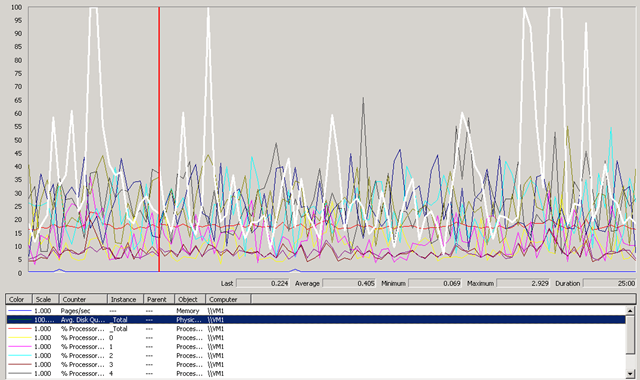
After it had settled down, I took the following screenshot, it hardly breaks a sweat during its working day. there are usually 10-15 concurrent users on this system from around the world (access provisioned via an SSL VPN device) and a pretty heavily used Exchange mail system.
The box is an HP DL380 G5 with 2 x quad core CPUs (8 cores in total) and 16Gb of RAM, it has 8 x 146Gb 15k HDDs in a single RAID 5 set + hot-spare, it was purchased in early 2007 and cost c.£8,000 (UK Prices)
It runs Windows 2003 Enterprise Edition x64 edition with VMWare Server 1.0.2 (yes, its an old build.. but if it ain’t broke..) and they have purchased multiple w2k3 ent-edition licences to take advantage of the virtualisation use-rights to cover the installed virtual OS’es.
It’s been in-place for a year and hardly ever has to be touched, its rock-solidly available and the company have noticed several marked improvements since they P2V’d their old servers onto this platform, as follows;
- No hardware failures – moving from lots of low-end servers (Dell) and desktops to a single box (10:1 consolidation)
- The DL380 has good redundancy built in, but it’s also backed up with a h/w maintenence contract, and they also have a spare cold-standby server to resume service from backups if data is lost.
- Less noise, the old servers were dotted around their old offices in corners, racks etc – this is the main thing they liked!
- Simple access anywhere – using a Juniper SA2000 SSL VPN, its easy to get secure access from anywhere
- Less reliance on physical offices and cheap DSL-grade data communications, now the servers are hosted on the end of a reliable, data centre class network link with an SLA to back it up. if an individual office looses its ADSL connection, no real issue – people pick up their laptop(s) and work from home/starbucks etc.
- Good comms are cheaper in data centres than in your branch offices (usually)
Hopefully this goes to show the free version of VMWare’s server products can work almost as well if budget is a big concern, ESX would definitely give some better features and make backup easier, they are considering upgrading and combining with something like Veeam Backup to handle failover/backup.
HP Rapid Deployment Pack – PXE Settings for Deploying Windows OS
Posted by on April 17, 2008
The followign screens show a working configuration from the RDP 3.80 PXE Configuration Manager

Have had lots of problems with this deploying Windows OS’es and VMWare ESX 3.5 onto an HP c7000 Blade chassis, still not resolved all the problems, but this definitely works for deploying Windows!
The documentation reads like you should always use the Linux PE configuration and it handles switching between WinPE/LinuxPE depending on which OS job you drop on a target. in my experience this doesn’t work and you need to manually change the PXE configuration to default to LinuxPE or WinPE depending on the OS you want to target.
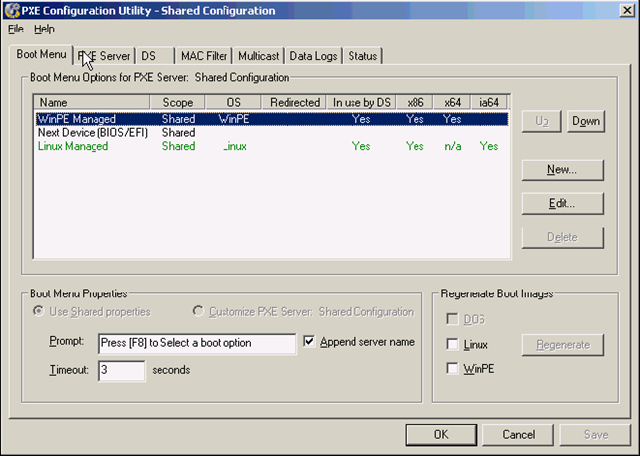
And
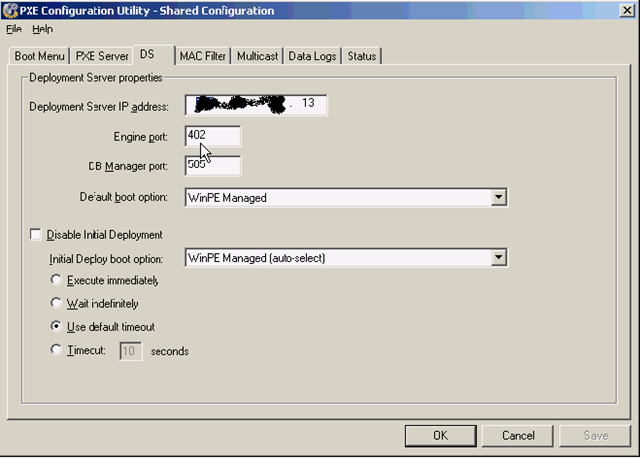
Still a work in progress as I have a c7000 to which I want to deploy a mix of Windows and ESX/Redhat OS’es….
I did get a previous installation to install ESX 3.5 by hacking the default ESX 3.02 job, but its since been re-installed and I can’t do it now
RDP 6.90 seems to list Windows 2008 and ESX 3.5 in the quickspecs, but I’ll be damned if I can find where to download it, going to have to call HP methinks!
As I’ve posted before installing via iLo is just a non-starter if you really do want a flexible and fast deployment configuration – so it has to be RDP.
More later…
How to Convert Virtual Center from Evaluation to Licensed Version
Posted by on April 10, 2008
or “How to convert virtual centre from evaluation to licenced version”… for us Brits… the “American English” is to help the international Googlers 🙂
I can’t believe I missed this, on a couple of platforms I’ve built I’ve had to start with an eval licence and then move to a proper licence but could never find how to change virtual center from eval to licenced mode.
ESX itself was fine you can do that via the VC GUI (below)
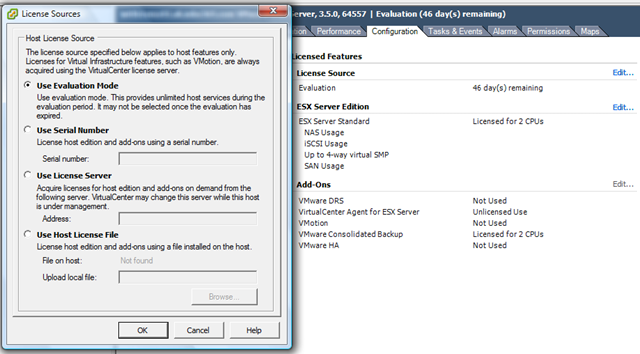
But despite a lot of googling I could never find out how to set Virtual Centre itself to use a licence server – so I ended up reinstalling/repairing and then selecting the option to use a licence server, my bad – it’s actually in the VI client GUI d’oh as Homer would say!
for my own reference, and for anyone else who has missed and is searching for how to convert Virtual Center from evaluation to licensed..
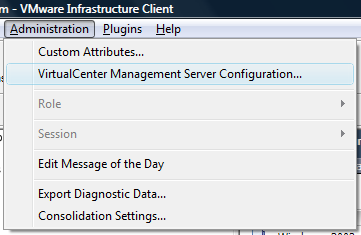
and then configure the setting here to point it at a proper licence server to enable full VC.
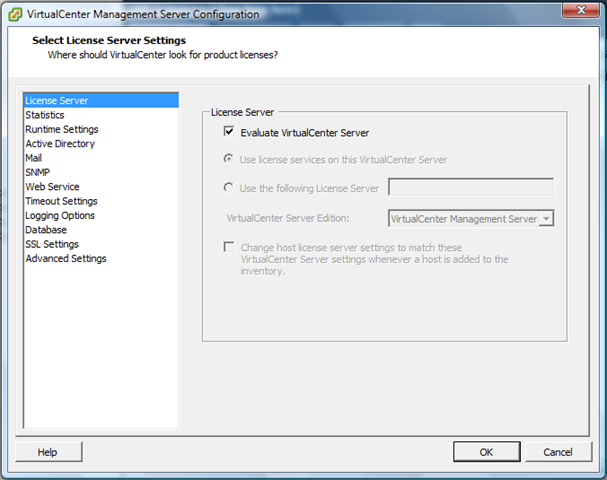
D’oh!!!
How does an HP Fibre Channel Virtual Connect Module Work?
Posted by on April 9, 2008
Techhead and I have spent a lot of time recently scratching our heads over how and where fibre channel SAN connections go in a c7000 blade chassis.
If you don’t know, a FC-VC module looks like this, and you install them in redundant pairs in adjacent interconnect bays at the rear of the chassis.

You then patch each of the FC Ports into a FC switch.
The supported configuration is one FC-VC Module to 1 FC switch (below)
![clip_image002[6]](https://vinf.net/wp-content/uploads/2008/04/clip-image0026.jpg)

Connecting one VC module to more than one FC switch is unsupported (below)
![clip_image002[8]](https://vinf.net/wp-content/uploads/2008/04/clip-image0028.jpg)

So, in essence you treat each VC module as terminating all HBA Port 1’s and the other FC-VC module as terminating all HBA Port 2’s.
The setup we had:
- A number of BL460c blades with dual-port Qlogic Mezzanine card HBAs.
- HP c7000 Blade chassis with 2 x FC-VC modules plugged into interconnect bay 3 & 4 (shown below)


The important point to note is that whilst you have 4 uplinks on each FC-VC module that does not mean you have 2 x 16Gb/s connection “pool or trunk” that you just connect into.
Put differently if you unplug one, the overall bandwidth does not drop to 12Gb/s etc. it will disconnect a single HBA port on a number of servers and force them to failover to the other path and FC-VC module.
It does not do any dynamic load balancing or anything like that – it is literally a physical port concentrator which is why it needs NPIV to pass through the WWN’s from the physical blade HBAs.
There is a concept of over-subscription, in the Virtual Connect GUI that’s managed by setting the number of uplink ports used.
Most people will probably choose 4 uplink ports per VC module, this is 4:1 oversubscription, meaning each FC-VC port (and there are 4 per module) has 4 individual HBA ports connected to it, if you reduce the numeber of uplinks you increase the oversubscription (2 uplinks = 8:1 oversubscription, 1 uplink = 16:1 oversubscription)

Which FC-VC Port does my blade’s HBA map to?
The front bay you insert your blade into determines which individual 4Gb/s port it maps to and shares with other blades) on the FC-VC module, its not just a virtual “pool” of connections, this is important when you plan your deployment as it can affect the way failover works.
the following table is what we found from experimentation and a quick glance at the “HP Virtual Connect Cookbook” (more on this later)
| FC-VC Port | Maps to HBA in Blade Chassis Bay, and these ports are also shared by.. |
| Bay3-Port 1, Bay-4-Port 1 | 1,5,11,15 |
| Bay3-Port 2, Bay-4-Port 2 | 2,6,12,16 |
| Bay3-Port 3, Bay-4-Port 3 | 3,7,9,13 |
| Bay3-Port 4, Bay-4-Port 4 | 4,8,10,14 |

Each individual blade has a dual port HBA, so for example the HBA within the blade in bay 12 maps out as follows
HBA Port 1 –> Interconnect Bay 3, Port 2
HBA Port 2 –> Interconnect Bay 4, Port 2
Looking at it from a point of a single SAN attached Blade – the following diagram is how it all should hook together
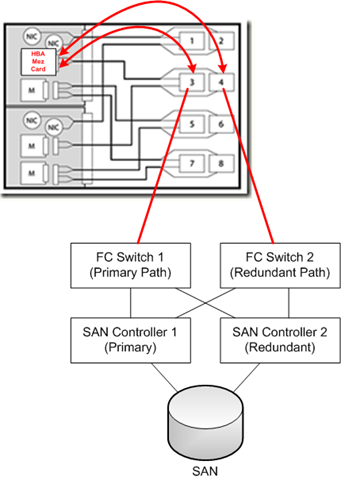
Path Failover
Unplugging an FC cable from bay 3, port 4 will disconnect one of the HBA 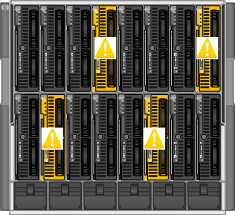 connections to all of the blades in bays 4,8,10 and 14 and force the blade’s host OS to handle a failover to its secondary path via the FC-VC module in bay 4.
A key take away from this is that your blade hosts still need to run some kind of multi-pathing software, like MPIO or EMC PowerPath to handle the failover between paths – the FC-VC modules don’t handle this for you.

FC Loading/Distribution
A further point to take away from this is that if you plan to fill your blade chassis with SAN attached blades, each with an HBA connected to a pair of FC-VC modules then you need to plan your bay assignment carefully based on your server load.
Imagine if you were to put heavily used SAN-attached VMWare ESX Servers in bays 1,5,11 and 15 and lightly used servers in the rest of the bays then you will have a bottleneck as your ESX blades will all be contending with each other for a single pair of 4Gb/s ports (one on each of the FC-VC modules) whereas if you distributed them into (for example) bays 1,2,3,4 then you’ll spread the load across individual 4Gb/s FC ports.
Your approach of course may vary depending on your requirements, but I hope this post has been of use.

There is a very, very useful document from HP called the HP Virtual Connect Fibre Channel Cookbook that covers all this in great detail, it doesn’t seem to be available on the web and the manual and online documentation don’t seem to have any of this information, if you want a copy you’ll need to contact your HP representative and ask for it.

 Virtualization, Cloud, Infrastructure and all that stuff in-between
