Virtualization, Cloud, Infrastructure and all that stuff in-between
My ramblings on the stuff that holds it all together
vinf.net at 2 years old
Posted by on November 25, 2009
I just noticed that my blog has been running for 2 years and 1 month with the 1st post in October 2007 and that got me thinking..
Ever since my school days I’ve been a compulsive note-taker for my personal and professional life, I have numerous paper notebooks in my study going back the last 20 or so years – they’re interesting to go back and review, but also serve as a useful reference point for what I was doing and thinking at the time (particularly the youthful enthusiasm of my teenage years!)
The biggest problem I had with these notebooks was finding anything – you can’t search paper notebooks and you risk loosing them if something were to happen to them like theft or fire so in early 2003 I switched to using Microsoft OneNote; which is great for solving the search problem and allowed me to keep screen captures/log relevant files etc, about this time I got very busy so the quality of my notes started to deteriorate; because it was so easy to dump information there and plan to re-organise it later on that’s pretty much what I did, but never got around to doing the re-organising, or at best by the time I did my train of thought had gone and the results were less than useful.
My original inspiration for starting this blog came from attending BriForum and VMworld in 2007 and the burgeoning number of bloggers at Microsoft and VMware, maybe I was a bit later to the party than some but blogs were quickly becoming a core part of my workflow in researching potential solutions and resolving problems.
Blogs were quickly becoming a mainstream way of getting concise, quality information from big companies like Microsoft that just weren’t in the books/KB articles – they were almost a direct access to the product dev teams; although some teams treated them more as marketing channels you can always find the useful blogs and as they say, “content is king” which beats fluff and cheerleading by miles.
Blogging by it’s very nature makes your content readable by the entire world; this brought a new challenge and driver – the fact that real people may read what you post means there is more of a driver to write something that is understandable and correct lest they may complain, berate you or at the least quietly leave with the impression that you are an imbecile.
So, to me my blog represented a way for me to put all my research and findings into one place, searchable and accessible from anywhere – hosted outside of my own equipment and home (now known as “the cloud”) so it should be safe, and less at risk from my technical tinkering – my blog was deliberately intended to be about the content, not the tech that delivers it – I’m a compulsive geek so there would be too much temptation to hack about with a wordpress install, web server and potentially screw it up.
I decided to focus the content of my blog on areas of technology that interest me; I made an early decision to avoid too many personal or social type posts – I don’t think anyone is really that interested in my life or family – and I have other tools like facebook for interacting with people I know personally but don’t get to see very often.
Virtualization, Windows and Infrastructure are the areas I follow professionally so that was the chosen topic of my blog and the name derived from that (it was also the shortest, cheapest domain name I could find :)).
I actually setup this blog during the lunch break at BriForum 2007 in Amsterdam using the on-site wireless, so Brian Madden was kind of responsible for it’s existence 🙂
I set about a couple of initial posts and eventually my blog got picked up by some people at VMware and put on the v12n list which aggregated virtualization related posts and I saw a large increase in traffic and google placements which was cool.
A lot of my early posting was commentary on cool articles I saw out on the web, and was reflective of my interest in fluid and grid type computing, which later have developed into cloud computing – I still like the idea of the mobile datacentre and follow-the-energy computing model – the tech is getting there.
Blogging has brought some challenges, I don’t do this full-time or make any money out of it; I am a full-time consultant and a I have a young family so I have to try and juggle this blog with my other extensive commitments – for me the schedule post feature of wordpress.com is a godsend, at those 3am moments of inspiration/baby-feeding or long train journeys I can get posts queued up a couple of weeks in advance to ensure a steady flow of posting rather than a surge of posts when I get time – which I think works better, for me anyway.
A more recent addition for me has been my use of twitter – although I don’t “tweet” as much as others – it’s a useful channel for news/current information – so I see a good split between quick, breaking news type content via twitter; and more long-form blog posts for reference.
I’ve been amazed at how traffic to this site has grown over the 2 years, and am grateful for some of the opportunities this blog has brought me, such as a blogger-pass for VMworld Europe in 2008, my VMware vExpert award and the invitations to speak at conferences.
As I said, I don’t make any money from this site (unless anyone would like to offer me some money? … no? thought so :)) and I have a busy day-job – it’s a useful piece of reputation for me and my place in the conversation as well as a good reference – rather than explaining an early concept like cloud computing I could just point people at the article – which was very handy in 2008.
Oddly my most popular article this year has been about the lack of Intel 855 video drivers in Windows 7 – which even now pulls in a significant number of page views/day.
I recently saw Jason Boche’s post on a similar subject so here are some numbers since the start..

Total views: 442,637
Busiest day: 2,233 — Thursday, October 29, 2009
Posts: 265
Comments: 527
Categories: 222

If you are reading this and you don’t have a blog, or think you have the time to maintain a blog I hope this has given you some food for thought – it’s a good way to keep your thoughts in check.
vSphere Performance Overview Page – This Program Cannot Display the Webpage
Posted by on November 23, 2009
When trying to browse the performance overview tab in the vSphere client you may get this error;

“This program cannot display the webpage”
However, the advanced tab works ok and you can still build custom charts.

Luckily, this is pretty simple to fix, the cause of this problem is that the VMware Virtual Centre Management Webservices service is not running.
the VI client breaks out to an internal webservice to deliver the graphs on the performance overview page.
to fix this problem you can start the service manually.

I have seen this problem on virtualised Virtual Center installations where the VC box cannot reach it’s back-end SQL server at start-up; either because of a network problem or delayed/out of sequence start-up.
you can set the recovery options to try and work around this if you cannot fix the root cause.

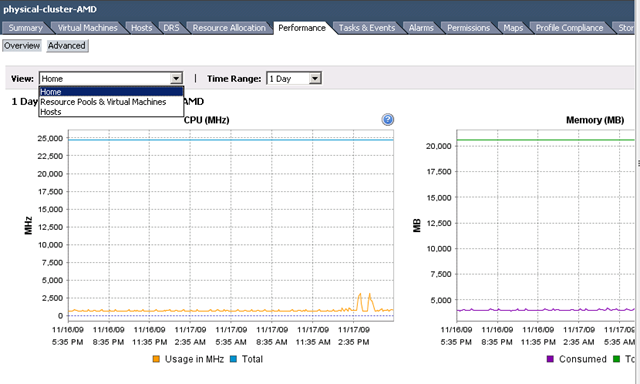
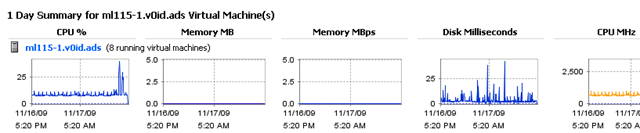
Once it’s working again you get all the following charty goodness again
Comparing the I/O Performance of 2 or more Virtual Machines SSD, SATA & IOmeter
Posted by on November 19, 2009
I’m currently doing some work on SSD storage and virtual machines so I need an easy way of comparing I/O performance between a couple of virtual machines, each backed onto different types of storage.
I normally use IOmeter for this kind of work but generally only in a standalone manner – i.e I can run IOmeter inside a single VM guest and get statistics on the console etc.
With a bit of a read of the manual I quickly realised IOmeter was capable of so much more! (amazing things, manuals :)).
Note: You should download IOmeter from this link at SourceForge and not this link to iometer.org; which seems to be an older non-maintained build
You can run a central console which runs the IOmeter Windows GUI application then add any number of “managers” – which are machines doing the actual benchmarking activities (disk thrashing etc.)
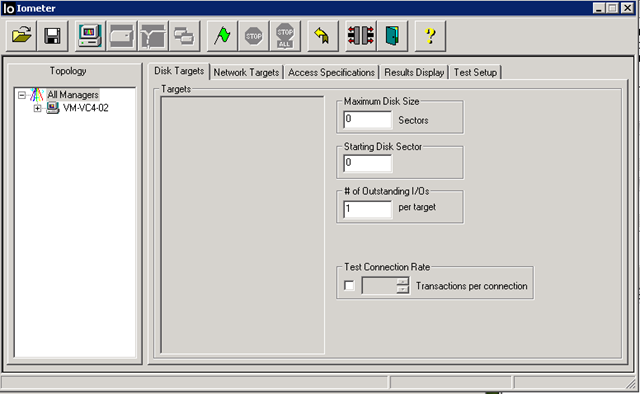
The use of the term manager is a bit confusing to me as you would think the “manager” is the machine running the IOmeter console, but actually each VM or physical server you want to load-test is a known as a manager, which in turn runs a number of workers which carry out the I/O tasks you specify and reports the results back to a central console (the IOmeter GUI application shown above).
Each VM that you want to test runs the dynamo.exe command with some switches to point it at an appropriate IOmeter console to report results.
For reference:
On the logging machine run IOmeter.exe
on each VM (or indeed physical machine) that you want to benchmark at the same time run the dynamo.exe command with the following switches
dynamo.exe /i <IP of machine running IOmeter.exe> /n <display name of this machine – can be anything> /m <IP address or hostname of this machine>
in my case;
dynamo.exe /i 192.168.66.11 /n SATA-VM /m 192.168.66.153
You will then see output similar to the following;
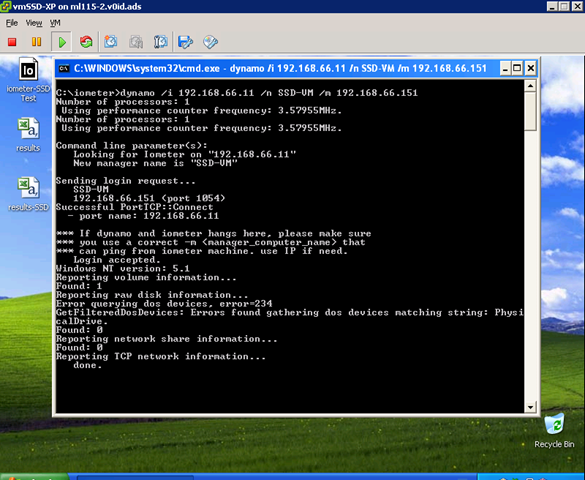
The IOmeter console will now show all the managers you have logged on – in my case I have one VM backed to a SATA disk and one VM backed to an SSD disk.
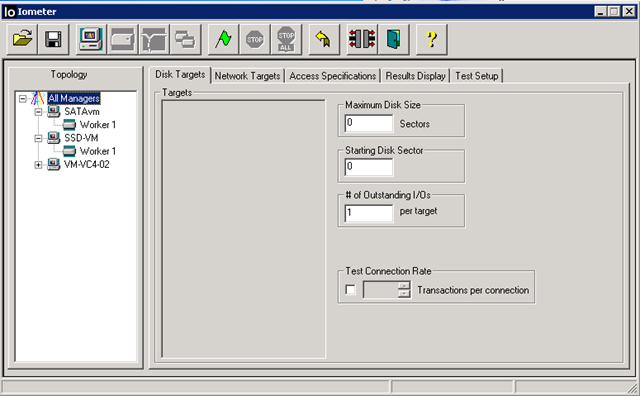
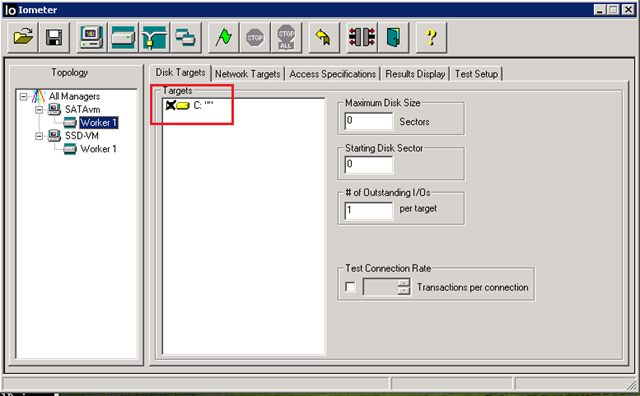
I can now assign some disk targets and access specifications to each worker and hit start to make it “do stuff which I can measure” 🙂 for more info on how to do this see the rather comprehensive IOmeter manual
If you want to watch in realtime, click the results display tab and move the update frequency slider to as few seconds as possible

If you want to compare figures from multiple managers (VMs) against each other you can just drag and drop them on to the results tab

Then chose the metric you want to compare from the boxes – which don’t look like normal drop down elements so you probably didn’t notice them.

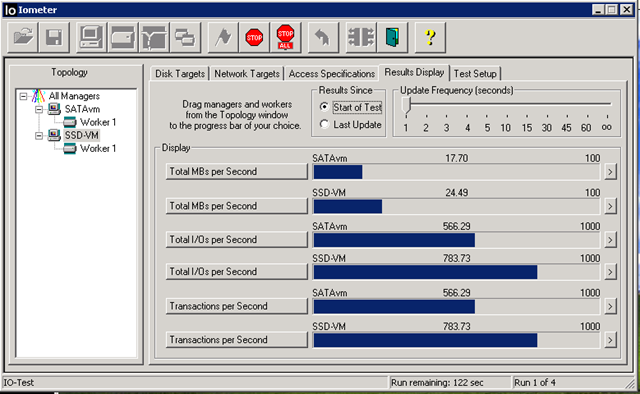
You can now compare the throughput of both machines in real-time next to each other – in this instance the SSD backed VM achieves less throughput than the SATA drive backed VM (more on this consumer-grade SSD in a later post)

Depending on the options you chose when starting the test run the results may have been logged out to a CSV file for later analysis.
Hope that helps get you going – if you want to use this approach to benchmark your storage array with a standard set of representative IOmeter loads – see these VMware communities threads
http://communities.vmware.com/thread/197844
http://communities.vmware.com/thread/73745
from a quick scan of the thread, this file seems to be the baseline everyone is measuring against
http://www.mez.co.uk/OpenPerformanceTest.icf
To use the above file you need to open it with IOmeter, then start up your VMs that you want to benchmark as described earlier in this post.
You will need to manually assign the disk target to each worker once you have opened that .icf file in IOmeter unless you set them in the .icf file manually.
This is the test whilst running with the display adjusted to show interesting figures – note the standard test contains a number of different iterations and access profiles – this is just showing averages since the start of the test and are not final figures.
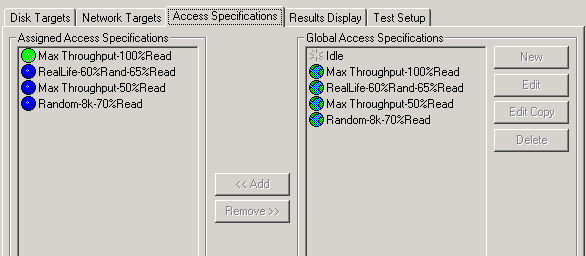
This screenshot shows the final results of the run, and the verdict is; overall consumer-grade SSD sucks when compared against a single 7.2k RPM 1Tb SATA drive plugged into an OpenFiler 🙂 I still have some analysis to do on that one – and it’s not quite that simple as there are a number of different tests run as part of the sequence some of which are better suited to SSD’s
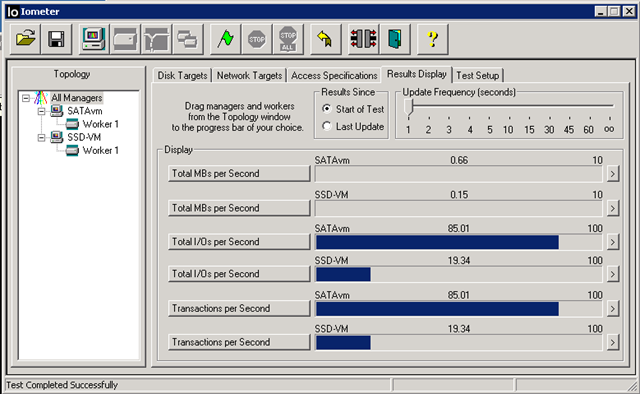
More posts on this to follow on SSD & SATA performance for your lab in the coming weeks, stay tuned..
Get a move on and do your VCP4 upgrade
Posted by on November 18, 2009
If you are a VCP3 you’ll need to get a move on and upgrade your certification to VCP4 unless you have time to sit (and pay for) some classroom training next year – you need to have passed the exam before December 31st 2009 (i.e in 43 days time!)
Also bear in mind there might be a bit of a rush – anyone else remember the NT4 MCSE –> one-shot Windows 2000 upgrade exam? there will be a lot of people in the same boat as you (and I!) and time is running out, this is especially a problem if you only have access to a limited number of testing centres where you live as they will be getting booked up.
As some insurance VMware are also offering a free re-take at present; but there is a catch – you have to wait for a voucher to be emailed to you before you can book your exam with free re-take option – and it says the Friday following your registration – so bear this delay in mind if you want to take this option.
If you are a VCP3 you should have received an email from VMware with a link to register for
For the official word on what you need to do – go here – you’ll also need your VMware myLearn username and password (which is recoverable from the site if you’ve forgotten it)
You can register for the 2nd shot option here
It seems a bit odd, but you need to register for this “virtual class” to be issued the voucher (screen cap of successful registration below..)
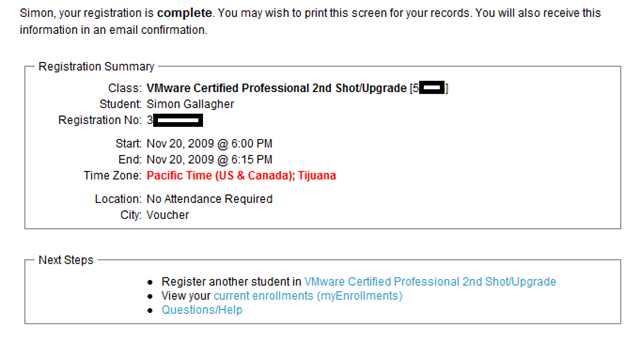
I am now waiting for my voucher via email* so I can register for my VCP exam with free re-take option – check this post for links to my study materials and another plug for Simon Long’s excellent resources here, oh and I need some time to take the exam as well 🙂
*You may want to check the email address registered with your myLearn account is valid/correct
OS X Expose Clone for Windows
Posted by on November 18, 2009
One of the main things I miss as I switch between a Mac and PC is the lack of decent multi-window manager support in Windows – alt-tab and win-tab are great but I find them cumbersome.
A particular bug bear of mine is if you have to manage multiple terminal services sessions to servers/virtual machines, they are manageable when they are windowed. but if you have a low-screen resolution or small monitor its often more comfortable to use the TS sessions in full-screen mode, this brings with it some window confusion and the annoying pin/not pinned title bar to switch screens using the mouse.
OS X has an excellent feature called Expose which allows you to setup hot corners on the screen or hot-keys which, when activated zoom out to a thumbnail view of all your open application windows – and you can then click on the one you want.
it also has great support for multiple monitors, and stacks of monitors – if you’ve not used Expose/Spaces before check out Steve Jobs introducing it in this video (and take the Mac Fanboy whooping with a pinch of salt :))
Now – it’s not exactly the same but I’ve been using an application called Switcher to accomplish some of what OS X can do – below is a screenshot of all my open application windows when I touch a hot-corner
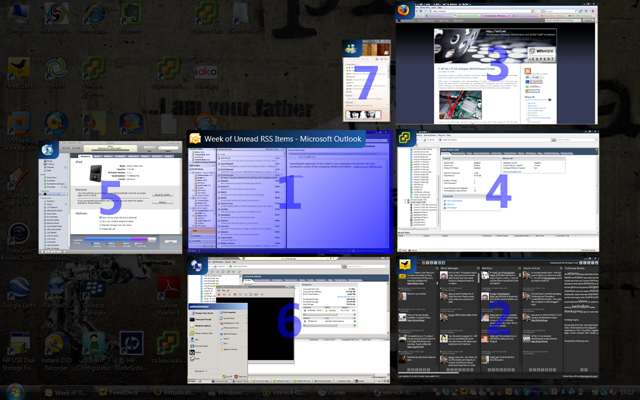
Clicking on the desktop wallpaper in the background reverts the display to just the desktop (ala show desktop from the taskbar). the most important feature for me is the full-screen TS session – you can have as many of these open as you want and you can just browse and pick them by clicking on the appropriate thumbnail without having to hunt around win-tab’ing via the keyboard or taskbar.
it also has a large range of customisation options as shown below
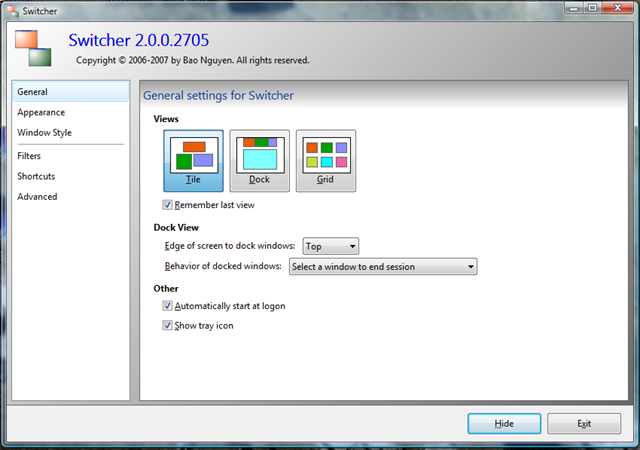
Easy.
Unfortunately it seems like Switcher isn’t actively developed any more 😦 but it is free – so open to better alternatives but it works for me with the occasional crash
You can download Switcher for free with instructions from http://insentient.net/Switcher/Overview.html
Presenting at London VMware Users Group Meeting (VMUG) November 24th
Posted by on November 17, 2009
The esteemed Mr Techhead and I will be presenting on how to build a low-cost lab environment for work, study and play at this month’s VMUG in London.
We will be bringing our own equipment and hope to have lots of (working!) demos of what you can do with low-cost server kit and interesting configurations
- Running virtualized multi-node ESX clusters? – check
- VMware FT on a £300 GBP server? – check
- How to get a SAN for your home? – check
If you are able to make it, it promises to be an interesting event; the full agenda is as follows;
The Steering Committee are pleased to announce the next UK London VMware User Group meeting, kindly sponsored by Symantec, to be held on Tuesday 24th November 2009. We hope to see you at the meeting, and afterwards for a drink or two.
Our meeting will be held at the Thames Suite, London Chamber of Commerce and Industry, 33 Queen Street, London EC4R 1AP, +44 (0)20 7248 4444. The nearest tube station is Mansion House, location information is available here. Reception is from 1230 for a prompt 1pm start, to finish around 5pm. Our agenda looks something like this:
1100 – 1200 (Optional) Powershell workshop – Jonathan Medd (get-tovenue | early) to cover PS one-liner solutions and new VI toolkit functionality
12:30 – 13:00 Arrive & Refreshments
13:00 – 13:15 Welcome & News – Alaric Davies
13:20 – 14:05 Sponsor Presentation – Symantec
14:10 – 14:55 ESX Home Lab/White box setup – Simons Gallagher & Seagrave
15:00 – 15:20 Refreshment Break
15:25 – 16:00 Session 3 – vSphere topics, Guy Chapman, Mike Laverick, audience
16:05 – 16:45 Session 4 – vSphere topics, Alaric Davies, Mike Laverick, audience
16:45 – 17:00 Close
17:00 – Pub
To register your interest in attending, please send an email to alaricdavies at yahoo dot com with up to two named attendees from your organisation. If you do not receive a confirmation email, please don’t just turn up since we will not be able to admit you to the meeting. Please separately mention if you intend attending Jon’s Powershell workshop at 1100. Content from the meetings will continue to be uploaded to www.box.net/londonug, NDA permitting.
HP ML115 G5 Autopsy (Motherboard Swap)
Posted by on November 10, 2009
Following on from my iSCSI problems the other weekend one of my cheap vSphere hosts died and wouldn’t respond following a reboot.
After some investigation and disassembling it would power-up and spin the fans but switch off after about 15 seconds, as everything is integrated onto the motherboard it wasn’t looking too repairable, one of the clips holding on this heatsink had broken; which I assume leads to overheating at boot time and had cooked the chip underneath.

Luckily it was still under warranty from HP; so a quick call to HP support in the UK (well the number is in the UK anyway :)) and a call was logged for a replacement motherboard and PSU (just incase); they did offer to send an engineer but I said I was ok fitting it myself and they shipped the parts next-day via courier.
Just incase you ever need to do the same here is a step by step for replacing the motherboard.
1st step is to remove the case – which is just a case of undoing the thumbscrew on the back and sliding the cover off.
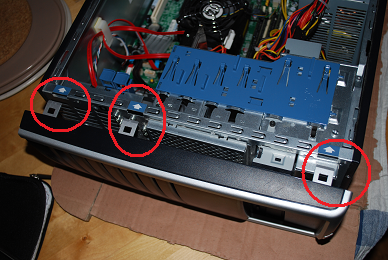
2nd step, remove the front bezel by pressing the tabs below – you will need to move the hard drive to remove the board
3rd step – remove the front of the drive cage by undoing the screw and removing the panel.
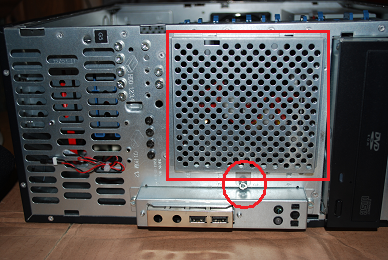
4th step lift the latch and slid the drive out of the way (you don’t need to totally remove it)


5th step, undo all the cables to the motherboard – try to remember where they came from

Be careful with the case temperature sensor – it’s quite tricky to get to without tweezers unless you remove the CPU 1st.

6th step – remove the CPU and fan/heatsink assembly by undoing the screws below – you’ll need a long torx or small flat head screwdriver to get at the screws
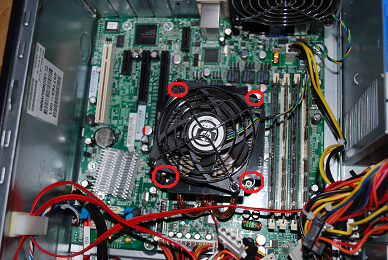

7th step – once undone, the motherboard screws (marked MHnn) can be removed and the motherboard lifted out.
8th step – heatsink/fan assembly is stuck to the CPU itself with heat paste and it should come off with a gentle pull.

The re-assembly is just the same process in reverse – the replacement motherboard kit should have a syringe of heat paste to re-apply to the heatsink/CPU.
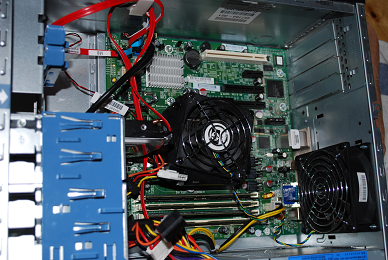
New motherboard fitted and server has been returned to service.
iSCSI LUN is very slow/no longer visible from vSphere host
Posted by on October 29, 2009
I encountered this situation in my home lab recently – to be honest I’m not exactly sure of the cause yet, but I think it was because of some excessive I/O from the large number of virtualized vSphere hosts and FT instances I have been using mixed with some scheduled storage vMotion – over the weekend all of my virtual machines seem to have died and crashed or become unresponsive.
Firstly, to be clear this is a lab setup; using a cheap/home PC type SATA disk and equipment not your typical production cluster so it’s already working pretty hard (and doing quite well, most of the time too)
The hosts could ping the Openfiler via he vmkernel interface using vmkping so I knew there wasn’t an IP/VLAN problem but access to the LUNs was very slow, or intermittent – directory listings would be very slow, time out and eventually became non-responsive.
I couldn’t power off or restart VMs via the VI client, and starting them was very slow/unresponsive and eventually failed, I tried rebooting the vSphere 4 hosts, as well as the OpenFiler PC that runs the storage but that didn’t resolve the problem either.
At some point during this troubleshooting the 1TB iSCSI LUN I store my VMs on disappeared totally from the vSphere hosts and no amount of rescanning HBA’s would bring it back.
The Path/LUN was visible down the iSCSI HBA but from the storage tab of the VI client
Visible down the iSCSI path..
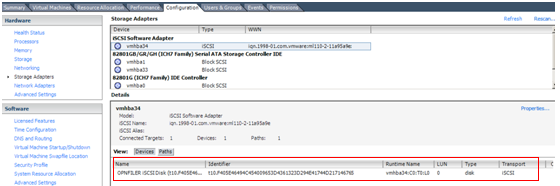
But the VMFS volume it contains is missing from the list of data stores
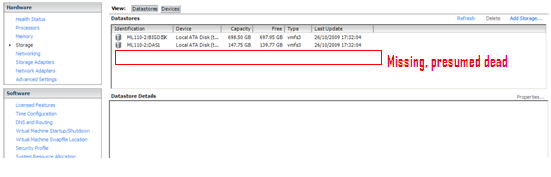
This is a command line representation of the same thing from the /vmfs/devices/disks directory.

OpenFiler and it’s LVM tools didn’t seem to report any disk/iSCSI problems and my thoughts turned to some kind of logical VMFS corruption, which reminded me of that long standing but never completed task to install some kind of VMFS backup utility!
At this point I powered down all of the ESX hosts, except one to eliminate any complications and set about researching VMFS repair/recovery tools.
I checked the VMKernel log file (/var/log/vmkernel) and found the following
[root@ml110-2 /]# tail /var/log/vmkernel
Oct 26 17:31:56 ml110-2 vmkernel: 0:00:06:48.323 cpu0:4096)VMNIX: VmkDev: 2249: Added SCSI device vml0:3:0 (t10.F405E46494C454009653D4361323D294E41744D217146765)
Oct 26 17:31:57 ml110-2 vmkernel: 0:00:06:49.244 cpu1:4097)NMP: nmp_CompleteCommandForPath: Command 0x12 (0x410004168500) to NMP device "mpx.vmhba0:C0:T0:L0" failed on physical path "vmhba0:C0:T0:L0" H:0x0 D:0x2 P:0x0 Valid sense data: 0x5 0x24 0x0.
Oct 26 17:31:57 ml110-2 vmkernel: 0:00:06:49.244 cpu1:4097)ScsiDeviceIO: 747: Command 0x12 to device "mpx.vmhba0:C0:T0:L0" failed H:0x0 D:0x2 P:0x0 Valid sense data: 0x5 0x24 0x0.
Oct 26 17:32:00 ml110-2 vmkernel: 0:00:06:51.750 cpu0:4103)ScsiCore: 1179: Sync CR at 64
Oct 26 17:32:01 ml110-2 vmkernel: 0:00:06:52.702 cpu0:4103)ScsiCore: 1179: Sync CR at 48
Oct 26 17:32:02 ml110-2 vmkernel: 0:00:06:53.702 cpu0:4103)ScsiCore: 1179: Sync CR at 32
Oct 26 17:32:03 ml110-2 vmkernel: 0:00:06:54.690 cpu0:4103)ScsiCore: 1179: Sync CR at 16
Oct 26 17:32:04 ml110-2 vmkernel: 0:00:06:55.700 cpu0:4103)WARNING: ScsiDeviceIO: 1374: I/O failed due to too many reservation conflicts. t10.F405E46494C454009653D4361323D294E41744D217146765 (920 0 3)
Oct 26 17:32:04 ml110-2 vmkernel: 0:00:06:55.700 cpu0:4103)ScsiDeviceIO: 2348: Could not execute READ CAPACITY for Device "t10.F405E46494C454009653D4361323D294E41744D217146765" from Plugin "NMP" due to SCSI reservation. Using default values.
Oct 26 17:32:04 ml110-2 vmkernel: 0:00:06:55.881 cpu1:4103)FSS: 3647: No FS driver claimed device ‘4a531c32-1d468864-4515-0019bbcbc9ac’: Not supported
Due to too many SCSI reservation conflicts, so hopefully it wasn’t looking like corruption but a locked-out disk – a quick Google turned up this KB article – which reminded me that SATA disks can only do so much 🙂
Multiple reboots of hosts and the OpenFiler hadn’t cleared this situation – so I had to use vmkfstools to reset the locks and get my LUN back, these are the steps I took..
You need to find the disk ID to pass to the vmkfstools –L targetreset command, to do this from the command line look under /vmfs/devices/disks (top screenshot below)
You should be able to identify which one you want by matching up the disk identifier.

Then pass this identifier to the vmkfstools command as follows (your own disk identifier will be different) – hint: use cut & paste or tab-completion to put the disk identifier in.
vmkfstools-L targetreset /vmfs/devices/disks/t10.F405E46494C4540096(…)
You will then need to rescan the relevant HBA using the esxcfg-rescan command (in this instance the LUN is presented down the iSCSI HBA – which is vmhba34 in vSphere)
esxcfg-rescan vmhba34
(you can also do this part via the vSphere client)
if you now look under /vmfs/volumes the VMFS volume should be back online, or do a refresh in the vSphere client storage pane.
All was now resolved and virtual machines started to change from (inaccessible) in the VM inventory back to the correct VM names.
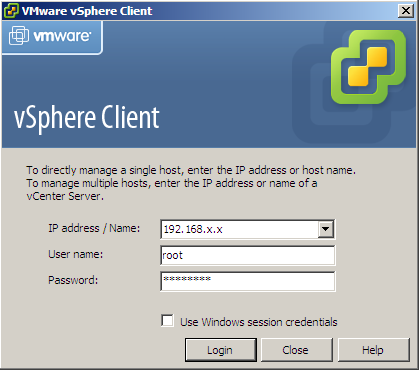
One other complication was that my DC, DNS, SQL and vCenter server are all VMs on this platform and residing on that same LUN. So you can imagine the havoc that causes when none of them can run because the storage has disappeared; in this case it’s worth remembering that you can point the vSphere client directly at an ESX node, not just vCenter and start/stop VMs from there – to do this just put the hostname or IP address when you logon rather than the vCenter address (and remember the root password for your boxes!) – if you had DRS enabled it does mean you’ll have to go hunting for where the VM was running when it died.
In conclusion I guess there was gradual degradation of access as all the hosts fought with a single SATA disk and increased I/O traffic until the point all my troubleshooting/restarting of VMs overwhelmed what it could do. I might need to reconsider how many VMs I run from a single SATA disk as I’m probably pushing it too far – remember kids this is a lab/home setup; not production, so I can get away with it 🙂
In my case it was an inconvenience that it took the volume offline and prevented further access, I can only assume this mechanism is in-place to prevent disk activity being dropped/lost which would result in corruption of the VMFS or individual VMs.
With the mention of I/O DRS in upcoming versions of vSphere that could be an interesting way of pre-emotively avoiding this situation if it does automated storage vMotion to less busy LUNs rather than just vMotion between hosts on the basis of IOPs.
Installing VMware Workstation on Windows 7
Posted by on October 27, 2009
You may recall I previously posted on problems installing VMware Workstation 6.5 on Windows 7, this problem seems to have been resolved with the upcoming VMware Workstation 7 which adds support for Windows 7 as a guest and as a host.
You can download the Workstation 7 RC build here Release Build here and see the full features list, I can confirm it installed perfectly on my Windows 7 Ultimate x64 machine.
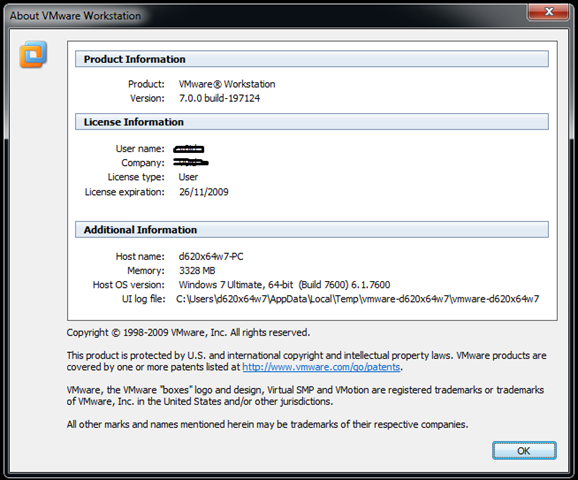 (Screenshot from RC build, see above link for RTM build)
Some new features include official support for Windows 7 *with Aero support!* (shown below)

And best of all – it now provides "official support for ESX as a guest VM under Workstation (my previous posts on workarounds for Workstation 6.5 here)
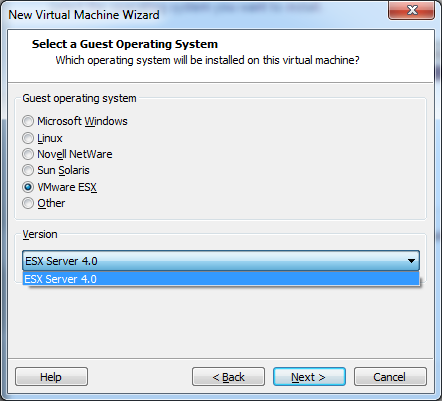
As an aside I’m running Windows 7 on a machine with a 64-bit SSD hard drive, I’m hoping to make use of the linked clone functionality to save disk space as I often run VM’s which are built from a common base OS template (see this post here for more info on how I’ve managed linked images in the past)– performance so far has been great both for host and guest as I/O doesn’t get as bogged down as it does with traditional spindle based disks.
**UPDATE: ah, the perils of the scheduled post – as this article went live the final RTM build of Workstation 7 has been released, I’ve updated the links in this post**
Getting access to VMworld content if you couldn’t make it in person
Posted by on October 25, 2009
Now the noise around VMworld has calmed down I thought I would let you know that the vast amount of excellent technical content that was presented at the event itself is available to stream online or as an MP3 (audio only) or slide download (audio only).
As you’d expect, the catch is it’s not free to you unless you attended VMworld in-person. However, you can purchase a VMworld subscription which costs $699 USD per annum and gives you full access to stream and download content from the event, and all previous events back to 2004 – so if travel and time out of the office is not an option for you – how about you (or your employer) pay for a subscription to the content itself – which is obviously cheaper than attending in person.
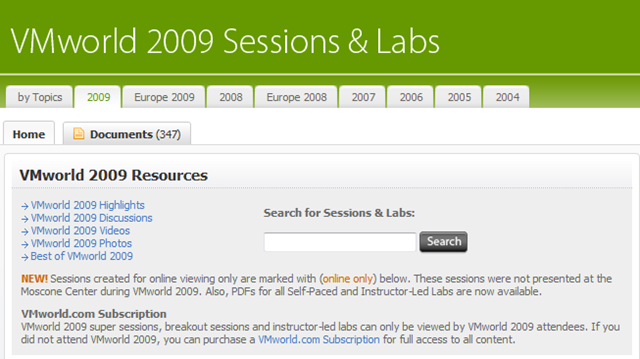
I have pasted a full list of all sessions from VMworld 2009 US below – please don’t ask me to post the sessions online, this is explicitly forbidden as you’d expect – if you want the content I’m afraid you’ll have to pay – click the graphic below (but it’s excellent value IMHO

Note: you’ll need a vmworld.com account to view the session details linked below (it’s free and can be done here)
Super Sessions
|
SS4880 |
NetApp: Clear up the Cloud – Key Infrastructure Requirements and Real-World Implementations |
|
SS5000 |
Dell: How to Get Ahead in the Cloud With Your Feet Planted Firmly on the Ground |
|
SS5001 |
VMware: Extending Your IT Beyond the Datacenter: The vCloud Initiative |
|
SS5081 |
Wyse: Desktop Virtualization / Cloud Computing: We Did It – Here’s How and What we Learned |
|
SS5082 |
Cisco and VMware: Delivering Innovation for Virtualization |
|
SS5120 |
IBM: What You Need to Know to Virtualize Today’s Data Center |
|
SS5121 |
Intel: Technology transformations central to the evolution of flexible computing |
|
SS5140 |
EMC: Infrastructure Architectures Purpose Built for the Virtual Datacenter |
|
SS5160 |
HP: Stop Virtualizing Servers, Start Virtualizing Infrastructure |
|
SS5220 |
Symantec: Complete the Promise of Virtualization |
|
SS5240 |
VMware, Cisco and EMC: Engineering Developments Enabling the Virtual Datacenter |
|
SS5241 |
|
|
SS5440 |
VMware: Enabling Better Business Outcomes with Policy-Driven Service Level Management |
Business Continuity & Disaster Recovery
Business Workshops
|
BW4740 |
|
|
BW4741 |
|
|
BW4742 |
|
|
BW4743 |
Desktop Virtualization
Enterprise Applications
Technology and Architecture
Virtualization 101
|
V11721 |
|
|
V12226 |
Building a High Availability and Disaster Recovery Solution with VMware |
|
V12644 |
Designing a Virtualization Infrastructure for the Small Environment |
|
V12789 |
VMware vCenter Converter 101 (online only)* |
|
V13100 |
The VMware Competitive Advantage – A Comparison of Server Virtualization Offerings |
|
V13226 |
|
|
V13227 |
|
|
V13229 |
|
|
V13395 |
Getting to Yes! Keys to Launching a Successful Data Center Virtualization Program |
|
V13478 |
Executing Enterprise Virtualization – Continuing Case Study with USMC |
|
V13496 |
VMware vSphere and VI Best Practices – Tips and Tricks (online only)* |
|
V13760 |
Virtualization Management
Instructor-Led Labs (PDFs only)
|
LAB01 |
|
|
LAB02 |
|
|
LAB03 |
|
|
LAB04 |
VMware vSphere 4 – Performance Optimization & Troubleshooting |
|
LAB05 |
VMware vSphere 4 – Security Hardening & Best Practices (vShield Zones) |
|
LAB06 |
|
|
LAB07 |
|
|
LAB08 |
|
|
LAB09 |
|
|
LAB10 |
|
|
LAB11 |
|
|
LAB12 |
Self-Paced Labs (PDFs only)
|
SPL13 |
|
|
SPL14 |
|
|
SPL15 |
|
|
SPL16 |
VMware vCenter Site Recovery Manager (SRM) Basic Install & Config |
|
SPL17 |
|
|
SPL18 |
|
|
SPL19 |
|
|
SPL20 |
|
|
SPL21 |
|
|
SPL22 |
|
|
SPL23 |
I wasn’t able to to go VMworld US in person this year because my wife and I were expecting a baby at that time, but luckily I received a VMworld subscription from VMware as a benefit of the vExpert programme; had I not I would have probably shelled out of my own pocket for one.
Justifying the spend
Whilst we seem to be slowly emerging from the economic apocalypse of the last 18 months it’s still very hard to get sign-off to attend such events in person and too many org’s treat VMworld/Tech-Ed as marketing type events – unless you are a vendor with a stand this couldn’t be further from the truth – these conferences are primarily technical training boot-camp camps, with some networking and general trade show features thrown in. However, they are what you make of them – the onus is on you to hunt down the sessions/track or people you are interested in – nobody drives your schedule but you – non self-starters need not apply.
I use the following analogy – which applies equally to Microsoft Tech-Ed and VMworld (..and I’m sure Oracle World, Apple World, etc.)
A typical 5-day technical training course on an individual product (Exchange, ESX, Windows 2008) in the UK will cost in the region of £1,500-3,000 GBP and those 5 days will be slow-paced (9.30 –> 4.30pm affairs). The course content and material has to cater to the lowest common denominator delegate, for a geek/experienced tech this can make for frustratingly slow progress and means you only cover a very narrow technical focus, or broad high-level overview – you can’t easily dive in and out of the bits that are relevant to you with a traditionally delivered course and even the best instructor in the world can’t dedicate that much time to you in a classroom environment.
So compare that training course is £2-3000 + travel + accommodation + time out of the office to VMworld (for example..), even at the most expensive register on-site on the day prices
- VMWorld Full Conference Pass* 1,260 EUR (£1,176 GBP at current exchange rate) (Tech-Ed 5 days c.£2000 full price* ticket)
- Travel (airfare from most of continental Europe, economy/flexible flight) c.£400**
- Hotel (normal business hotel, 4 nights) £900**
+Access to on-demand streamed and downloaded content following the conference (access allowed until the next VMworld) included
+Lunch/breakfast usually included
+Networking opportunities, access to product teams and managers included
+trade show with relevant vendors/suppliers included
+bag and pen included (ok, I’m struggling with that one! :))
note:
*Early registration attracts a large discount on the full conference pass – look for “early bird” tickets which can knock a significant percentage off the full price
**If you are prepared to “slum” it with budget airlines and hotels this is significantly cheaper.
Prices for reference:
With Microsoft Tech-Ed they usually give a complimentary Technet Direct subscription – which is worth hundreds of pounds on it’s own and gives you multiple copies of almost every Microsoft product for your own use.
So if you look at it pragmatically – VMworld/Tech-Ed give you the flexibility to tailor your content to what is important to you; as well as the ability to take all the information away with you to review online post-conference (even for the sessions you didn’t make in person)
With a training course you walk away with a nice certificate, some spiral bound manuals and if you are lucky – a pen 🙂
And they both come out to roughly the same price.
I’m not saying this is for everyone – you need to be a self-starter to make the most of these conferences, and if you do a limited scope day-job and that is all you are interested in doing, traditional training courses are probably your best bet but for those of us that work as consultants or want to broaden our horizons – go for it!
My write-ups of previous VMWorld and Tech-Ed events can be found at the following links:
Tech-Ed EMEA 2008
https://vinf.net/2008/10/31/off-to-microsoft-teched-emea-2008/
https://vinf.net/2008/11/04/teched-emea-2008-it-pro-day-1/
https://vinf.net/2008/11/04/teched-emea-2008-it-pro-day-2/
https://vinf.net/2008/11/06/teched-emea-2008-it-pro-day-3/
https://vinf.net/2008/11/06/teched-emea-2008-it-pro-day-4/
https://vinf.net/2008/11/07/teched-emea-2008-it-pro-day-5/
VMworld Europe 2009
https://vinf.net/2009/02/23/vmworld-partner-day-keynote/
https://vinf.net/2009/02/24/vmworld-partner-day-wrap-up/
https://vinf.net/2009/02/24/vmworld-europe-day-1-keynote/
https://vinf.net/2009/02/24/dc02-best-practices-for-lab-manager-vmworld-europe-2009/
https://vinf.net/2009/02/24/dc14-overview-of-2009-vmware-datacenter-products-vmworld-europe-2009/
https://vinf.net/2009/02/24/vmworld-europe-day-1-wrap-up/
https://vinf.net/2009/02/24/vmware-client-hypervisor-cvp-grid-application-thoughts/
https://vinf.net/2009/02/25/vmworld-europe-day-2-keynote/
https://vinf.net/2009/02/25/how-vmware-it-use-vmware-internally/
https://vinf.net/2009/02/26/hands-on-lab-01-vsphere-features-overview/
https://vinf.net/2009/02/26/hands-on-lab-12-cisco-nexus-1000v-switch/

 Virtualization, Cloud, Infrastructure and all that stuff in-between